Branding script is a special JavaScript file that is loaded for every reader-facing page. This means that you can implement some advanced logic with it like Redirect from the home page to a specific URL.
First, you will need to create the script file and then specify it in the portal settings.
- Open the File Manager and switch to the Scripts tab.
- Click Create New File. The Script Editor will open — close it; for now, we do not need to edit the script.
- In the File Manager, you will see a script named NewScript.js. Rename it by hitting F2 on your keyboard or the corresponding button on the panel in the File Manager. Name this file however you see fit, but we suggest giving it the obvious name branding.js.
- Open the Reader Interface section of the portal settings, and on the right-hand side, click into the Portal Branding script field and start typing the name of the file. Your newly created file will come up.
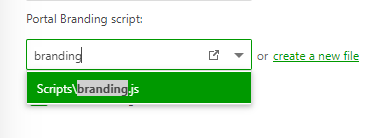
- Click on the file name in the dropdown to select the file you have created.
- Click Save Changes in the upper-right corner of the screen.
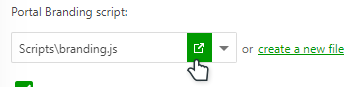
That's it. Now the branding script is active for your portal. Of course, you will now need to fill it with the actual JavaScript for it to do anything. Simply click the little Open file in new window button on the same screen to open it in the Script Editor:
Alternatively, you can open the file for editing from the File Manager.