Expanding the Reader Feedback Widget functions by adding an email link for getting extra feedback from your users will allow you to receive not only a plain number as feedback but also additional reasoning for the vote.
To add the feedback link to the Reader Feedback Widget, follow the steps:
- Go to the Reader Interface section of your portal’s settings, and open the Portal Branding script file for editing (you will need to create one if you don’t have it):
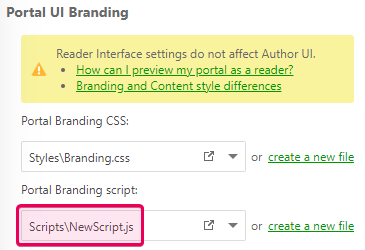
- Paste the following code there, specify the email address you want the feedback to be sent to and save the file:JavaScript
// Declare event handler
function appendEventHandler(node, type, handler, disconnect) {
    function wrapHandler(event) {
        handler(event || window.event);
    }
    var wrapHandler = handler;
    if (typeof node.addEventListener == "function") {
        node.addEventListener(type, wrapHandler, false);
        if (disconnect) return function () {
            node.removeEventListener(type, wrapHandler, false);
        };
    }
    else if (node.attachEvent) {
        node.attachEvent("on" + type, wrapHandler);
        if (disconnect) return function () {
            node.detachEvent("on" + type, wrapHandler);
        };
    }
}


// Call function on window onload with eventhandler
appendEventHandler(window, "DOMContentLoaded", function () {
    var feedbackWidget = document.getElementsByClassName("ArticleEditor_readerFeedbackContainer");
    if (feedbackWidget.length != 0) {
        feedbackWidget[0].appendChild(CreateFeedbackLink());
    }
});

function CreateFeedbackLink() {

    // Create link element.
    var a = document.createElement('a');

    // Create the text node for link element.
    var link = document.createTextNode("Submit feedback");

    // Append the text node to link element.
    a.appendChild(link);

    // Set the title.
    a.title = "Submit feedback";

    // Set the email and add a subject, referencing the current URL of the page the user triggered this link from.
    a.href = "mailto:someone@yoursite.com?subject=Feedback on topic: " + window.location.href;

    // Set the class.
    a.className = "feedback-link";

    return a;
} - Return to the Reader Interface section of your portal’s settings and open the Portal Branding CSS file for editing:
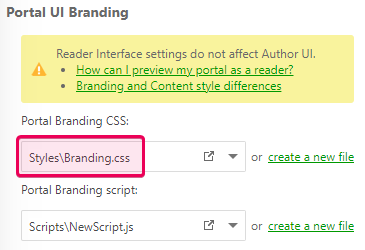
- Paste the following code there:CSS
.feedback-link {
  display: block;
}
After that, you will get a Submit feedback email link added to the Reader Feedback widget, like this: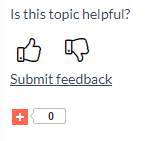

|
Note |
| The email link has its own custom CSS class, so you can style it the way you want. | |