Since the source of the topic in ClickHelp is HTML, the default look of nested ordered and unordered lists may be different from what you can see in applications like MS Word.
The marker type of list elements is defined by the application but can be overridden with the project's CSS. Precisely speaking, the list-style-type CSS property.
By setting up the custom styles you can set different marker types for different list levels. Or you can create new CSS classes with specific values of the list-style-type property and apply them only to certain lists.
Let's review both cases.
Automatic marker type changing
The default CSS that is applied to all lists looks like this:
View Code
CSS |
/* Nested ordered list styles */ |
And this is what ordered and unordered lists look like by default:
Ordered
- Level 1, item 1
-
Level 1, item 2
- Level 2, item 1
-
Level 2, item 2
- Level 3, item 1
- Level 3, item 2
- Level 3, item 3
- Level 2, item 3
- Level 1, item 3
Unordered
- Level 1, item 1
-
Level 1, item 2
- Level 2, item 1
-
Level 2, item 2
- Level 3, item 1
- Level 3, item 2
- Level 3, item 3
- Level 2, item 3
- Level 1, item 3
If you want to change a marker type of a certain level, you can do so by changing the list-style-type property value of the corresponding selector to one of the many available values.
Change markers types for certain lists
If you don't want to change the default lists behavior and only want to use a specific styling for a single list, you can create a special CSS class and apply it to the desired list:
-
Add a new class to the Style.css:
CSS.roman-list {
list-style-type: lower-roman;
}
This class, when applied to a list, will make it use lowercase roman numerals instead of current markers. -
In the editor, select the list you wish to apply this class to in the tag inspector. In this example, we're applying the class to the second-level list:
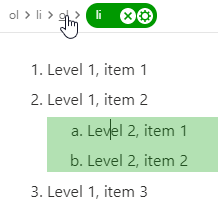
-
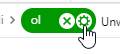
After selecting it, open its properties by clicking the properties button in the tag inspector:
-
Switch to the Style Settings tab, click into the CSS Class input field and select your newly created roman-list class.
- Click OK.
You will immediately see that the list style type has changed.