It's possible to create custom HTML pages in ClickHelp by utilizing topics for this purpose. Since topic content is HTML, you can use anything HTML and CSS (and more, since topics support ClickHelp-specific elements as well) provide to create custom layouts.
But when you want to create a custom page, you typically do not want the Reader Interface to be a part of it — the TOC, the breadcrumbs, mini-TOC, etc. ClickHelp allows you to disable all of the UI, leaving only the topic content.
What you need to do is create a dedicated project that would have all of the Reader UI disabled in its settings and then create a separate topic per custom page. Here's what you need to disable in the Reader Interface settings:
- Application header — uncheck the "Show header" checkbox
- Right sidebar — uncheck the "Show sidebar" checkbox
- Navigation panel — uncheck the "Show the navigation panel (TOC, index)" checkbox
-
Topic viewer elements:
- Uncheck the "Show topic title" checkbox
- Uncheck the "Show the 'Updated on' information" checkbox
- Uncheck the "Show time to read" checkbox
- Topic viewer header — uncheck the "Show topic header in the Topic Viewer" checkbox
- Optionally, uncheck the "Limit content width" checkbox or set the width limit to your liking
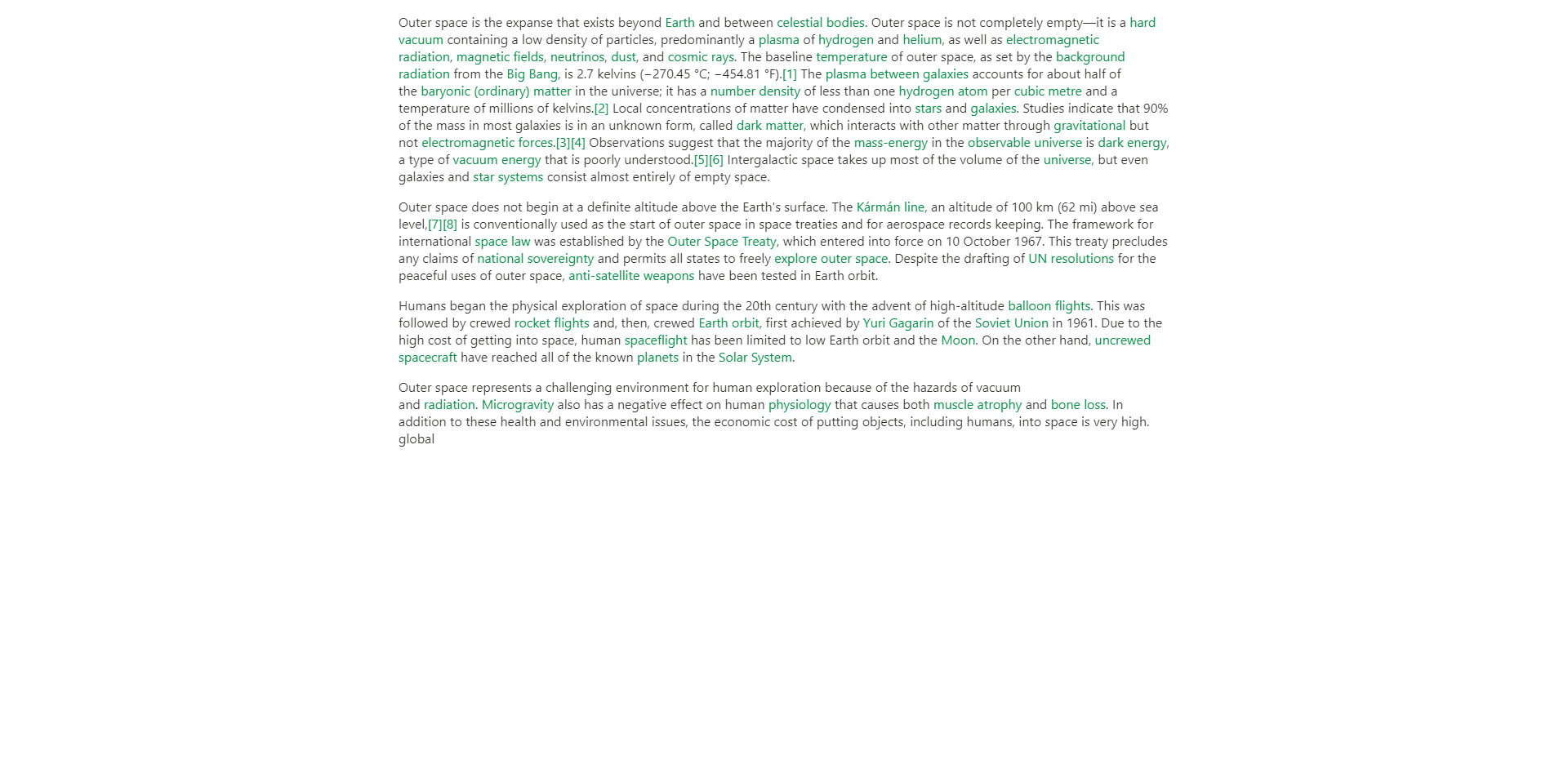
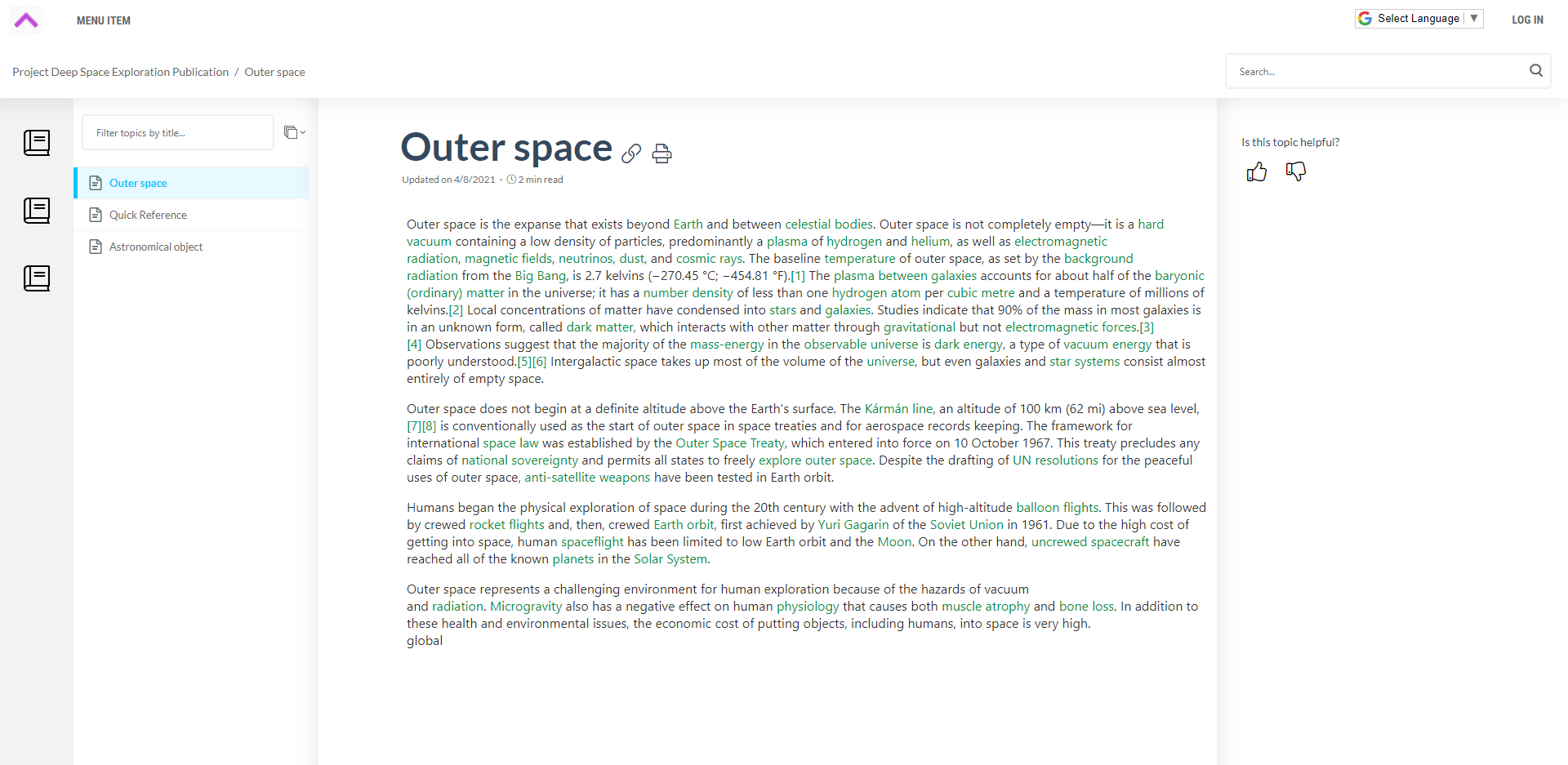
Here's how it looks:
Topic as seen with the default Reader UI settings
Topic as seen with all Reader UI disabled