Google Forms is free online software that allows you to create surveys and questionnaires. It's a part of Google's web-based apps suite that includes Google Docs, Google Sheets, and more.
You need a Goggle account to make a Google Form, but you don't necessarily need an account to fill one out.
Here are the steps to embed a Google Form into your ClickHelp documentation:
- Open the Google Forms with your Google account.
- Create a Form from scratch or start with one of the templates.
- Go to the Form Settings and adjust them according to your needs.

Important If you're using Google Workspace or Google for Education, pay attention to the Requires Sign In settings section since it can limit access to your Form for users outside your organization. Read more about it below and in official Google Help. - Click the Send button on the right top of the page.
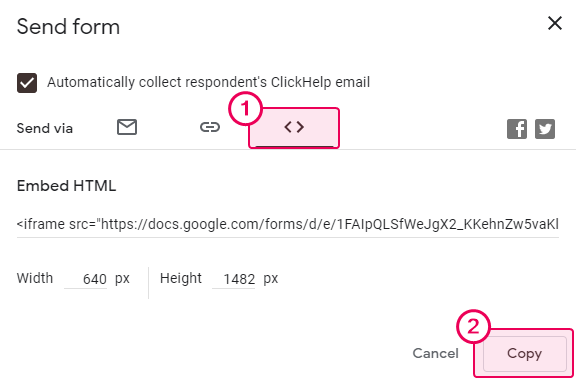
- Navigate to the Code tab and click the Copy button.
- Go to your ClickHelp portal and open the topic where you want to insert the form.
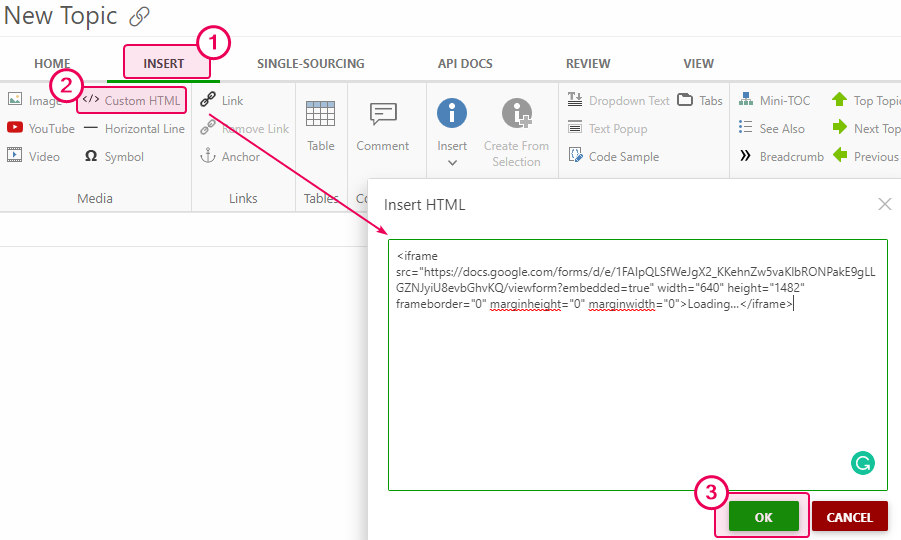
- Click Insert → Custom HTML on the ribbon bar and insert the copied code. Press OK.
That's it! The Google Form is now a part of your content.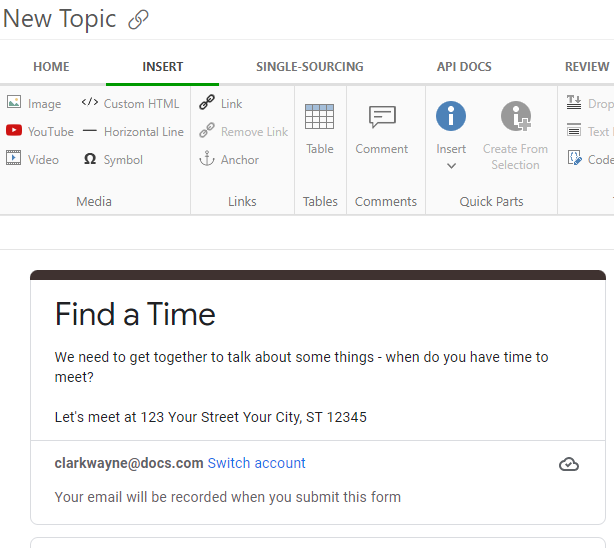
Embed Goggle Form Created With a Google Workspace or Google for Education Account
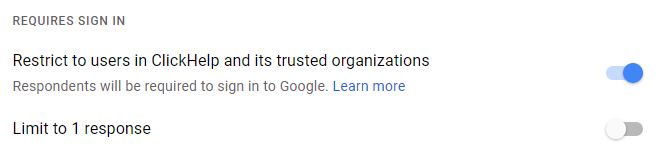
Switching off both settings in the Requires Sign In section means that your respondents won't be required to sign in to Google.
Enabling Restrict to users... setting will show the Form for you in the browser session where you are authorized with your corporate Google account. But as soon as you try to view it in incognito mode (to preview the publication), you will see the following error:
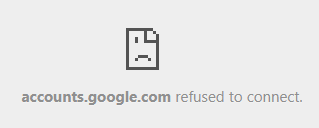
Unless they belong to your or one of the trusted organizations, your readers will see the same error instead of the form.
Viewing the same publication from another browser where you're authorized with your personal Google account will show a different error, saying that the Form is available under the corporate domain only.

|
Note |
| Forms created with a personal Google account do not have this setting and these kinds of restrictions. | |