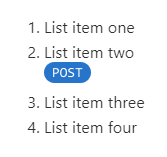
If you need to insert an image into a list, you need to insert it into a new line. You can learn how to make new lines within list items in the following topic: Make a new line within a list item. Here is the recommended way of inserting an image or a video into a list:
- Place the cursor at the end of a list item and hit Shift+Enter (Shift+Return) to make a new line within the same list item.
- On the ribbon, click the corresponding button to insert an image or a video.
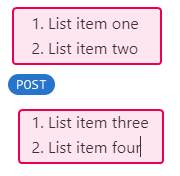
If you hit Enter (Return) twice instead, insert an image, and then try and continue your list, you will insert the image/video outside of the list. Moreover, you will end up with two separate lists and an image in between:
 | Note |
| You can use the start attribute in the list's properties to continue the enumeration from the number 3, but it will be harder to maintain larger lists this way, as the following lists do not adjust to the changes in the previous lists. If you, for example, add a few points to the first list, the second would continue from the number 3 anyway. | |