Sometimes, after you insert your image into ClickHelp, you can notice that the quality of an image changes, and it becomes blurry. Mainly it's noticeable with images that have text in them:
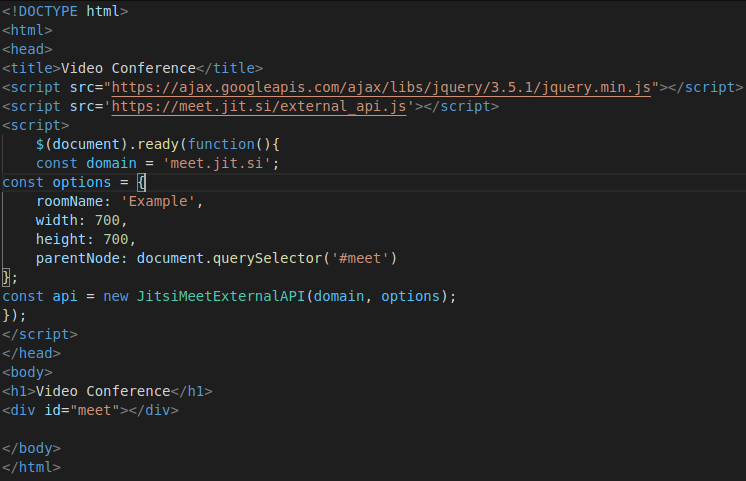
The actual image doesn't lose quality. Only the representation you see on the screen is shown with a seemingly decreased quality. This happens because we've resized the image, and the browser doesn't render it in its original size. This also occurs when the image is too big to fit into the view in the Reader UI or the preview area in the Author UI, it gets downsized. A similar blurriness may appear when the image is upscaled.
It's not ClickHelp's peculiarity. You will see the same behavior with any other web-based tool where you can resize images, even if you try to resize the image in an office program like MS Word or any graphic editor like Photoshop.
This is normal behavior for raster images, and it's especially noticeable for those that contain text. You can find a lot of questions like this on google, for example:
- Scaling image in gimp without losing definition of characters - Graphic Design Stack Exchange
- Adobe Photoshop - How Do I Resize An Image Without Ruining Text? - Graphic Design Stack Exchange
- Post-processing - Why does text in a photograph become blurry when I downscale the image? - Photography Stack Exchange
The answers come up to the same thing: if you work with raster graphics, it's an unavoidable process as when you physically resize a picture, either in the photo editor or when scaling it with CSS properties, it undergoes processing by the corresponding algorithms of photo editor (or browser engine in case of resizing by CSS) which often seemingly ruin the picture quality.
You can find recommendations, like here, to use Lanczos algorithms (should be available in Gimp) or Bicucbic optimized for a reduction in Photoshop when you resize images in photo editors. This way, you will need to resize each image to the required width and height before inserting it to ClickHelp.
But since it's not always possible to resize images to fit all the browser sizes, especially considering endless variations of screen sizes and resolutions, it may be a good idea to make images clickable. Insert a link to the image, linking to the same image as the file, and make it open in the new tab. This way, when someone clicks this image, it will open in the new tab in its full size. You can see an example of such approach at the beginning of this article.