Font Awesome is the web's most popular icon set that you can use in your topic's content, such as a part of the infoboxes. Let's look at how you can connect it to your ClickHelp portal.
How to Implement
First, you need to visit the Font Awesome's Start page. At the very top, enter your email and press the Send Kit button.
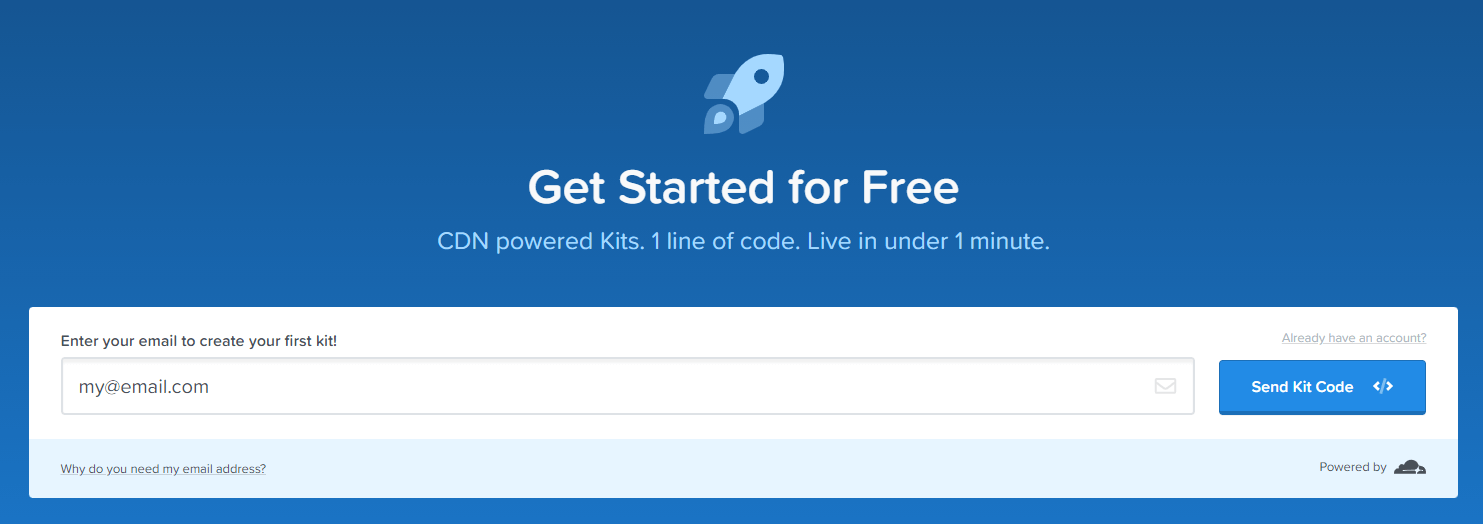
Confirm your email if necessary. After creating the account, you will end up on the kit configuration screen.
- Copy Kit Code by pressing the corresponding button.

- In your portal, open Master Page Settings.

Tip Whether you want to apply Font Awesome to all of your projects or only a single project, you will need to open either the Portal Master Page settings or the Project Master Page settings.
-
Paste the Kit Code into the Additional tags section.
Save changes.
How to Use
First, you will need to find the icon you want to use by using the search functionality on the Font Awesome website.

|
Important |
| There are free and paid icons. If your Font Awesome plan does not include paid icons, you will not be able to use them in ClickHelp. ClickHelp pricing plans do not influence Font Awesome icons availability. | |
After you have found the icon you need, click it to open the details. Then, on the icon page, find its HTML code and click it to copy it.
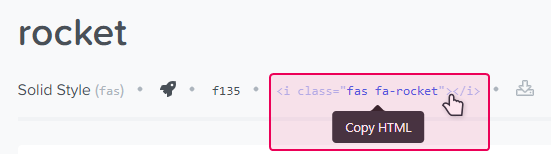
In ClickHelp, go to the Source Mode of the Topic Editor and paste the code to the desired location. Then, unlock the topic to see the icon in place.

|
|
Tip |
| For even quicker access to icons without the need to dive into the Source mode each time, you can create Quick Parts for the icons or elements using these icons and then qucikly insert them from the Design mode. | |