AnswerGenius is an intelligent digital assistant in the form of a chatbot that understands natural language and can respond accurately and promptly to reader inquiries. It provides direct links to source information, improving documentation discoverability and potentially increasing customer support efficiency by guiding users to the answers they need.
AnswerGenius functionality is also available via API, allowing integration into custom applications. For detailed information, refer here: API AnswerGenius. Additionally, you can embed the AnswerGenius widget directly into your website or application to provide answers from your documentation. For detailed instructions on embedding, see: Embed AnswerGenius into a Website or Application.
AnswerGenius is a part of the AI Suite add-on.
Enable AnswerGenius
To enable the AnswerGenius widget:
- Go to Settings.
- Select AnswerGenius → Portal widget.
-
Enable the Show the AnswerGenius widget for readers in publications checkbox.
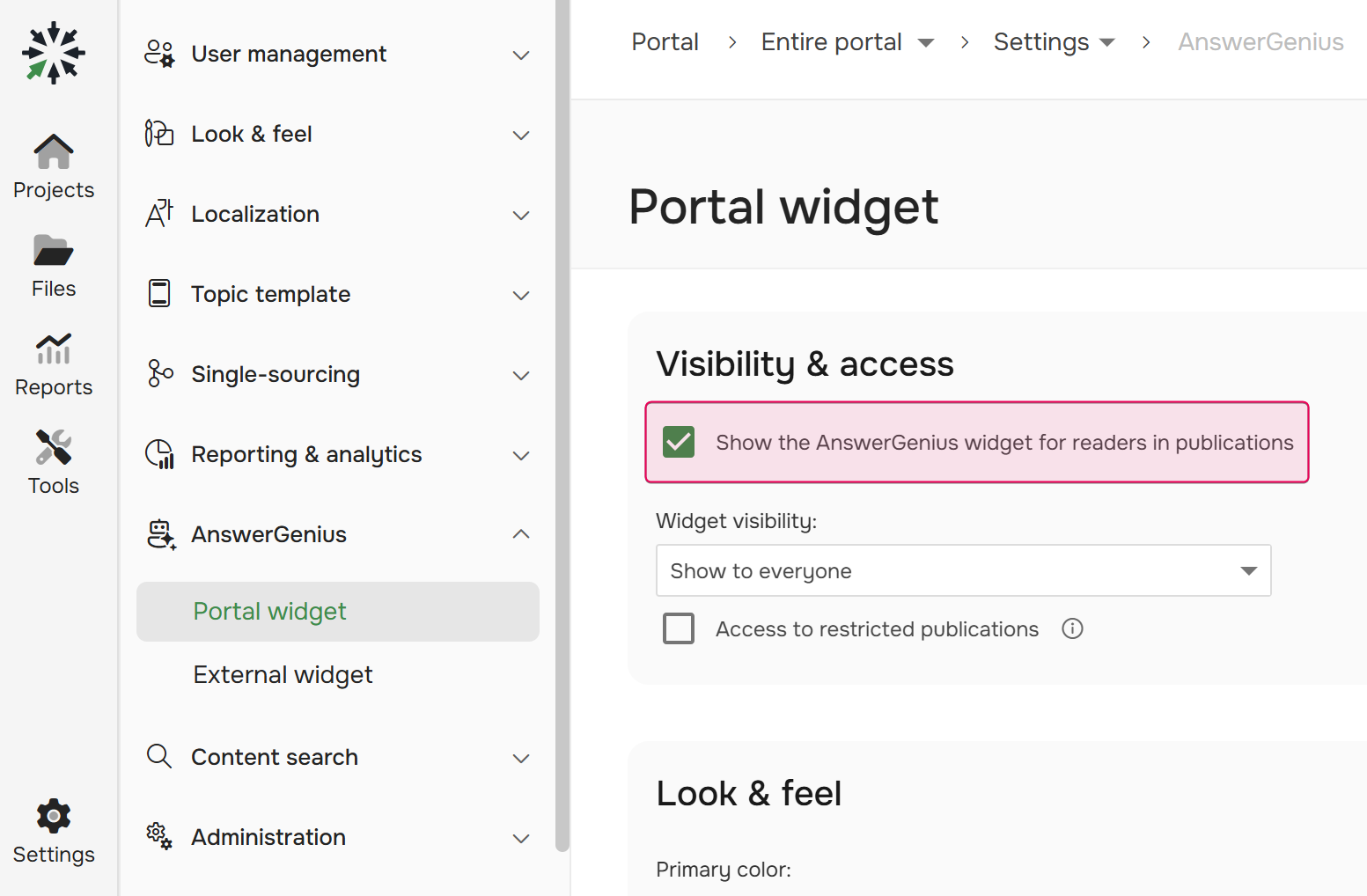
- Save the changes.
This enables AnswerGenius for public publications that are explicitly selected in the AnswerGenius settings.
The widget is shown on the Home page and publication pages to your readers. Here's how it looks for them by default:
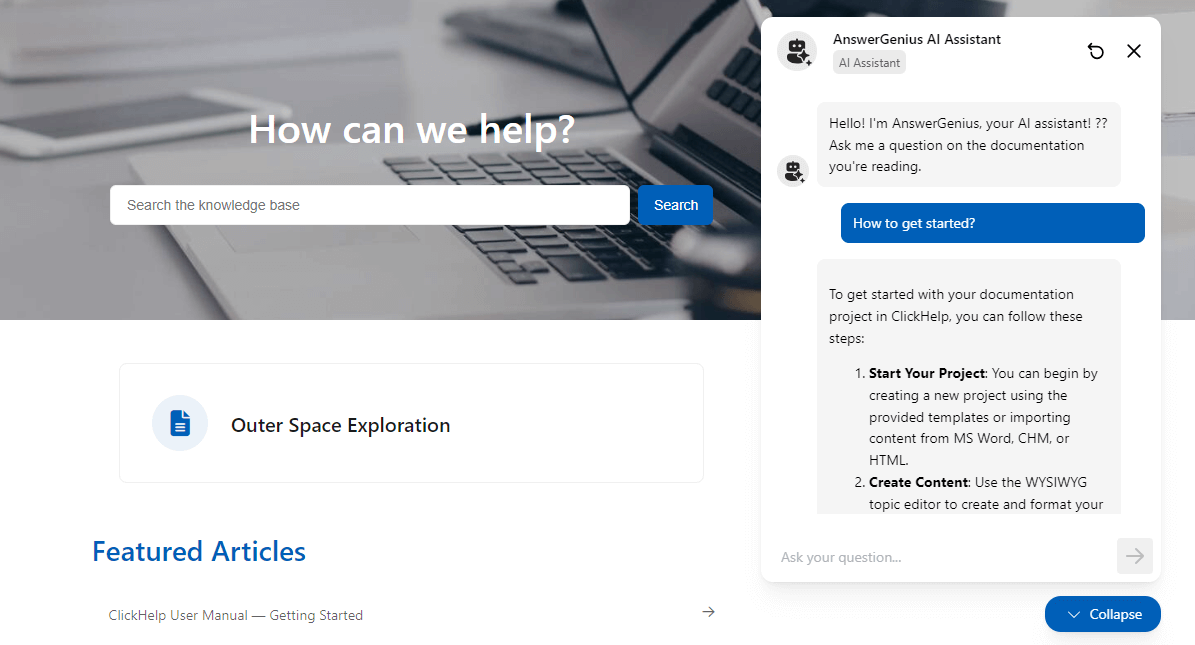
Contributors Preview
AnswerGenius is designed mostly for your readers to help them find the information they need. That's why, when you are logged in as a Contributor, you won't see the widget on the Home page and project pages.
Here's how Contributors can see AnswerGenius in action:
- Visit a publication (not a project) in the Reader Preview mode.
- Log out or use a new Incognito/InPrivate session to pretend to be an anonymous or Power Reader user.
Limits
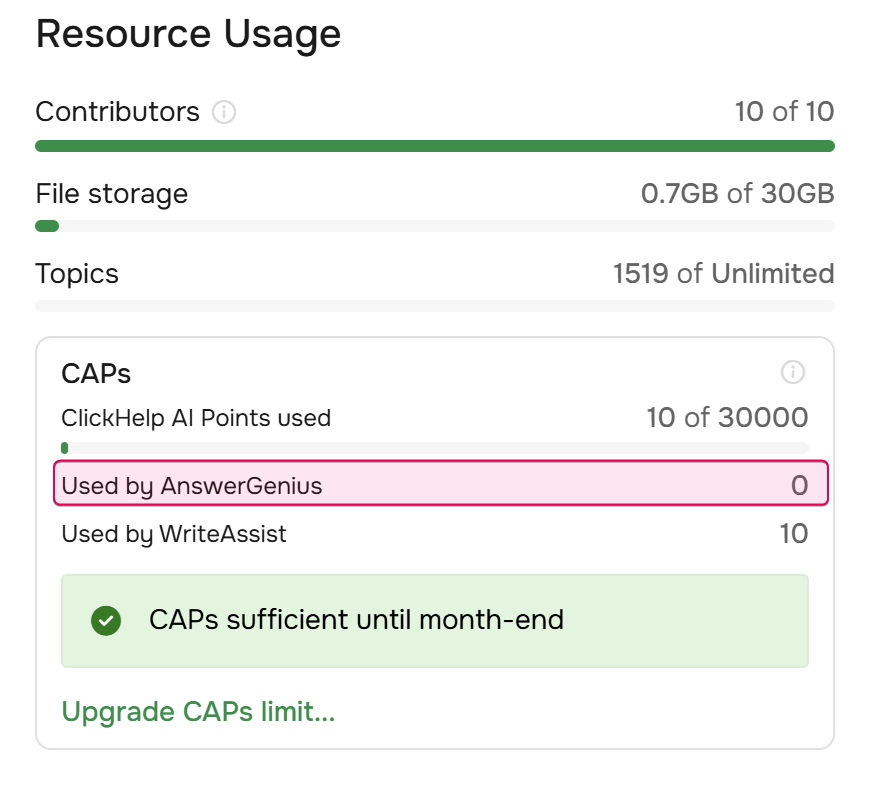
AnswerGenius is included in the AI Suite add-on and uses CAPs. CAPs consumption for AnswerGenius can be viewed on the Subscription page.
To learn more about customization, improving results and embedding AnswerGenius into a website or application, refer to the following articles: