ClickHelp provides several customization options to align AnswerGenius with your needs and audience.
Visibility & access
To allow the widget to source answers from restricted publications, enable the Access to restricted publications checkbox. Note that AnswerGenius will only provide answers from restricted publications according to the current Power Reader permissions. If a Power Reader does not have access to specific publications, AnswerGenius ignores these publications when composing a reply.
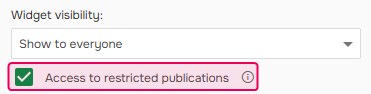
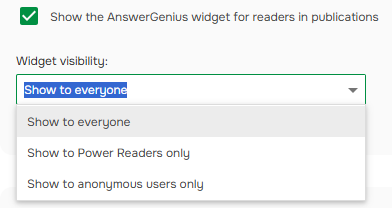
You can also control the widget’s visibility for your readers using the Widget visibility setting, which includes the following options:
- Show to everyone: The widget is visible to all visitors.
- Show to Power Readers only: The widget is shown only to Power Readers.
- Show to anonymous users only: The widget is shown only to users who are not logged in. Automatically disables Access to restricted publications checkbox.
AnswerGenius works only with publications that are explicitly selected:
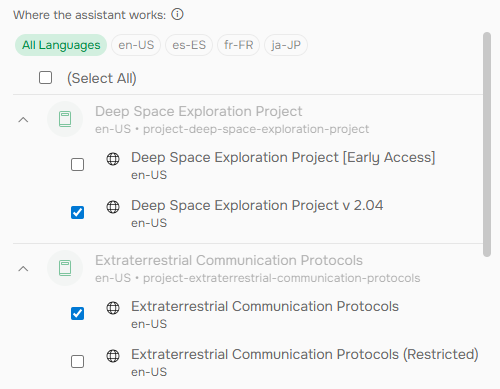
When you select a publication, the following happens:
- The widget is displayed for readers in the publication.
- The publication’s content will be used when generating answers.
If a publication is not selected, the widget will not appear in it, and its content is completely excluded from answers — even as a fallback when no relevant information is found in the publication where the user is currently chatting with AnswerGenius.
This allows you to precisely control which documentation is exposed to AI-powered search and answers.
| Note that the Where the assistant works settings are applied before the user access rules. If a publication is not selected there, its content is ignored regardless of reader permissions. |
Look & Feel
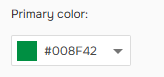
You can personalize AnswerGenius by choosing a Primary color.
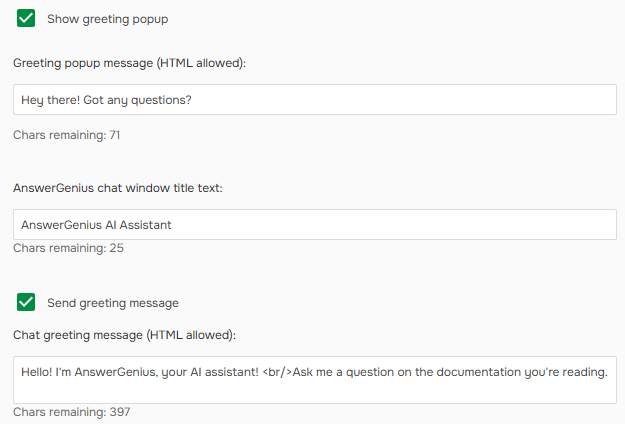
You can also customize the Greeting popup message, AnswerGenius chat window title text, and Chat greeting message using the corresponding options on the same AnswerGenius settings page:
AI behavior
For more precise control over AnswerGenius's behavior, you can configure the following additional prompts:
- Assistant persona: This information is used when users ask AnswerGenius about its capabilities. You can use it to define the assistant's name, specify your company brand, and describe its purpose and scope of knowledge.
- Terminology & context: This prompt helps customize how user queries are interpreted. It allows you to define your domain knowledge, clarify company-specific terms, jargon, or abbreviations, to ensure that user questions are understood correctly.
- Response guidelines: This prompt controls how AnswerGenius writes its final answers, including tone, style, and how to reply when no answer is found.
To get more tips about adjusting AnswerGenius results, refer to this article: Adjust AnswerGenius results.