An AI agent connected to the Authoring MCP Server can work inside your documentation the way a teammate would — reading topics, searching content, and editing them, all from plain-language instructions. The same agent your team already uses to write code or answer support tickets can keep your help content in sync, without anyone copy-pasting between tools.
This guide walks you through one real task from start to finish: finding outdated topics in your portal and refreshing them. By the end, you will have watched an agent scan your portal, point out what looks stale, and update a topic — only after you approve.
| You don't need any technical or scripting skills for this guide — just an AI tool and plain language. If you have never used an AI agent for documentation before, this is a good place to start. |
What You Can Do
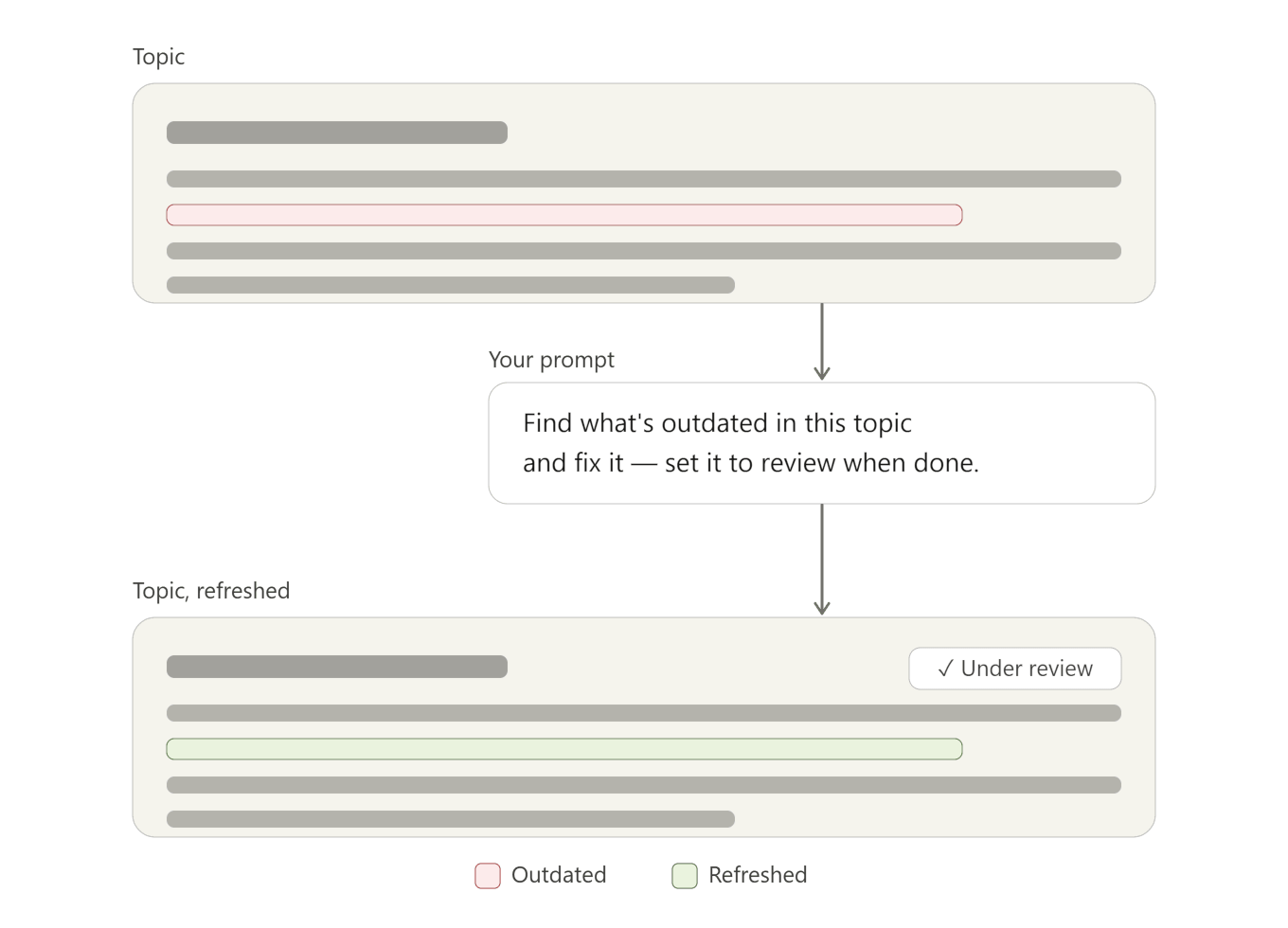
Documentation drifts out of date as the product changes — old version numbers, features that were renamed or removed, descriptions that no longer match. Finding those spots by hand across hundreds of topics is slow and easy to get wrong.
An agent connected to the Authoring MCP Server can do the tedious part for you. In this guide it will:
- Scan a project and list the topics that look outdated, with a reason for each.
- Show you exactly what looks stale in a topic you choose, and propose new wording.
- Apply the change once you approve it, and move the topic to a review status so a human signs off.
| An agent cannot delete topics — that stays a human decision. Instead, it flags what looks outdated and sets those topics to a review status, so you stay in control of what actually changes. |
This is just one scenario. For more examples — creating topics from a meeting transcript, restructuring a project by Diataxis, auditing translations, or cleaning up after a messy import — see Authoring MCP Server Use Cases.
In This Guide
Follow these three steps in order:
- Before You Start — what you need and how to set up a dedicated account for the agent.
- Connect Your AI Agent — point your AI tool at your portal.
- Complete the Task — the prompts to find and refresh outdated topics.