This topic describes how to create a copy of a project in ClickHelp. This can be useful for the following situations:
- for "branching" project for the new version of your software;
- for creating a project backup;
- for changing the URL of your project (link to a project).
| When you copy a project, topics don't inherit the version history from the source topics. The publications and language versions are not copied either. |
To copy a project:
- Go to the Projects page and hover over the project card.
- Click the More (···) button.
- Select Duplicate from the popup menu.
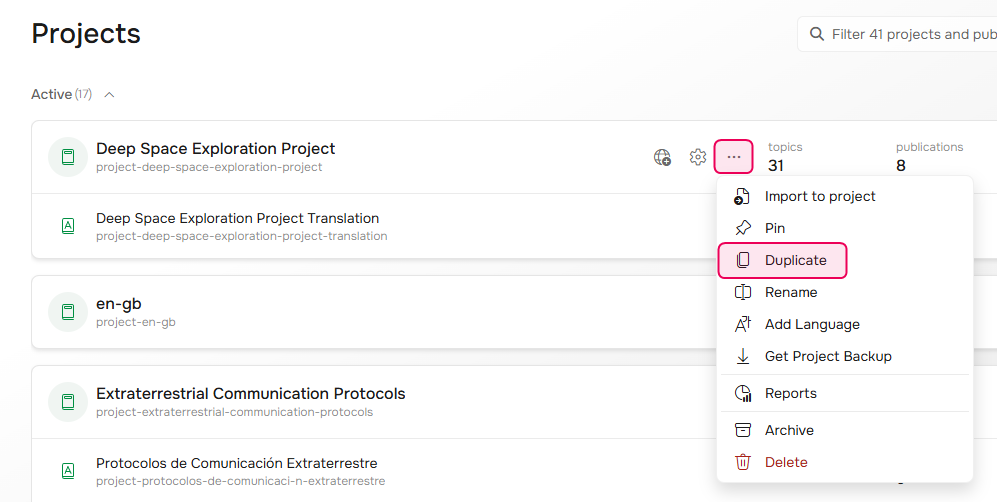
- The Duplicate Project Wizard will open. Click Next.
- On step 2, specify the name and ID of your project copy.
- Specify whether to preserve workflow fields and copy files from the original project by selecting corresponding checkboxes.
- Select whether the current project script and style files should be duplicated as well by selecting corresponding options.
- Click Next.
- Click Next once the duplicate process finishes.
- Step 4 displays all the necessary information on the newly created project copy. Click
Finish.