You can customize the headers and footers used in export presets by editing the Word template.
Open the Word Template
You can open the template either from an export preset or directly from the File Manager.
Export Presets
You can open the Word template while editing any export preset where it's used.
| The changes in the Word template will apply to all the export presets that use it. |
To access the template:
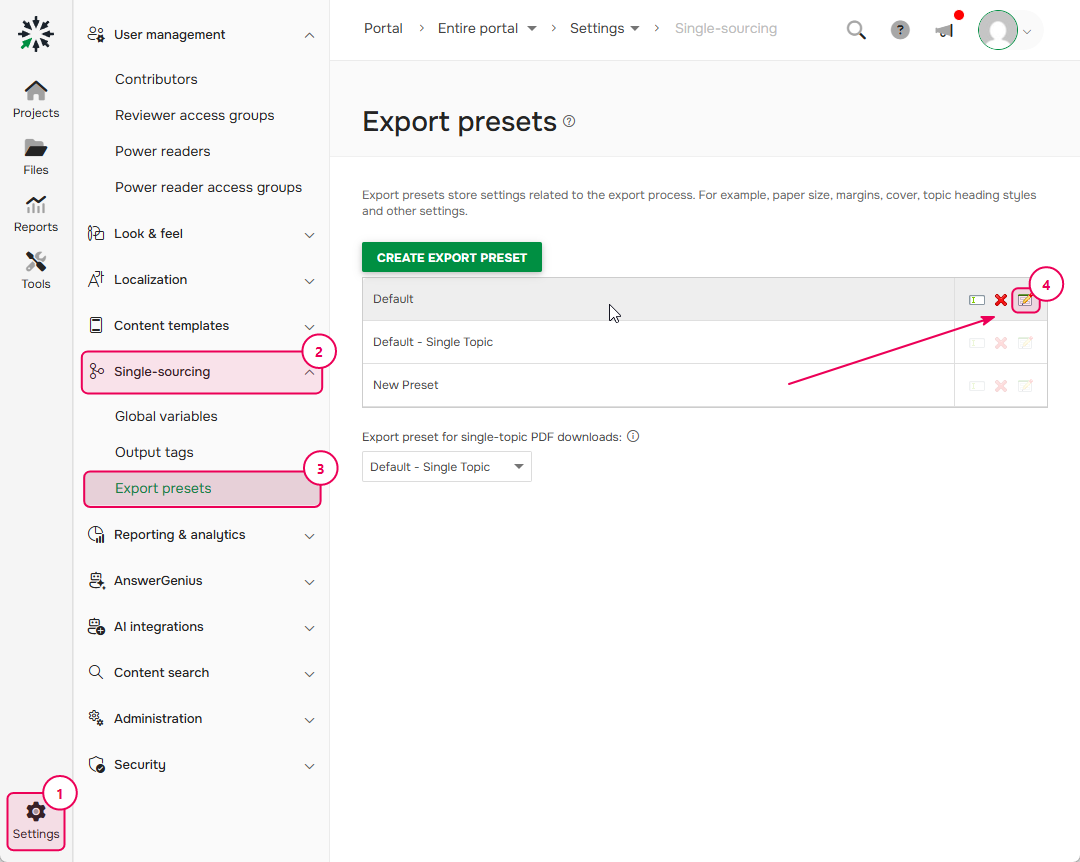
- Open Settings → Single-sourcing → Export presets.
-
Click Edit next to the required preset.
-
In the side panel, click Edit Template.
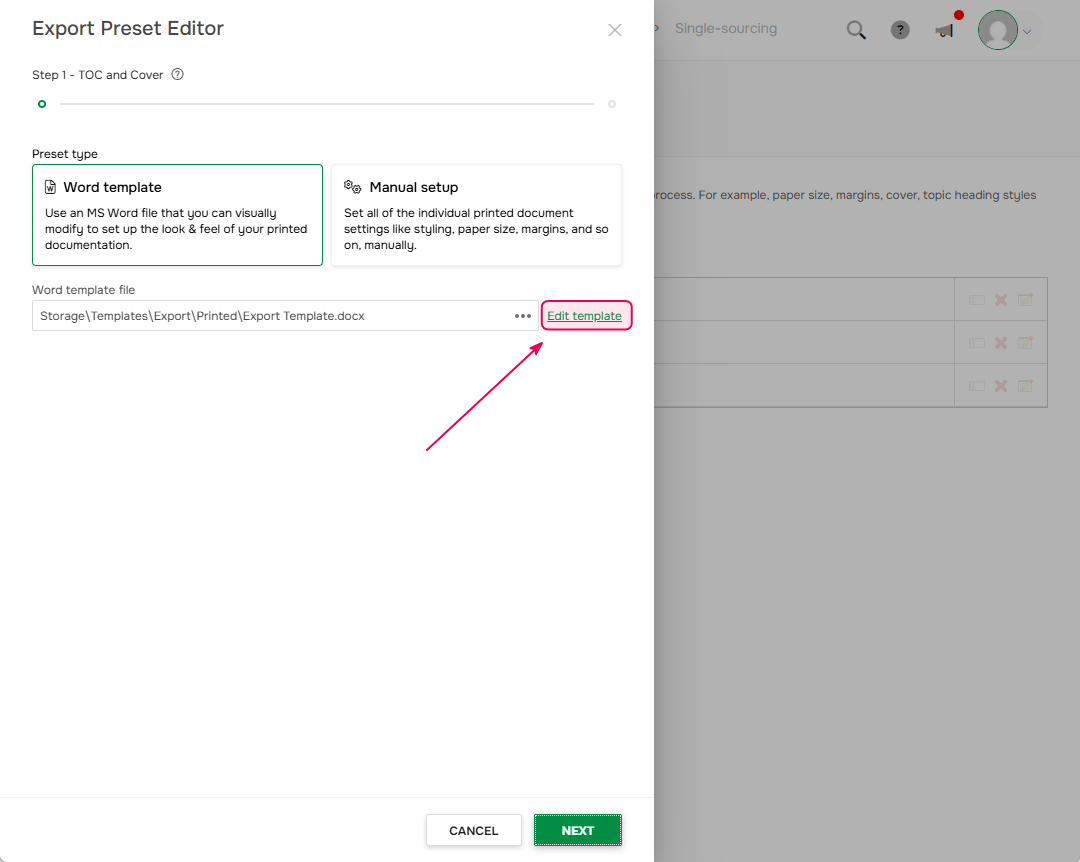
- Click Edit.
File Manager
You can also open the template directly from storage.
- Open File Manager.
- Find the template. By default, Word templates are stored in Templates → Export → Printed, although they may be stored elsewhere if you uploaded them manually.
-
Select the template and click View File.
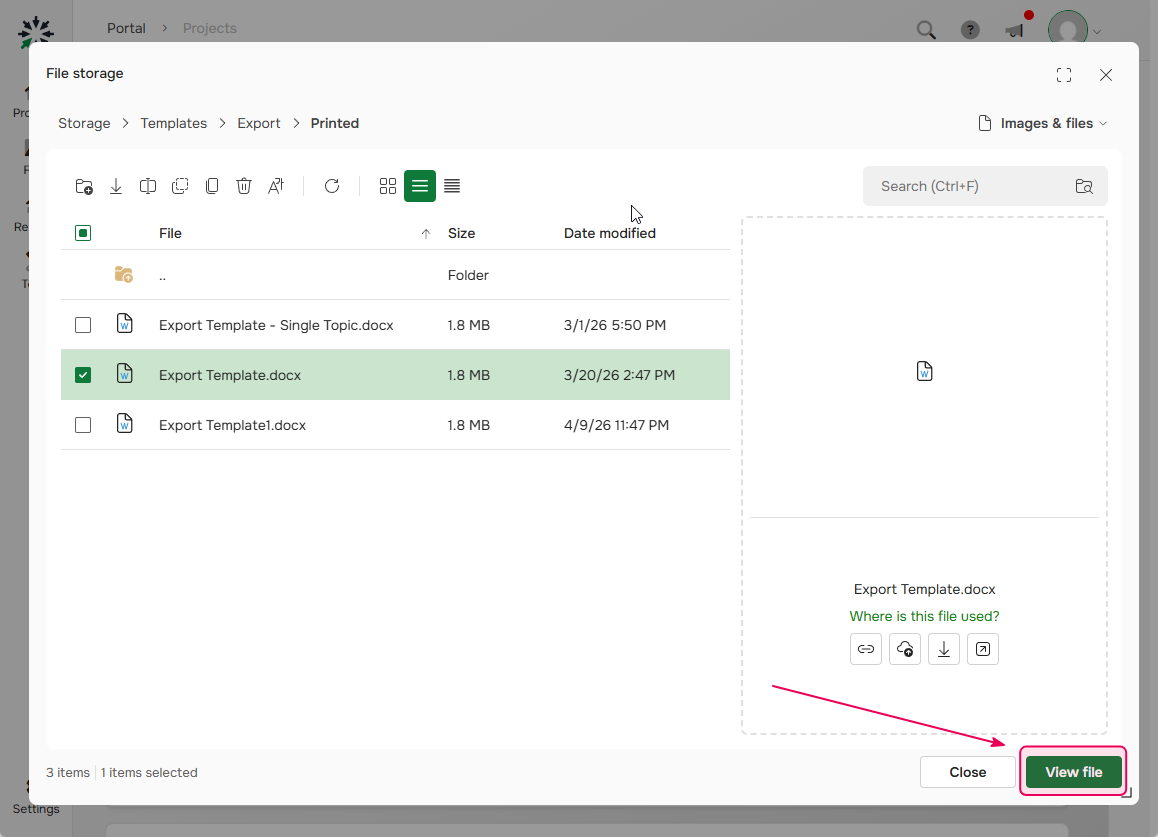
- Click Edit.
Navigating
To edit a header or footer:
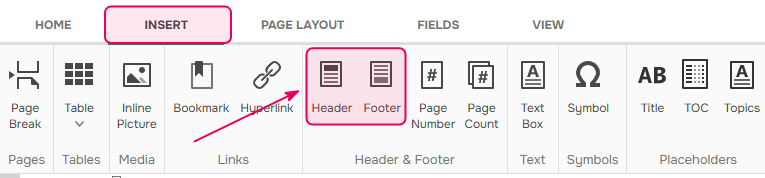
- Open the Insert tab.
- Click Header or Footer.
While editing, you can:
-
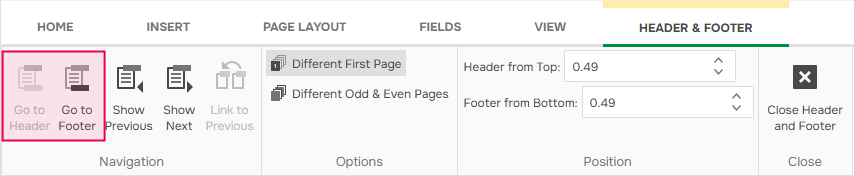
switch between the header and footer using Go to Header or Go to Footer;
-
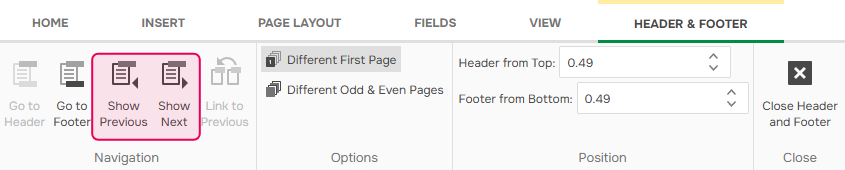
move between different sections using Show Previous and Show Next;
-
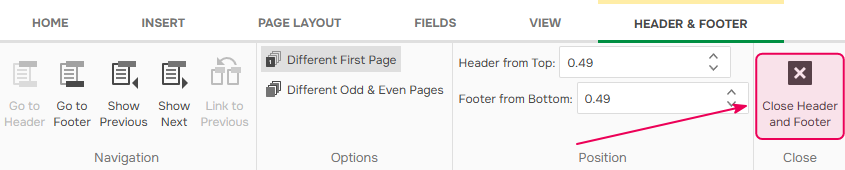
finish editing by clicking Close Header and Footer.
Organize the Layout
Tables are the easiest way to organize content inside headers and footers.
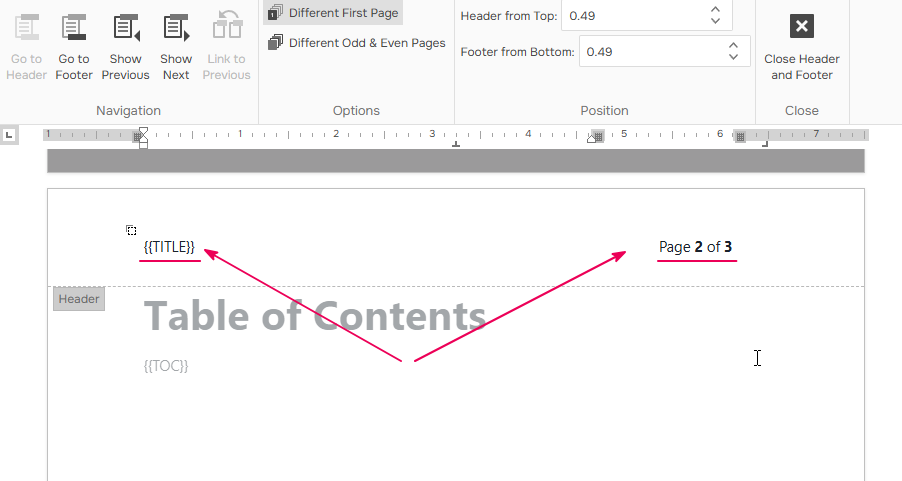
For example, the default template's header uses a two-column table to place content on the left and right sides of the page.
To create your own layout:
- While editing the header or footer, open the Insert tab.
-
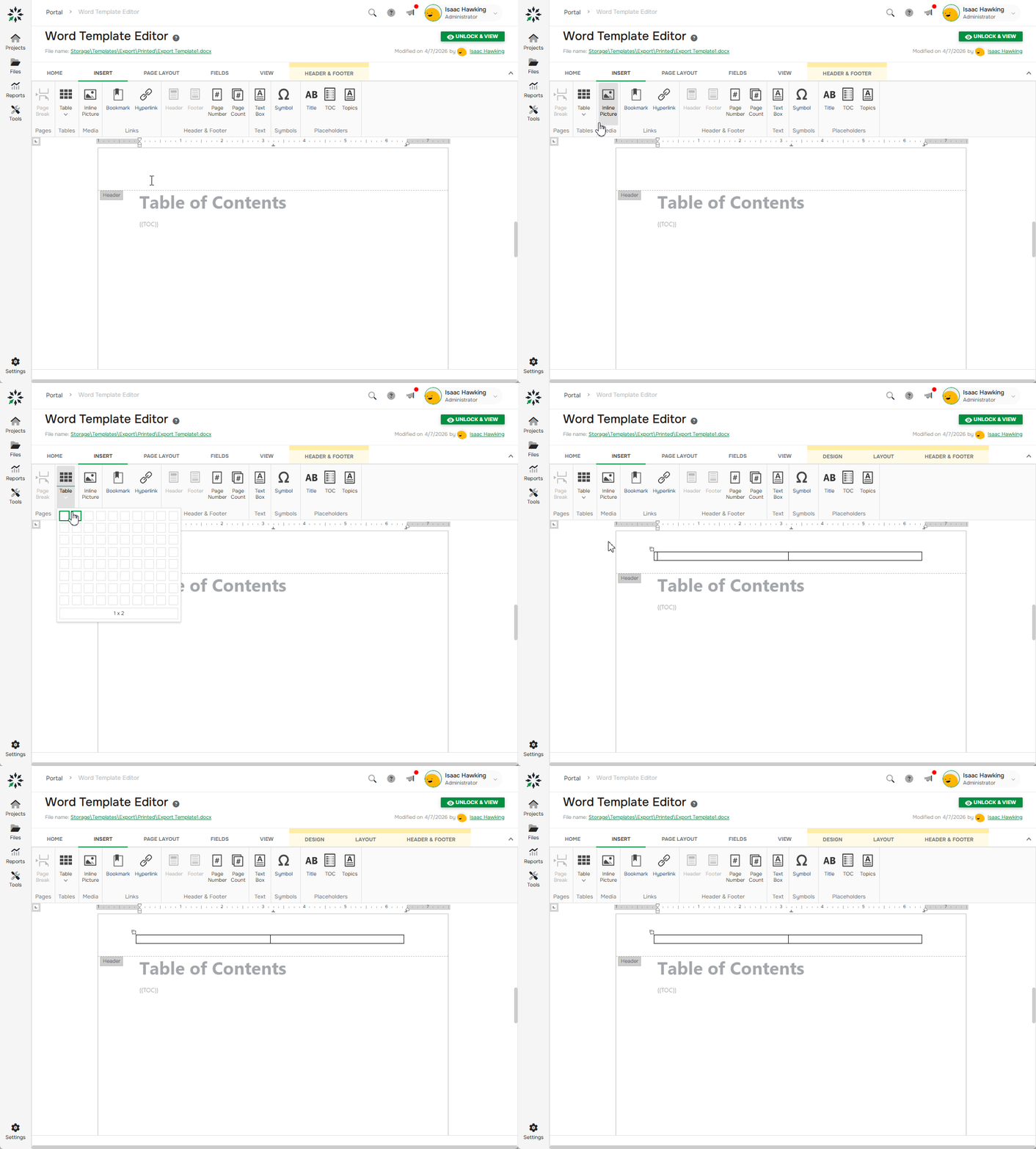
Click Table and insert the required number of rows and columns.
-
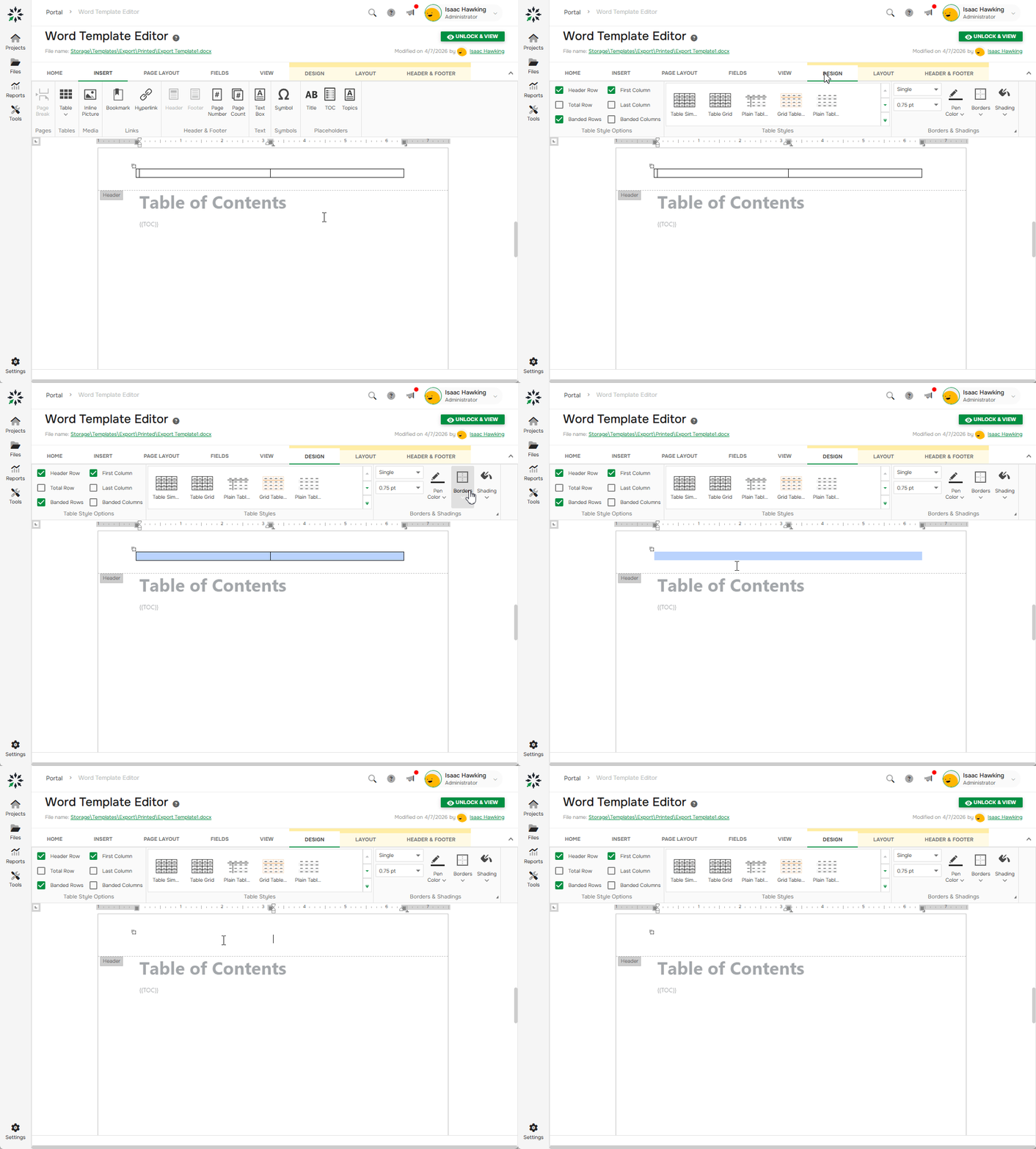
On the Design tab, set Borders → No Border.
-
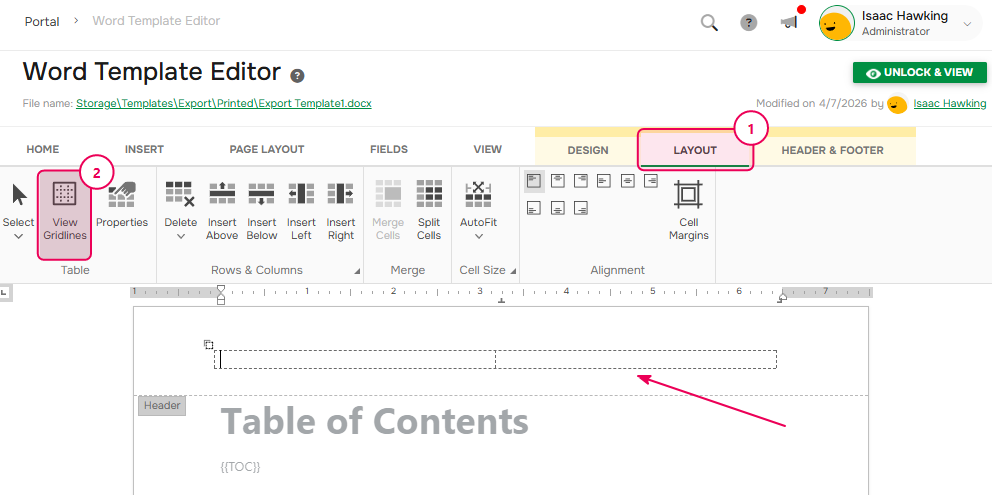
On the Layout tab, enable View Gridlines to make the table easier to work with.
-
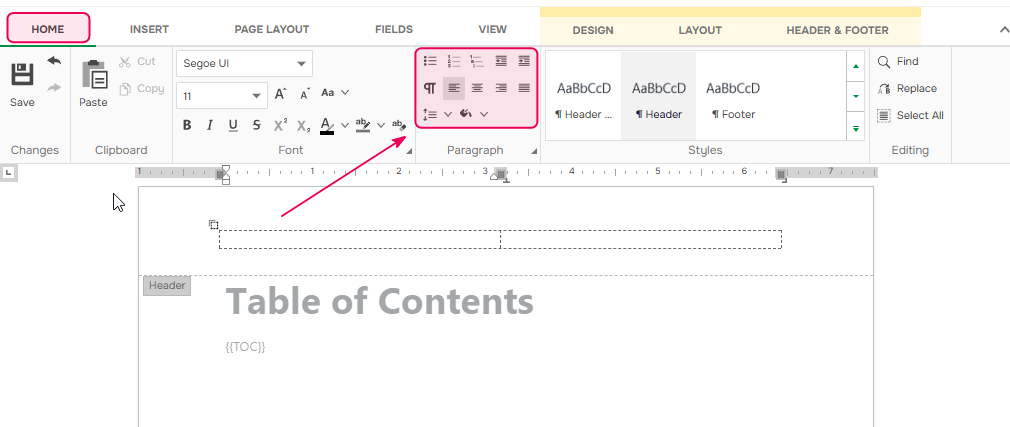
Add your content. You can also use the alignment options on the Home tab to position it.
Header and Footer Options
The template editor provides two options for customizing headers and footers:
Different First Page
Enable Different First Page to use a different header or footer on the first page. This is commonly used for cover pages.

Different Odd & Even Pages
Enable Different Odd & Even Pages to use different headers or footers on odd and even pages. This is useful for documents that will be printed and bound.

Adding Page Numbers
You can add any text content or images to a header or footer. Also, you can add page numbering. To insert page numbers, open the Insert tab and use Page Number or Page Count.
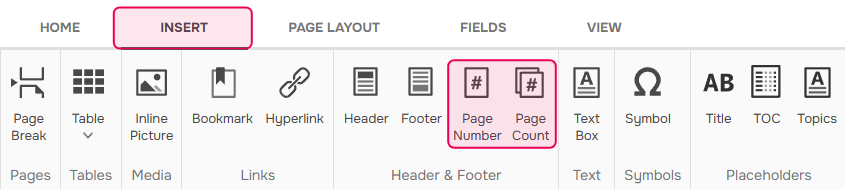
- Page Number inserts the current page number.
- Page Count inserts the total number of pages.
You can combine these fields to display, for example, Page 2 of 103.