In ClickHelp, you cannot delete users. However, you can disable their accounts and hide them from the user list so they no longer appear there.
Disabled accounts do not count toward your license limits.
Disabling a User Account
To disable a user account:
- Go to Settings by clicking the gear icon in the bottom-left corner.
- Switch to the corresponding section depending on the user type - Contributors or Power Readers.
-
Find the user you want to disable and click the Disable User button.
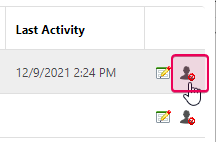
After this, the user will no longer be able to log in to the portal.
Removing Personal Data
Disabling a user prevents portal access, but their login and other personal data remain in use. To make the login reusable, follow these steps:
- Click the Edit user's profile button next to the Disable user button.
- Change the user’s login to something else, for example, DisabledUser1.
- Click the Update info button.
Now the user is disabled, and their login and personal data are no longer in use. You can similarly clear other personal data if needed.
Hiding Disabled Users from the List
To hide disabled users from the user list, enable the Hide Disabled User option.
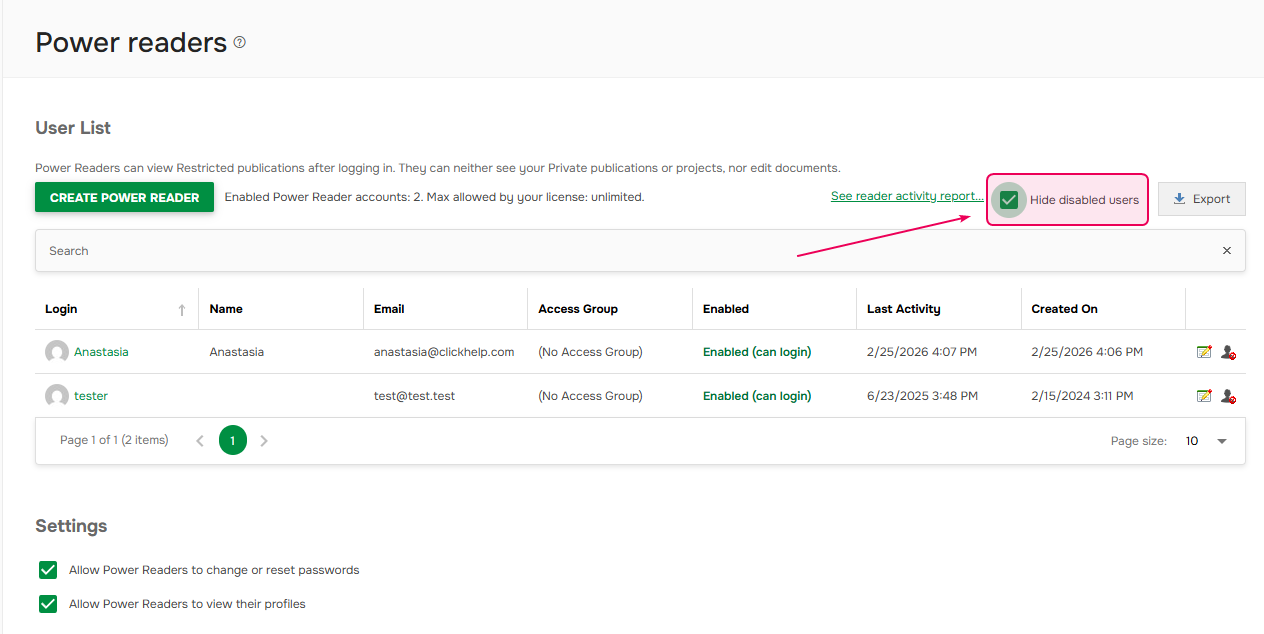
This setting applies across the entire portal. Once enabled, disabled users will be hidden in:
- Settings → Contributors
- Settings → Power Readers
- Project/Publication settings → Visibility & Access
- Publishing Wizard → Configure access