ClickHelp can generate PDF output of the whole publication. However, your readers may need only a single topic as a reference or to be able to share it. You, as a Contributor, may need to export a single topic to PDF to see what the topic looks like in the printed version.
That's where the ability to download a single topic as PDF comes in handy, and this topic is about how you can utilize this feature.
- Download a Single Topic as a Contributor
- Prerequisites
- How to
- Download a Single Topic as a Reader
- Prerequisites
- How to
Download a Single Topic as a Contributor
Prerequisites
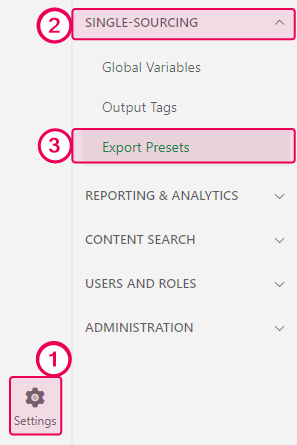
You need to have an active Export Preset for the single-topic export. One should be set up by default, but in case you need to adjust the setting, here's how to do it:
- Navigate to Settings → Single-Sourcing → Export Presets.
- Specify the Export Preset you would like to use in the Export preset for single-topic PDF downloads field.
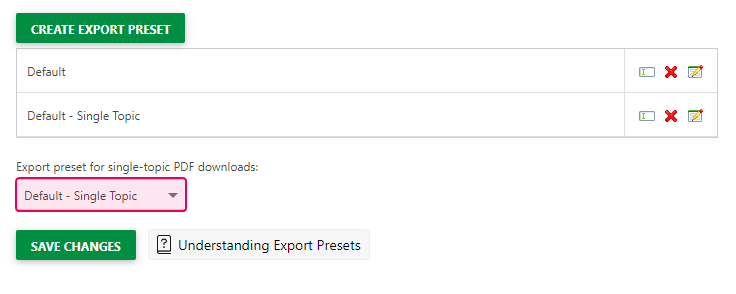
You can select an existing preset from the dropdown list or create a new one. - Save the changes.
How to
Once the Export Preset is chosen, you can download a single topic as a PDF from the authoring UI.
- Open the topic you would like to export.
- Locate the Download topic as PDF button in the Topic Editor next to the topic title:

- Click on it, and a PDF file with the new topic will download to your PC.
Download a Single Topic as a Reader
Prerequisites
In addition to selecting an export preset for a single-topic PDF, as described above, to make this feature available to readers, you also need to enable it in the Reader Interface settings.
| The following steps describe enabling the single-topic PDF download for the whole portal. However, you can override these settings for each particular project or publication. |
- Navigate to Settings → Branding → Reader Interface.
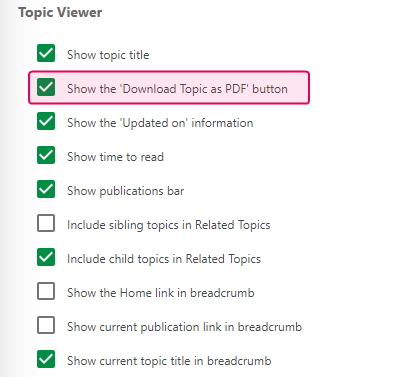
- Scroll the list of settings down and locate the Topic Viewer section.
- Select the checkbox:
- Save the changes.
How to
Once the feature is enabled and the Export Preset is selected, a new button will appear in the Reader UI:

Click on it, and a PDF file with this topic will be downloaded to your machine.