| Embedded AnswerGenius is currently in the beta stage; the functionality is subject to change and will be continuously improved. |
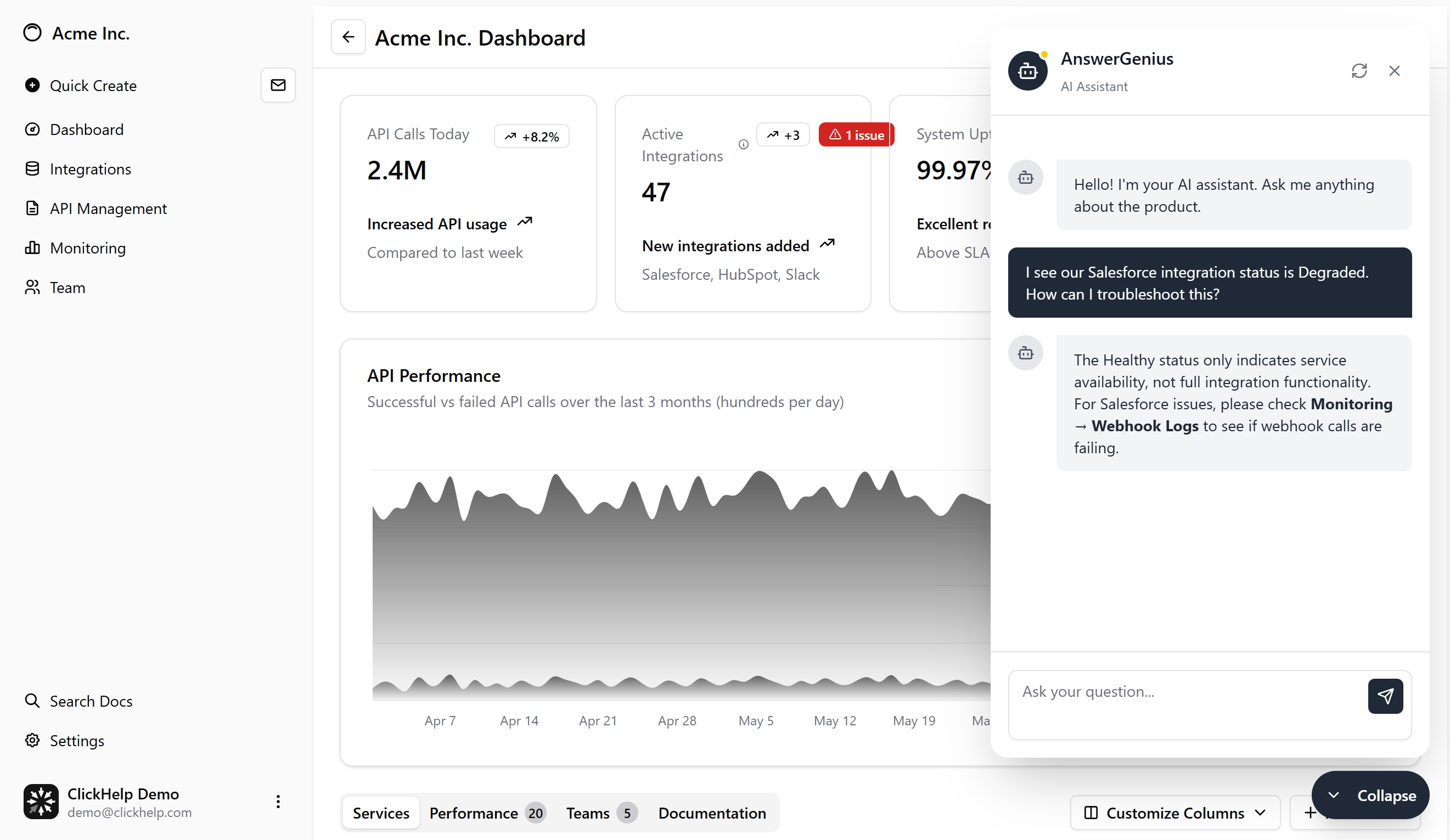
Empower your users to find answers from your documentation instantly, directly within your website, by embedding the AnswerGenius widget. AnswerGenius is an intelligent digital assistant that reduces support tickets and improves user satisfaction by delivering immediate, accurate answers from your ClickHelp documentation portal.
|
The AnswerGenius widget is part of the ClickHelp AI Suite, an add-on designed to infuse intelligent capabilities into your technical documentation. For more information on the AI Suite, please refer to our documentation: ClickHelp AI Suite.
|
This guide walks you through the simple process of embedding the widget into your website or application.
Installation
Embedding the widget involves adding a single script tag to your HTML code.
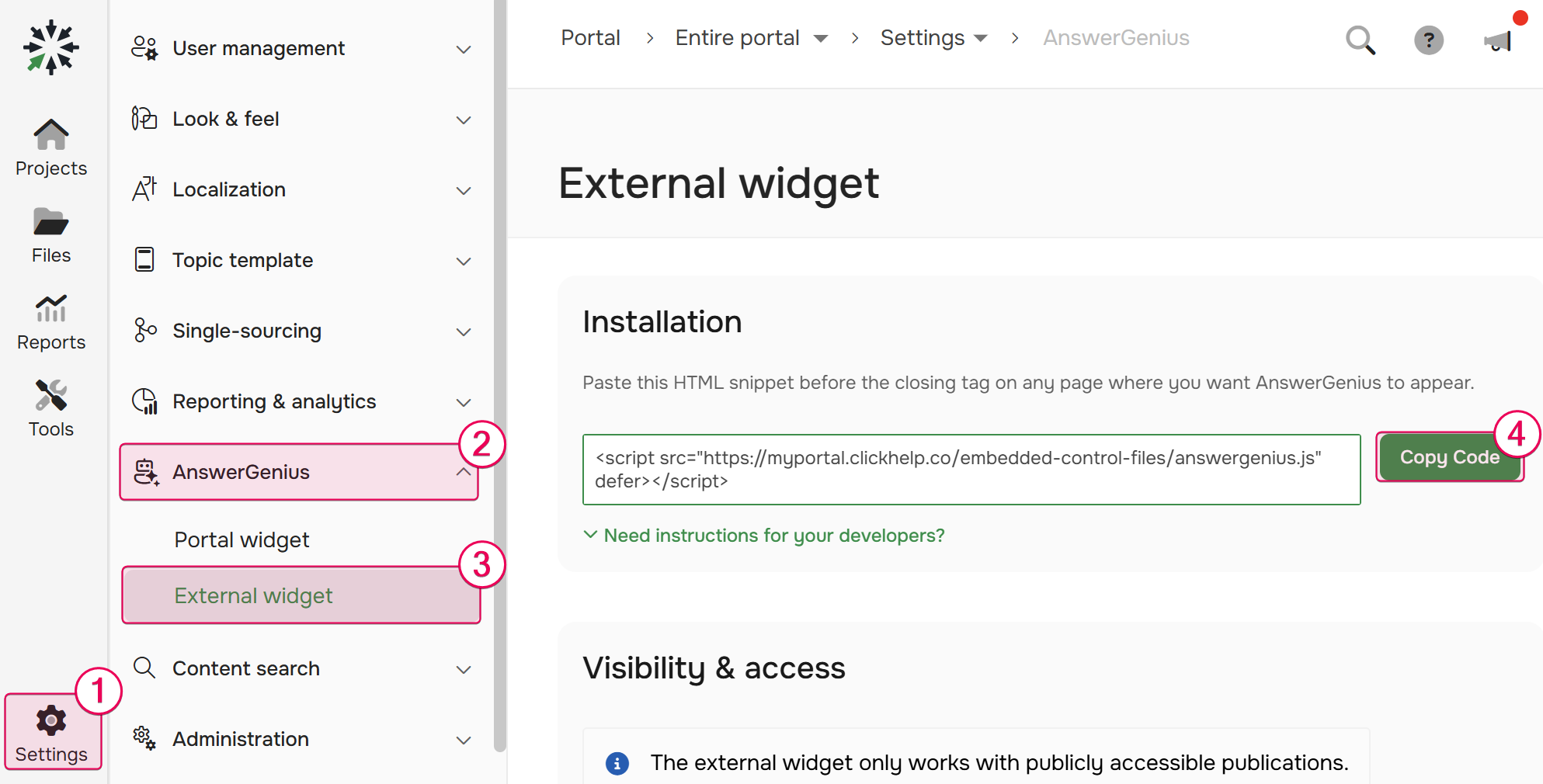
- In your portal, navigate to Settings → AnswerGenius → External widget.
-
Click Copy Code button to copy the provided script snippet.
- Open the HTML source code of the webpage where you want the AnswerGenius widget to appear.
- Navigate to the end of your HTML document and find the closing </body> tag.
-
Paste the copied code snippet immediately before the </body> tag.
|
Although we recommend placement just before the closing </body> tag for optimal page loading performance, the script is designed to be flexible. It is technically compatible with any location within the <head> or <body> sections.
|
Customization
Once embedded, you can tailor the widget's appearance and behavior to align with your brand and audience needs from the same External widget settings page.
| The external widget can only query and provide answers from Public publications. It cannot access content from Restricted publications. |
You can adjust the following settings:
-
Look & Feel. Personalize the widget's appearance:
- Primary Color: Select a color that matches your website's color scheme.
- Show greeting popup: Toggle the greeting popup on or off.
- Text Customization: Edit the Greeting popup message, AnswerGenius chat window title text, and Chat greeting message using the corresponding options on the same settings page.
-
AI behavior. You can fine-tune how the assistant interacts with users and interprets their questions using the following prompt-based settings:
- Assistant persona: Define how AnswerGenius describes itself. Specify its name, associated brand, purpose, and the scope of its knowledge to set accurate user expectations.
- Terminology & context: Provide domain-specific knowledge, clarify company jargon, product names, or abbreviations. This ensures user queries are interpreted correctly within your specific context.
- Response guidelines: Control the tone, style, and structure of answers. This includes instructions for how to respond when a definitive answer cannot be found in the documentation.
| Configuration for the External widget and the Portal widget are managed independently. Changes in one do not affect the other. |
By following these guide, you can quickly enhance your website or application with a powerful and intelligent digital assistant: