In ClickHelp, you can embed diagrams into your online documentation. We support external diagramming software like draw.io, Lucidchart, and Gliffy.
Inserting draw.io Diagrams
- Go to draw.io and open your diagram file.
-
Select the File → Embed → IFrame top menu item.
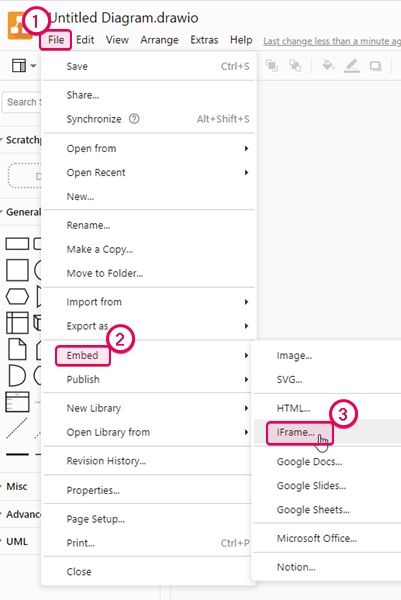

Note Alternatively, you can select "SVG" as the method of embedding - the following steps would remain the same. - Copy the HTML snippet generated by draw.io for you.
-
In ClickHelp, open your topic for editing, and click Insert → Custom HTML on the ribbon bar.
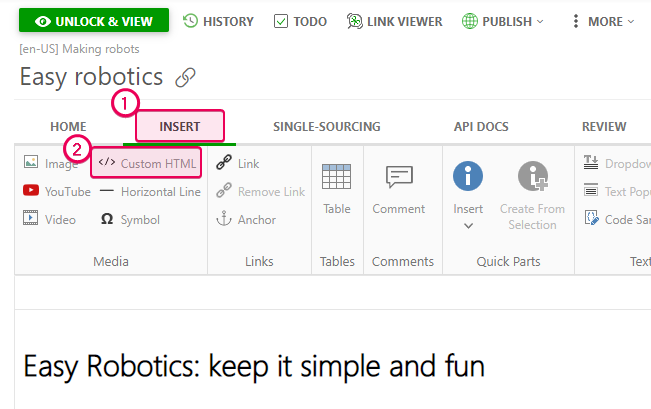
- Paste the markup copied from draw.io in the dialog and click OK.
Inserting Lucidchart Diagrams
- Open the diagram in Lucidchart.
-
Select the File → Embed main menu item.
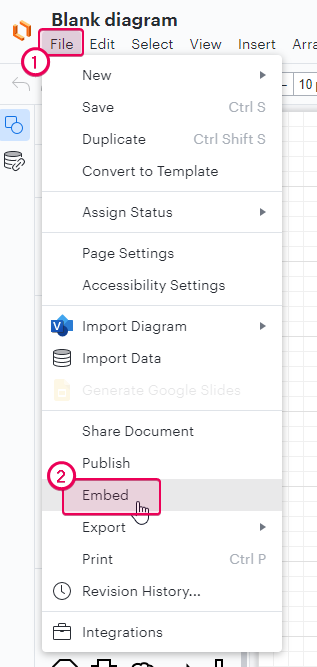
- Copy the HTML snippet generated by Lucidchart.
-
In ClickHelp, open your topic for editing, and click Insert → Custom HTML on the ribbon.
- Paste the markup copied from Lucidchart in the dialog and click OK.
Inserting Gliffy Diagrams
- Open your diagram in Gliffy.
-
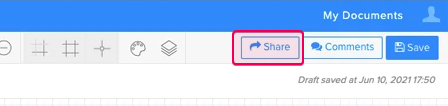
Click the Share button.
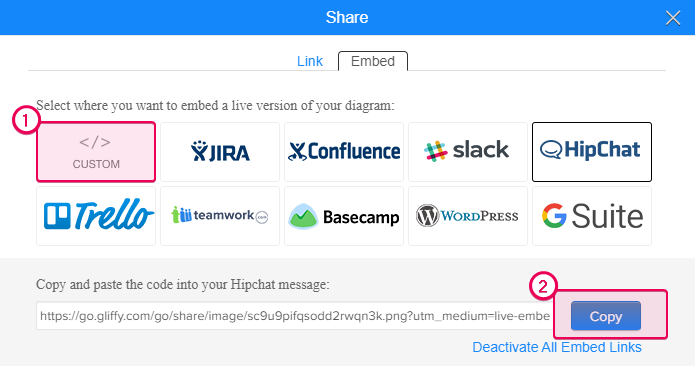
- Select Embed.
-
Select CUSTOM and copy the link.
-
In ClickHelp, go to the Insert tab and click Custom HTML.
-
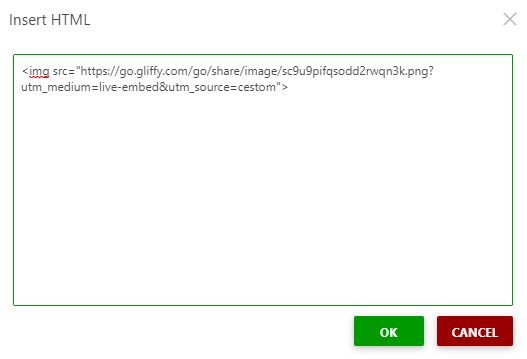
Insert the link as it's shown in the screenshot and click OK.