---
title: "Advanced Topic Editor - HTML Mode"
id: "html-source"
project: "ClickHelp User Manual"
url: "https://docs.clickhelp.com/articles/clickhelp-user-manual/html-source"
updated: 2026-11-16T06:43:06Z
---
# Advanced Topic Editor \- HTML Mode
Documentation index for AI tools: [/llms.txt](/llms.txt)
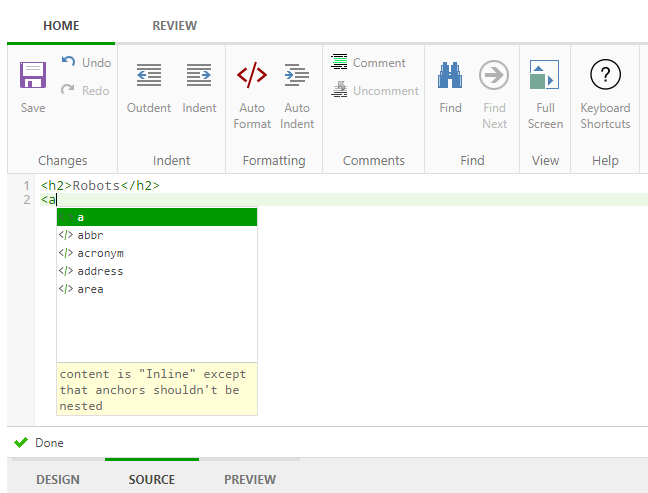
The **HTML Source editor** of the **Advanced Topic Editor** allows modifying your page's **HTML** code. It provides the users with the majority of known features, like **automatic code completion**, **syntax highlighting**, **error detection** (e.g. a closing tag is missing). It also provides **suggestions** and **descriptions** to a number of tags and attributes as shown in the screenshot below:
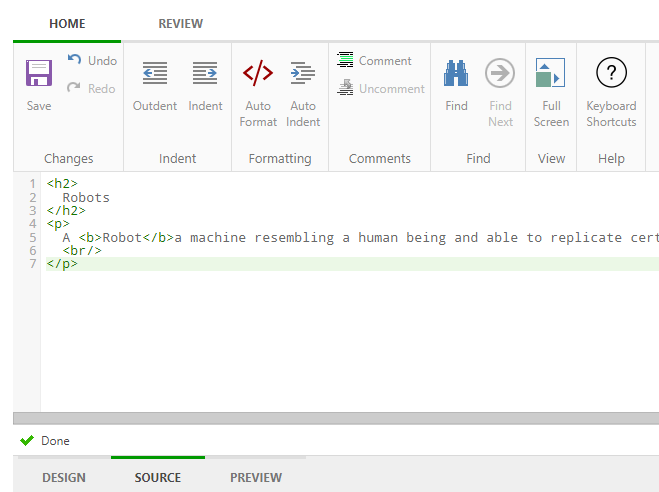
Another useful feature is called **Auto Format**. It makes the **HTML** code much more readable and easier to handle. To use the feature, you need to select the desired part of your code and click the corresponding element on the editor's ribbon at the top of the page. The following screenshots show what the same code looks like before and after applying the automatic formatting feature. In the first screenshot, the code line is long, and you need to scroll horizontally to reach its end.
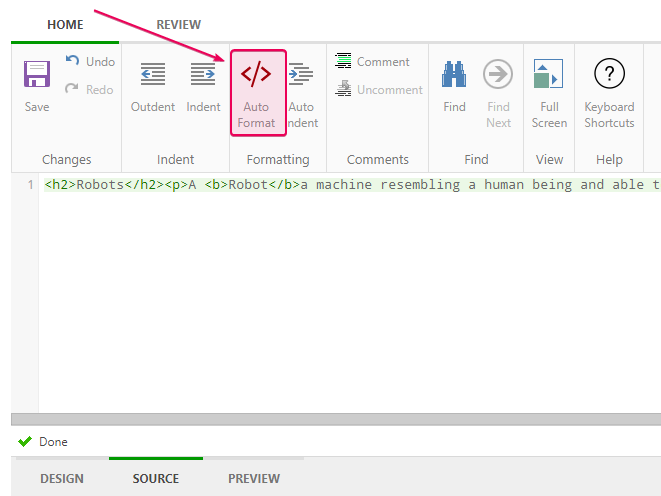
Though the edited code appears to occupy more lines in the second screenshot, it is perfectly structured, and all the tags are visible.