---
title: "Import from Markdown"
id: "import-from-markdown"
project: "ClickHelp User Manual"
url: "https://docs.clickhelp.com/articles/clickhelp-user-manual/import-from-markdown"
keywords:
- "md"
updated: 2026-11-16T06:42:37Z
---
# Import from Markdown
Documentation index for AI tools: [/llms.txt](/llms.txt)
ClickHelp supports importing Markdown — an extremely popular product documentation format widely used by software developers. This topic shows how to import your existing Markdown documentation into a ClickHelp project.
| Migration and import are not the same. Import is a tool that significantly speeds up the migration process, but it is only a part of it. You should always manually check every import to ensure no content is missing and the styling is preserved where necessary.
In ClickHelp, we provide Migration Services. Contact us at [sales@clickhelp.com](mailto:sales@clickhelp.com?subject=Migration%20Services%20Initial%20Inquiry) if you're interested! |
| --- |
1. On the **Projects** page, click **Import,** and when the import wizard opens, select **Markdown** from the list.
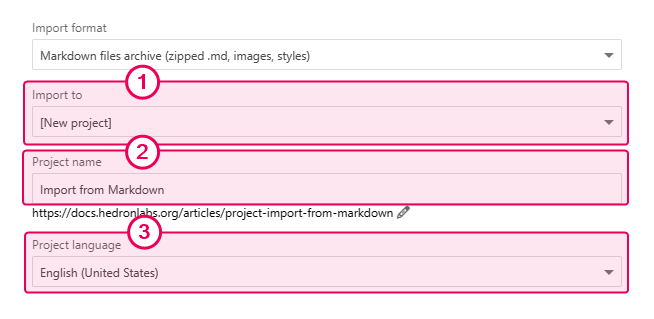
2. Select whether you want to import to a new project or an existing one (1), specify the project name (2), and select the project language (3). Click **Next**.
3. On step 2 of the Import Wizard, drag-n-drop your files into the drag-n-drop box, or click it to upload a file from your computer.
| Only .zip files can be uploaded. To import .md files, archive them into a .zip file before uploading. Here's how you can create a .zip archive: on [Windows](https://support.microsoft.com/en-us/windows/experience/storage-filemanagement/zip-and-unzip-files), on [Mac](https://support.apple.com/en-sg/guide/mac-help/mchlp2528/mac). |
| --- |
4. Specify other settings on this page:
1. If your project contains links to external images or other resources, select the corresponding checkboxes in the **Download external linked files** section.
2. Choose how the files will be split by specifying the appropriate **Split into topics by** option.
3. Choose how to handle the styles by selecting one of the three options at the bottom. **Optimize styles** is recommended and works best in most scenarios.
5. Click **Next** to start importing.****Refer to [Import Wizard Reference](/articles/clickhelp-user-manual/import-project-wizard-reference) to learn more about the settings on this page.
6. When the process is finished, click **Open Project** to open the project or **Finish** to navigate back to the **Projects** page.
## Import form Markdown Specifics
* Currently, ClickHelp supports the **CommonMark(+GFM fenced code blocks)** dialect.
* Under the hood, the Markdown files are converted into HTML.