This topic explains how you can import the project backup archive.
-
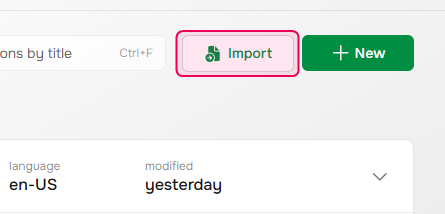
Click Import on the Projects page.
-
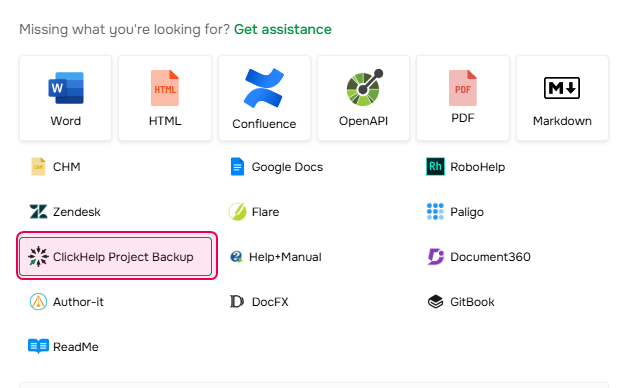
In the Import Wizard, select the ClickHelp Project Backup format.
-
Specify where to import the content: create a new project or add the topics to an existing one.
-
If you are creating a new project, give it a name in the Project name field, specify the Project language and click Next.
-
Drag&drop your archive into the drop area or click on it to browse your way to the archive.
- Choose the correct Topics encoding or leave the Auto detect setting.
- Click Next and wait for the Wizard to finish importing your backup — you will see the links to your imported project backup and style files.