Security policies often require that only users from a specific network should be able to access the portal, whereas connections for users belonging to other networks should be prohibited. A bright example is when the portal should only be accessible from office computers or via the office VPN server.
To handle this scenario, ClickHelp offers the IP Allowlist. It allows specifying a certain IP address or a range of IP addresses from which contributors can log in. This setting does not affect anonymous users and Power Readers.
ClickHelp accepts IPv4, IPv6 addresses, and ranges specified using the CIDR notation.
This feature is available with the Enterprise security add-on for the Growth and Professional pricing plans.
Enable IP Allowlist
To configure the IP allowlist:
- Navigate to Settings → Security → IP Allowlist.
- Select the Allow specific IPs only option.
-
Specify the desired IP address or a range of IP addresses in the text box below.
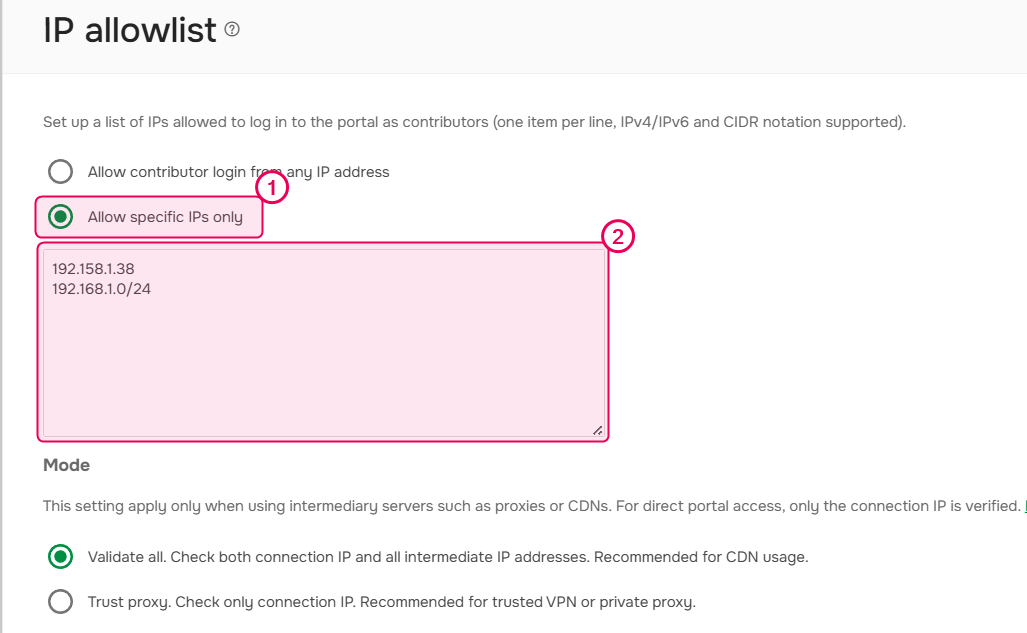
To specify several IP addresses or ranges, put each record on a separate line. - Select the IP Allowlist mode.
- Save the changes.
That's it! Now, when a Contributor user whose IP address is different from the specified one or is outside of the specified range tries to log in or access any contributor-facing screen, they will get an error message saying they don't have permission to access the resource.
| IP Allowlist is also applicable to API – when making an API call from a not-allowed IP address, the user will get a response with the 403 status code. |
IP Allowlist Mode
The IP Allowlist mode determines the behavior when a client uses intermediary servers such as proxies, load balancers or CDNs to connect. In this case, the X-Forwarded-For (XFF) header is added to the requests. The XFF header includes a list of IP addresses: the original one and IP addresses of all intermediate servers that were passed.
You can select one of the following modes:
- Validate all. Checks both connection IP and all intermediate IP addresses that are specified in the X-Forwarded-For header. If at least one IP address is missed, the connection will be blocked. This mode is recommended for CDN usage and public proxy.
- Trust proxy. Check only connection IP. The information in the X-Forwarded-For header is ignored. This mode is recommended for trusted VPN or private proxy.
For direct portal access, only the connection IP is verified.