This guide explains how to log in to your ClickHelp portal and provides troubleshooting steps if there are issues with logging in.
- Where Do I Log In?
- How Do I Log In?
- Log In Using Native Credentials
- Log In Using Single Sign-On (SSO)
- Log in using Login Tokens
- Troubleshooting
- Forgot Your Password?
- Forgot Your Portal URL?
Where Do I Log In?
When you first gain access to a ClickHelp portal, you’ll receive an email containing:
-
A unique URL to your portal (e.g.,
https://yourcompany.clickhelp.co). - Your login.
- A link to set your password.
By default, the link expires in 24 hours. Administrators can change the expiration period in the Password strength settings if the Enterprise security add-on is enabled.
These details are specific to you. They are required to access your documentation and review materials.
|
Be sure to save your credentials and portal URL for easy future access. This simple step will save you time later and ensure you always have your access information, even if you clear your browser history. You can change your password anytime via your profile settings. If you can't find the email, please contact your ClickHelp administrator. |
To access the login screen:
- Open the portal link from the email.
- Click the Log In button (usually located in the top-right corner of the page) to open the login screen.
Or:
- Open the link that requires authentication (for example, provided by your colleague): a link to the Contributor UI or to a restricted publication.
- You'll be redirected to the login screen.
How Do I Log In?
ClickHelp supports three authentication methods: native credentilas, SSO and login tokens. To learn more about the authentication types, refer to this article: Authentication.
To log in to ClickHelp, follow the steps from the corresponding section.
Log In Using Native Credentials
To log in:
- Open your portal link and click the Log In button. Alternatively, open a link to a resource that requires authentication.
- Enter your login and password.
You can enable the Remember me option that will save the credentials, so you don't need to enter them next time. - Click Log In.
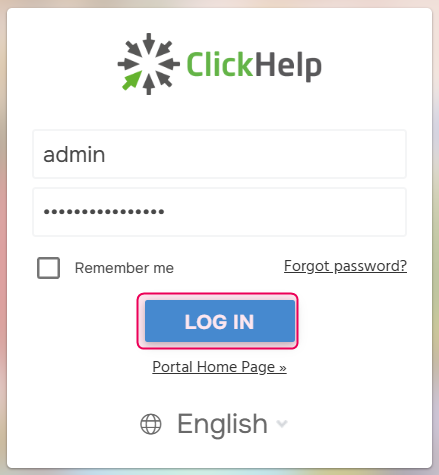
If you have issues with logging in, please check the Troubleshooting section.
Log In Using Single Sign-On (SSO)
If your company has enabled Single Sign-On (SSO) for ClickHelp, you can log in using your corporate credentials, bypassing the need for a separate ClickHelp password.
To log in:
- Open your portal link and click the Log In button. Alternatively, open a link to a resource that requires authentication.
-
Depending on your company's SSO settings, you may be automatically logged in or prompted to enter your corporate credentials on your identity provider's login screen. If you are not prompted, click the Log In button for the corresponding SSO provider (Google, Salesforce, etc.), then enter your corporate credentials.
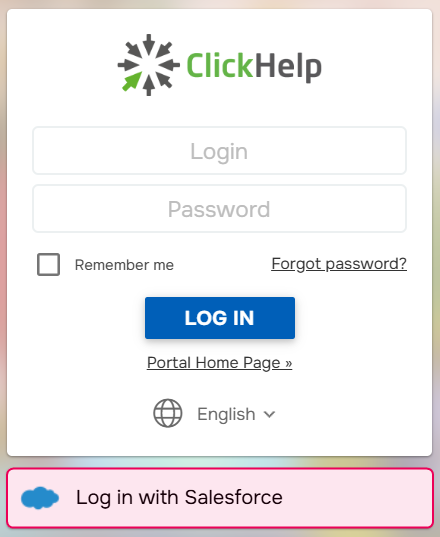
If you're unsure whether SSO is enabled or if you're unable to log in using SSO, please contact your portal admin.
Log in using Login Tokens
This method doesn't require end user interaction. To learn more about this method, refer to the following article: The Token Login Mechanism
Troubleshooting
Forgot Your Password?
If you've forgotten your password, here's how to reset it:
- Access your portal and click the Log In button to go to the login screen.
-
Click Forgot password? on the login page:
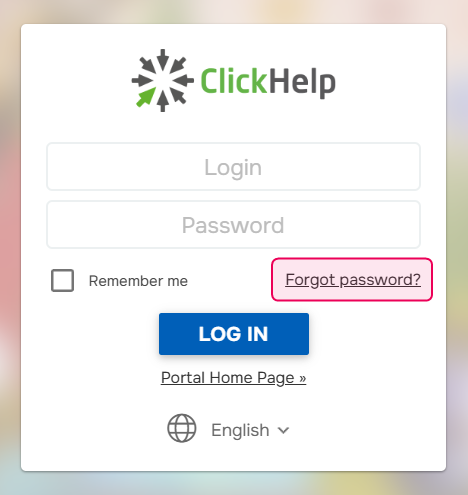
- On the password recovery page enter your login or email associated with your ClickHelp account and click Reset password.
- You'll receive an email with a link to set a new password.
By default, the link expires in 24 hours. Administrators can change the expiration period in the Password strength settings if the Enterprise security add-on is enabled.
The old password is valid till the user clicks on a link in the email.
Note that ClickHelp administrators can disable the Forgot password functionality. In this case, you can contact them directly, asking them to reset a password for you.
Forgot Your Portal URL?
Go to clickhelp.com and click the Log In button at the top of the page to access your portal. You’ll be prompted to log in if the session is expired.

If there is no such button, find the registration email containing your credentials and the portal URL. If you cannot find the email, contact your portal admin or a person who invited you to ClickHelp.
Still having trouble? Contact ClickHelp Technical Support.