View Billing and Plan Details, Resource Usage
To view details about your ClickHelp subscription:
- Click your profile icon in the upper-right corner of the portal.
-
Select Subscription from the dropdown menu.
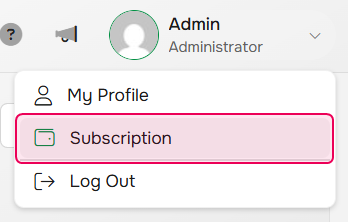
Here you’ll find the following information:
-
Your billing cycle and next renewal date

-
A breakdown of your current subscription plan, including active modules and add-ons
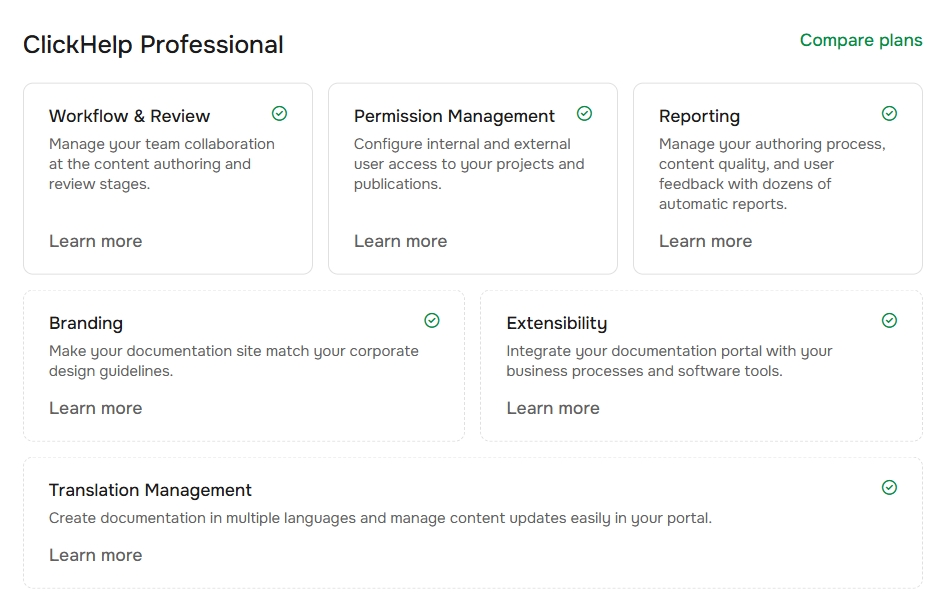
-
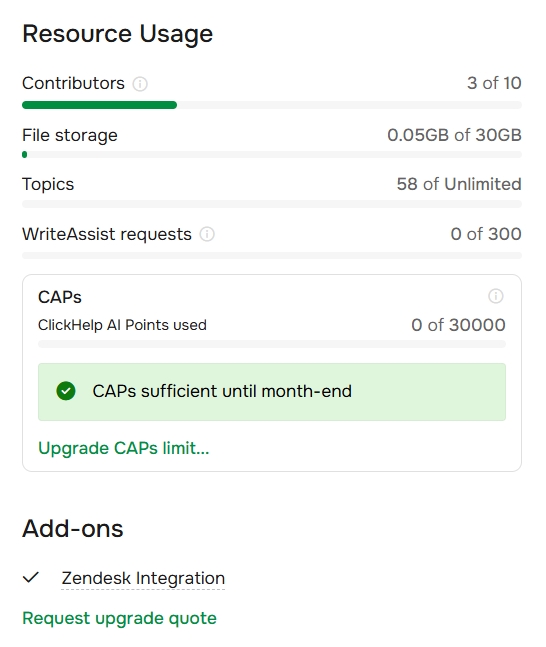
Resource usage, such as:
- Number of contributors
- File storage limit
- Topic limit
-
Daily request limits for AI features (if enabled)
Request a Plan Upgrade
If you’d like to upgrade your plan, you can contact us directly at sales@clickhelp.com. Or you can:
- Click your profile icon in the upper-right corner of your ClickHelp portal.
- Select Subscription from the dropdown menu.
- At the bottom of the page, click Request Upgrade Quote to notify our team that you're interested in trying out a feature or add-on that isn’t currently part of your plan.
Cancel a Subscription
-
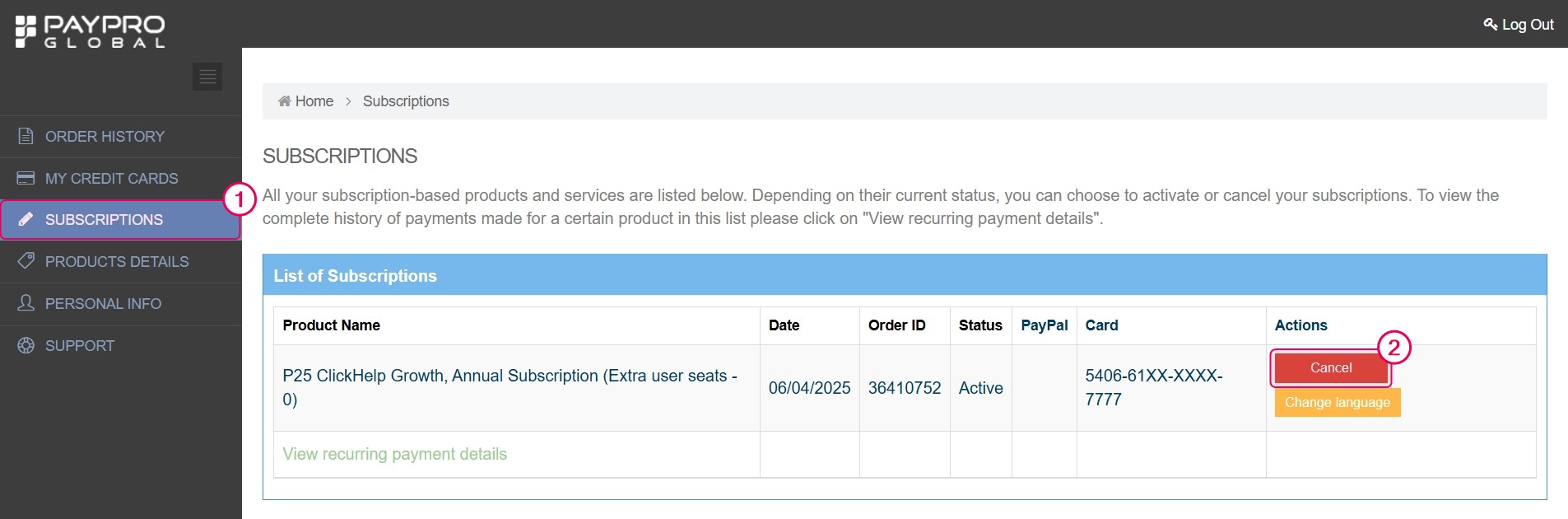
Log in to your PayPro Customer account and go to the Subscriptions section, where you can view details such as:
- Payment date
- Order ID
- Billing status
- Billed credit card
- Locate the subscription you want to cancel and click Cancel in the Actions column.
|
After cancellation, your ClickHelp portal remains active until the end of the current subscription period. Once that period ends, the portal will be deactivated and deleted the following day. Make sure to export your documentation before the portal is removed. |