---
title: "Managing Your Subscription"
id: "managing-your-subscription"
project: "ClickHelp User Manual"
url: "https://docs.clickhelp.com/articles/clickhelp-user-manual/managing-your-subscription"
updated: 2026-11-16T06:42:33Z
---
# Managing Your Subscription
Documentation index for AI tools: [/llms.txt](/llms.txt)
* [View Billing and Plan Details, Resource Usage](/articles/clickhelp-user-manual/managing-your-subscription/a/h3__1023751489)
* [Request a Plan Upgrade](/articles/clickhelp-user-manual/managing-your-subscription/a/h3_831548795)
* [Cancel a Subscription](/articles/clickhelp-user-manual/managing-your-subscription/a/h3_1116733063)
### View Billing and Plan Details, Resource Usage
To view details about your ClickHelp subscription:
1. Click your profile icon in the upper-right corner of the portal.
2. Select **Subscription** from the dropdown menu.
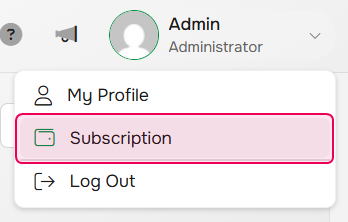
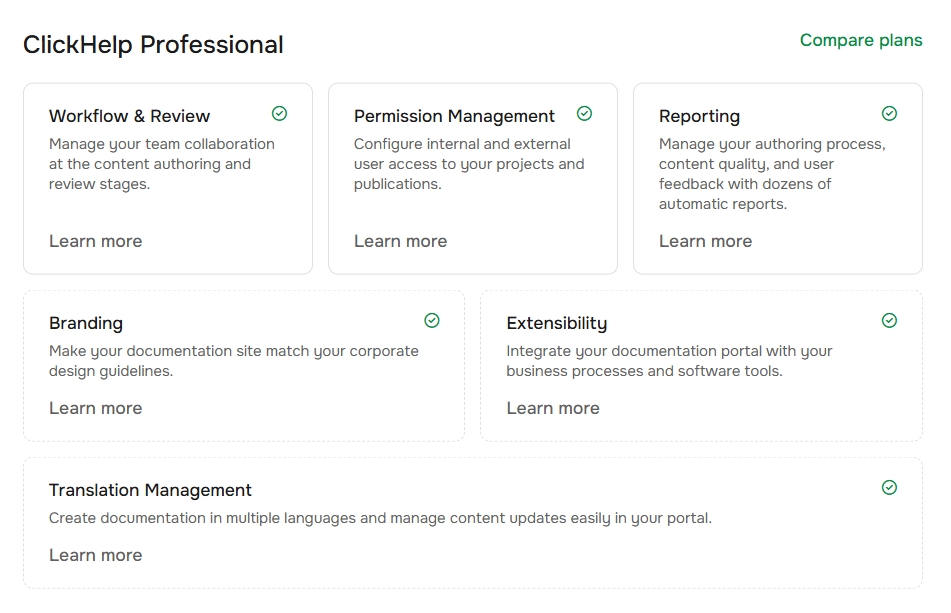
Here you’ll find the following information:
* Your **billing cycle** and **next renewal date**

* A breakdown of your current subscription plan, including active modules and add-ons
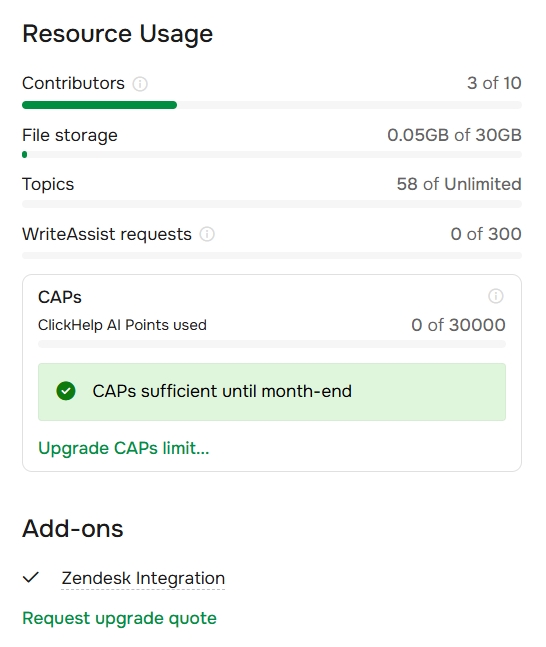
* Resource usage, such as:
* Number of contributors
* File storage limit
* Topic limit
* Daily request limits for AI features (if enabled)
### Request a Plan Upgrade
If you’d like to upgrade your plan, you can contact us directly at [sales@clickhelp.com](mailto:sales@clickhelp.com). Or you can:
1. Click your profile icon in the upper-right corner of your ClickHelp portal.
2. Select **Subscription** from the dropdown menu.
3. At the bottom of the page, click **Request Upgrade Quote** to notify our team that you're interested in trying out a feature or add-on that isn’t currently part of your plan.
### Cancel a Subscription
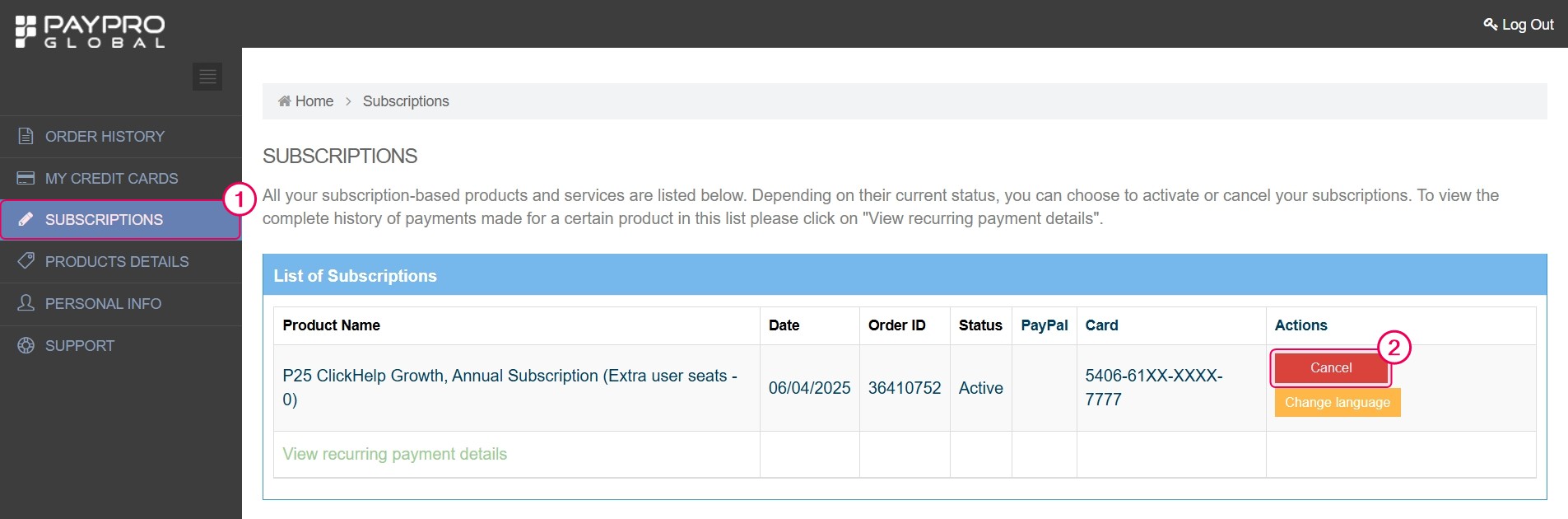
1. [Log in to your PayPro Customer account](https://cc.payproglobal.com/Customer/Account/Login) and go to the **Subscriptions**section, where you can view details such as:
* Payment date
* Order ID
* Billing status
* Billed credit card
2. Locate the subscription you want to cancel and click **Cancel** in the **Actions** column.
| **After cancellation, your ClickHelp portal remains active until the end of the current subscription period.** Once that period ends, the portal will be deactivated and deleted the following day.
Make sure to [export](/articles/clickhelp-user-manual/export-formats) your documentation before the portal is removed. |
| --- |