---
title: "Merging Lists Using Snippets"
id: "merging-lists-using-snippets"
project: "ClickHelp User Manual"
url: "https://docs.clickhelp.com/articles/clickhelp-user-manual/merging-lists-using-snippets"
updated: 2026-11-16T06:43:36Z
---
# Merging Lists Using Snippets
Documentation index for AI tools: [/llms.txt](/llms.txt)
**ClickHelp** offers a feature for a convenient merging of several lists into one using snippets. Read more on working with snippets[here](/articles/clickhelp-user-manual/content-snippets "Content Snippets").
The approach works for both numbered and bulleted lists.
This feature is really helpful when, for example, you have some default set of steps that you repeatedly use in your instructions. The method described below takes care of auto-numbering - the inserted steps will be recognized as a part of the list they are inserted into and numbered accordingly.
## Merging Lists in a Help Topic
Follow these steps to merge lists using a snippet:
* Create a topic to store the list that you are going to insert as a snippet to other lists.
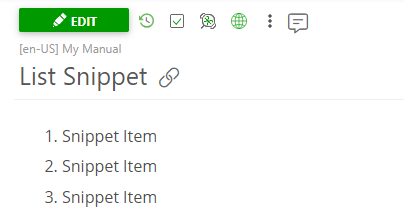
Its HTML code should look somewhat like this:
```html
- Snippet Item
- Snippet Item
- Snippet Item
```
|  | Note |
| --- | --- |
| Note: the snippet should contain nothing but the list itself. |
* Open the help topic with the list where you want the snippet inserted.
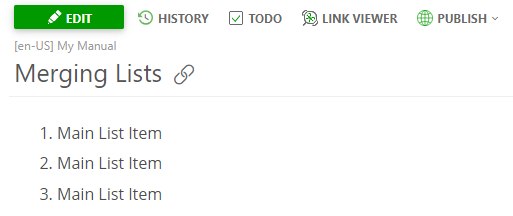
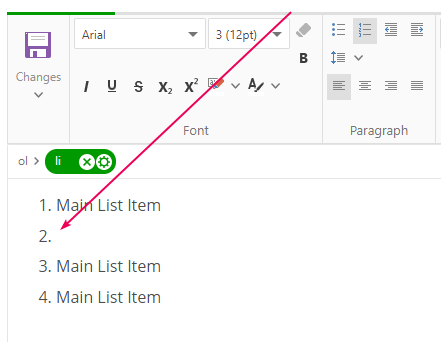
* Create an empty list item after the number where you want to insert the snippet list.
* Click **Insert Snippet** in the **Single-Sourcing** section on the **Insert** tab.
* Start typing the snippet topic title in the **Select a topic** field.
* Select the snippet topic from the dropdown box showing the matching results.
* The snippet will be inserted into the list.
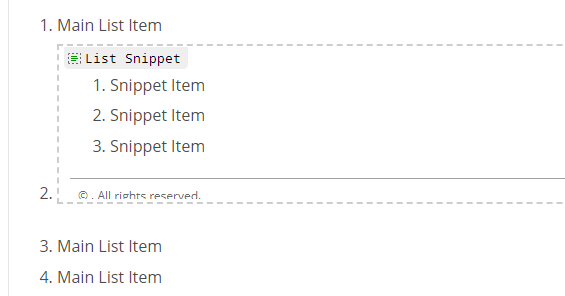
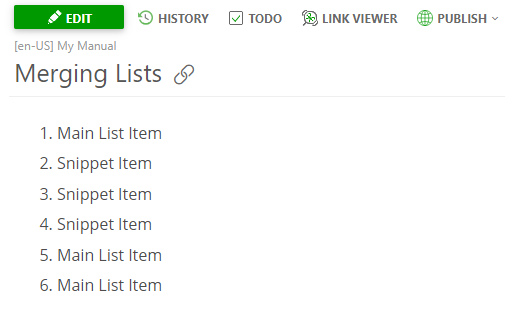
* Click **Unlock & View** to check how the list will look in the topic, and see how the auto numbering works.
|  | Note |
| --- | --- |
| The <li> container (target list item) where you insert a Snippet to should be empty - it can only have the <br/> tag or empty <p> tags inside. |
```html
- Main List Item
-
- Main List Item
- Main List Item
```
This is how you can insert some list items that get repeated multiple times in your help topics into other lists with the help of snippets.