---
title: "Legacy Home Page Editor"
id: "portal-home-page"
project: "ClickHelp User Manual"
url: "https://docs.clickhelp.com/articles/clickhelp-user-manual/portal-home-page"
updated: 2026-11-16T06:43:07Z
---
# Legacy Home Page Editor
Documentation index for AI tools: [/llms.txt](/llms.txt)
The portal Home page is what readers see when they go to the root URL of your documentation portal.
| The WYSIWYG Home page editor mentioned here has been deprecated since the Amber release (Autumn, 2023) and is subject to removal in future releases. Please consider using the [new block editor](/articles/clickhelp-user-manual/building-home-page) instead. |
| --- |
This page contents can be any HTML — you can use a custom background image, custom layout, fonts, etc. For your convenience, you can customize your Portal Home page template and background image right there — through a floating customization widget on the left-hand side:
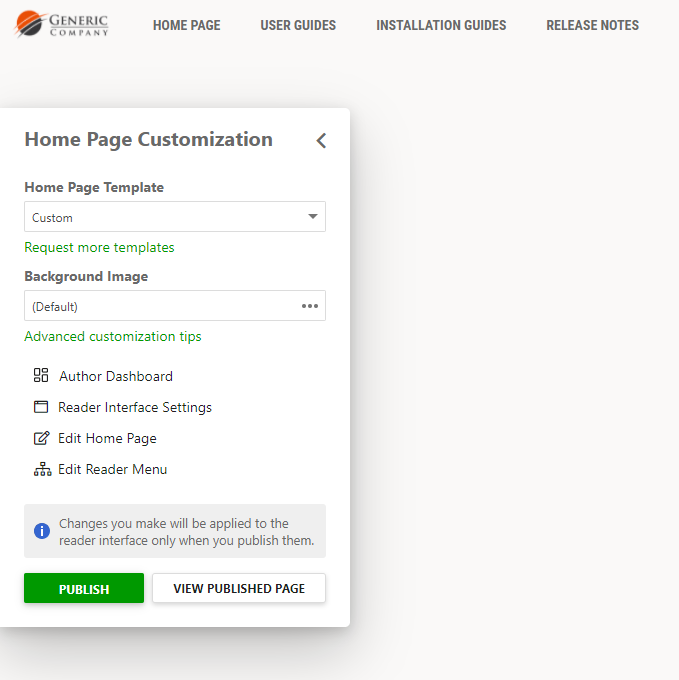
If you delete, remove, or edit the background markup element, it may not be possible to change the background image through the widget as it expects a certain structure of the elements to apply the changes. If you did it accidentally, select one of the built-in templates once again to restore the default markup and then make the needed changes.
| If you switch to another template after making changes to the layout or the styles, your custom changes will be lost. |
| --- |
To further configure the home page content and styles, click **Edit Home Page** from the widget **** or select **Settings** **Look & feel** **→ Portal Home Page**section.
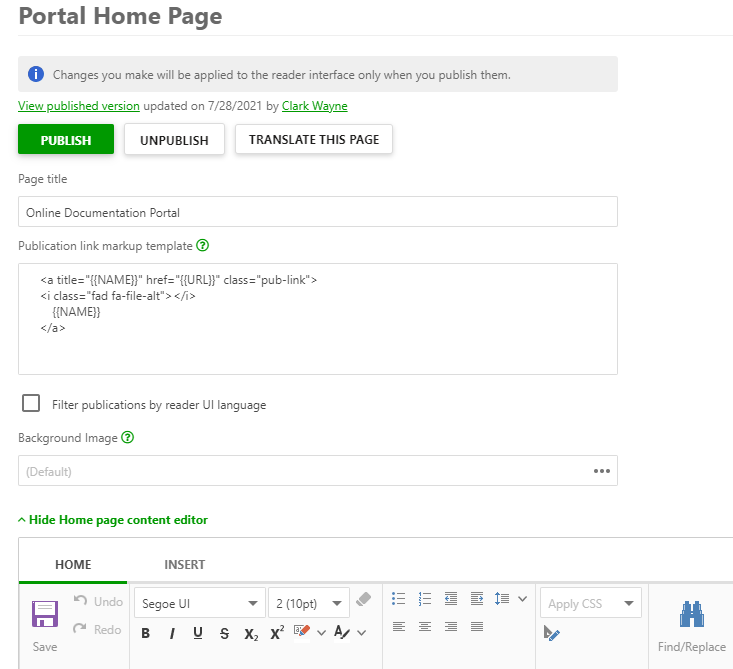
There are several settings in this section:
* **Page title** is used as the [document title element](https://developer.mozilla.org/en-US/docs/Web/HTML/Element/title) and will be displayed as the browser tab title. This is also the text that will show up in a search engine when your portal home page is among the results.
| It's recommended to keep the page title length within 55 characters to make sure it is not truncated in the search engine results. |
| --- |
* **Publication link markup template** allows you to specify the markup of each publication element in the automatically-generated list of publications. You can read more [below](/articles/clickhelp-user-manual/portal-home-page/a/h2__2045394806).
*
* **Background Image** allows you to set the background image of a certain element if it's present in the markup. For the default templates, it's usually a div element with the background class.
You can edit the portal home page template both in the **Design** and **Source**modes — you can switch between them using the tabs below the content editor. In most cases, when you want to implement some advanced design techniques, you will need to use the **Source**mode for direct access to the HTML code of the page.
| For a better experience, edit the content in fullscreen mode. To turn it on, use the corresponding element on the Home tab of the editor's ribbon bar. |
| --- |
If you don't have the time or the experts to customize your portal, you can ask us for help — just click the **Request more templates** link on the home page customization widget and describe your scenario. We can help you with some minor customization hints & tips and depending on the amount of work required, we will either provide you assistance in the scope of our Technical Support services or provide you with an estimate of a branding service project if you require some complex customization.
## Placeholder Syntax
In a rapid documentation development environment when multiple teams create documentation, changing the Home Page content every time a new manual is published may be too complex and error-prone. In this situation, you can use the dynamic placeholders in the Home page template, so that the list of available publications is generated when a reader opens the home page. There are three placeholders supported:
**** {{PUBS}} **** —This placeholder needs to be used in the page template, and it will be replaced with the actual list of publication links available for the current reader.
| The list of available publications may be different for anonymous readers and authenticated Power Readers; this is taken into account by the list generation logic. |
| --- |
By default, the list of publication links is generated as a number of DIV elements. You can change this by setting your own markup for every auto-created publication link. To do this, you'll need to specify the template as an HTML snippet in the **Publication link markup template** field on the page. Inside the link template, you can use these placeholders:
* {{NAME}} — Will be replaced with a publication title, as it is visible to readers.
* {{URL}} —Will be replaced with a publication URL.
Let's look at an example. Here's the simplest **Publication link markup template:**
```html
{{NAME}}
```
When the system builds your reader-facing homepage and processes each item, it will resolve the placeholders, replacing with appropriate values. Our example will turn into something like this:
```html
User Manual
Admin Guide
```
Using those placeholders and inline styles, you can implement your own view for the dynamic publications list.
## Page Header
You can customize the header of the Home page via [the branding CSS file](/articles/clickhelp-user-manual/branding-general-information). The logo you pick will be used for the whole portal since every portal page has a header area.
| **Snippets**are not allowed in the home page markup. You can use the snippets feature only in the topics' content. |
| --- |