ClickHelp lets you control which projects and publications a user account can see and work with. This applies to both Contributors and Power Readers. This article covers access management for Contributors.
- Access options
- Create a new Contributor with limited access
- Change access for an existing Contributor
- How access works for new projects and publications
- Project
- Private or restricted publication
Access options
Every Contributor account has one of two access levels:
- All projects and publications — the user can see and access everything.
- Selected projects and publications only — the user can access only the projects and publications you explicitly choose.
If a user doesn't have access to a project or publication, it simply won't appear for them:
- On the Projects page — this also applies if the user has access to a publication but not to its parent project; the publication just won't be listed there (though it can still be opened via a direct link).
- On the Reports screen.
- In the portal settings.
- In File Manager (folders bound to that project).
- On the Locked Documents page — even topics this user locked themselves before losing access to the project.
Create a new Contributor with limited access
- Go to Settings → User management → Contributors.
- Click Create Contributor.
-
Select the projects and publications this user should have access to.
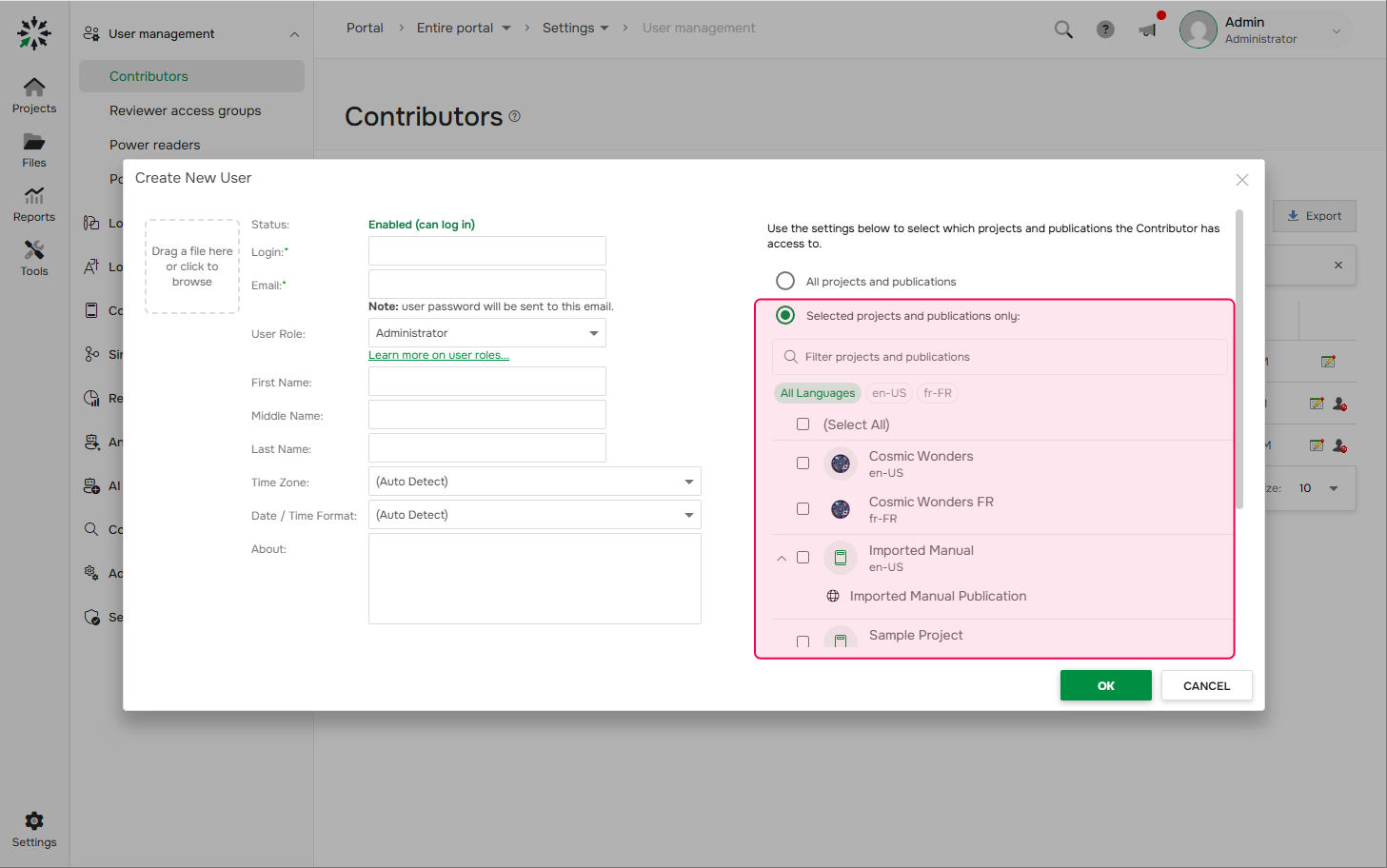
- Click OK.
Change access for an existing Contributor
- Go to Settings → User management → Contributors.
-
Click Edit user's profile next to the account.
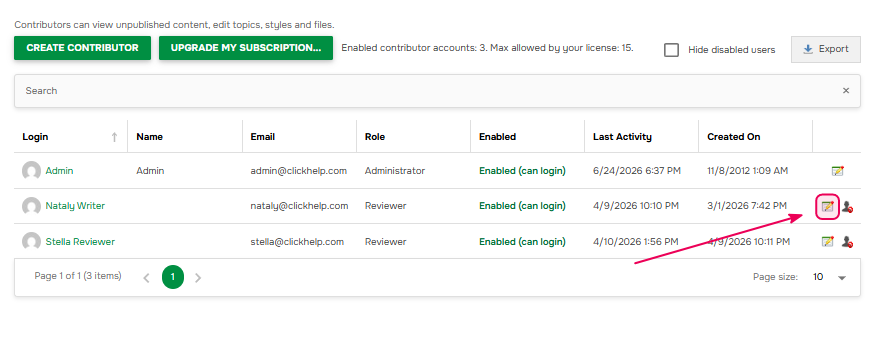
- Select Roles and Permissions tab.
-
Choose Selected projects and publications only, then select the projects and publications this user should access.
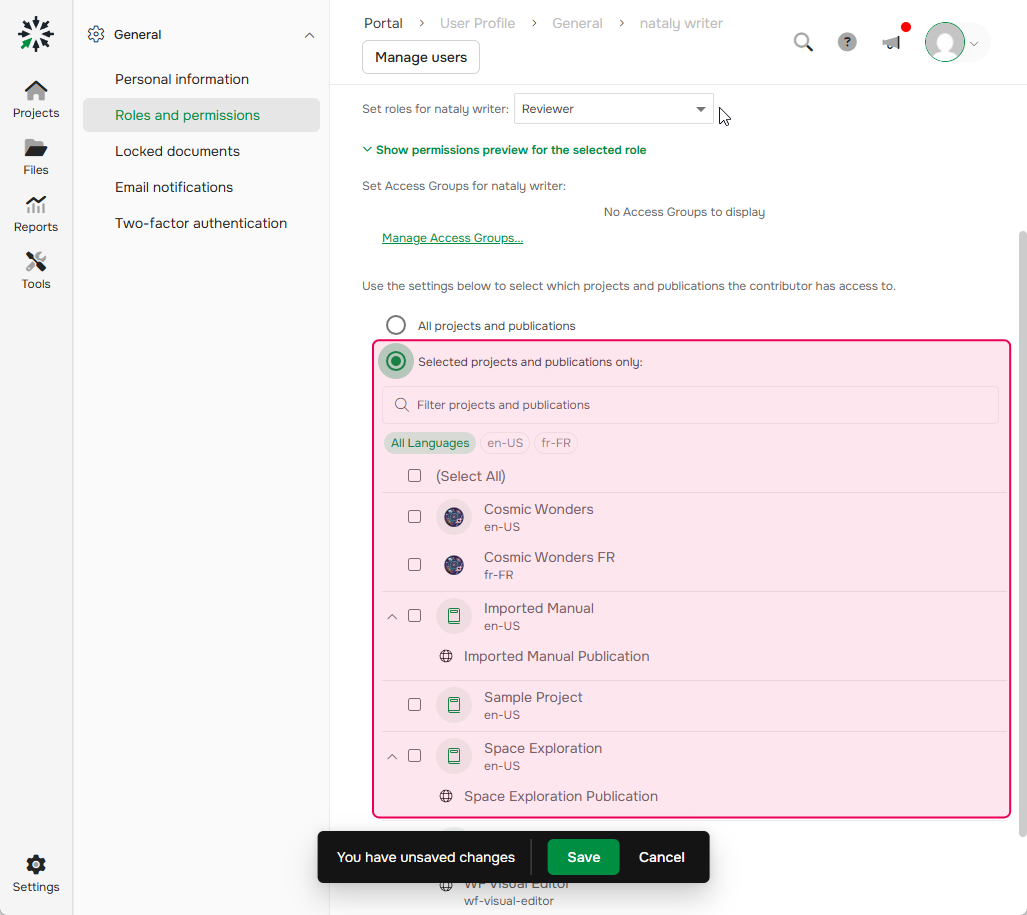
- Save the changes.
How access works for new projects and publications
Project
- The contributor who created this project gets access automatically.
- Users with All projects and publications access get it automatically too.
- Users with limited access do not get access automatically — you need to grant it manually via Visibility & Access in the project settings.
Private or restricted publication
- By default, a newly created publication gets the same access as the parent project (same users who can access the project can access the publication).
-
You can explicitly choose which Contributors get access by clicking Configure access when creating a publication.
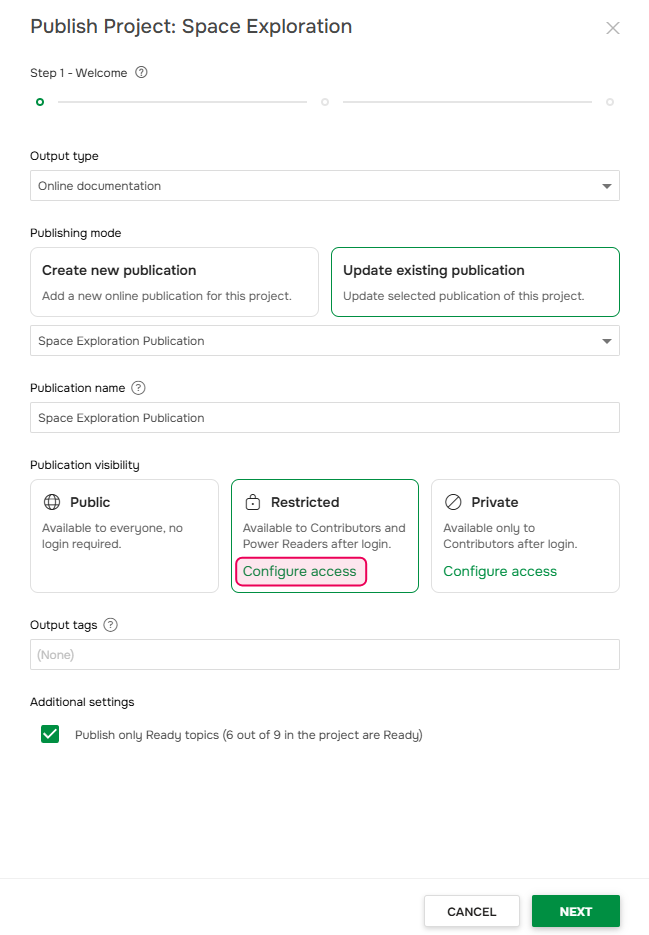
- You can also change the access for an existing publication in the publication settings → Visibility & Access tab.