Here are some use cases to make your experience with the Reader Menu Editor more effective.
- Scenario #1 - how to add an image menu item
- Scenario #2 - how to create a button
- Scenario #3 - how to colorize menu items
- Scenario #4 - how to center-align menu items
- Scenario #5 - how to center-align menu items between your logo and other elements
Scenario #1 - how to add an image menu item
- Open Reader Menu.
-
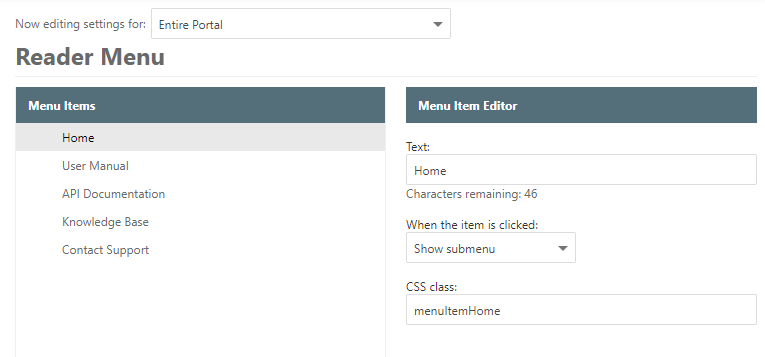
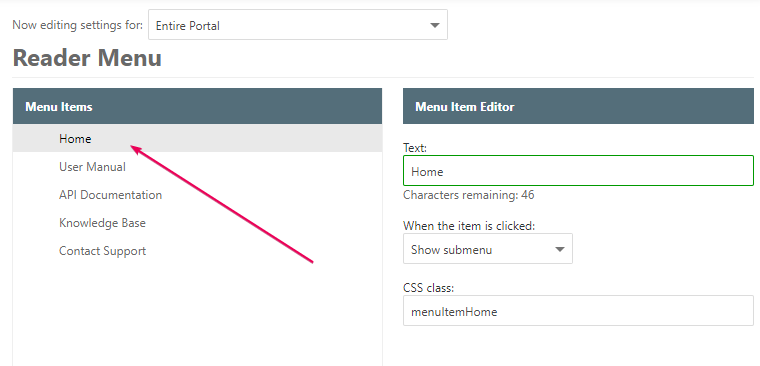
In our Reader Menu editor, we've already created some items.
-
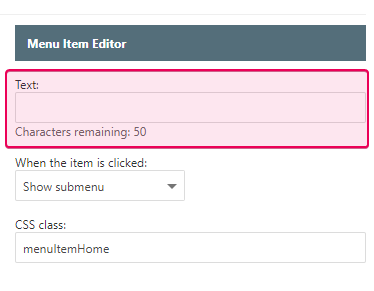
In order to replace a text with an image, we need to delete the item
text.
-
Fill in the CSS class field. In our case, it will be menuItemHome.

- Click Save Changes.
-
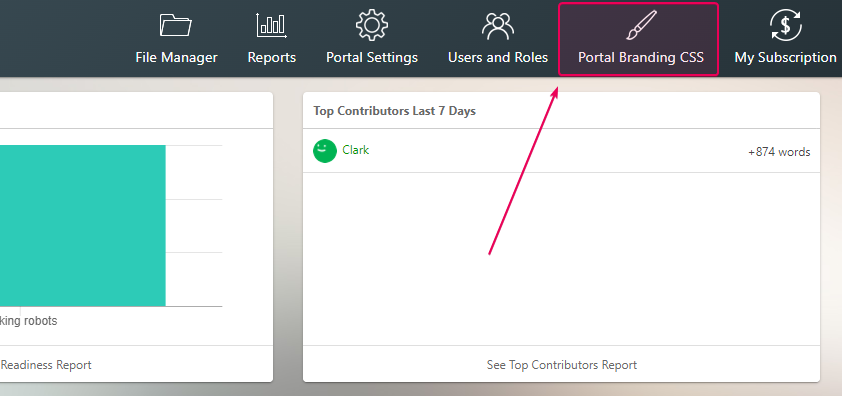
Then open Portal Branding CSS.
-
Copy and paste the following code.
CSS[CSS] .menuItemHome { background-image: url(/resources/Storage/Branding/home.png); background-repeat: no-repeat; width: 32px; background-position: center; }
-
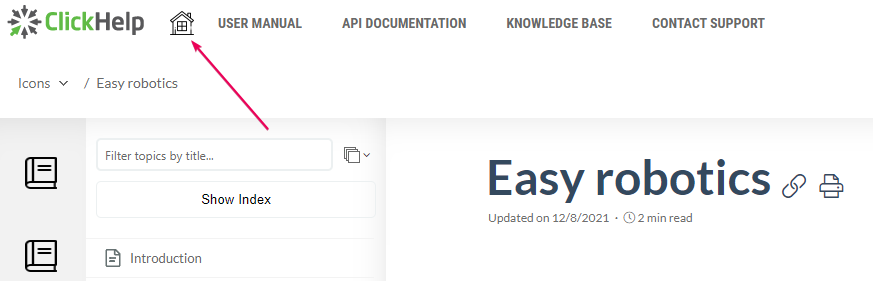
Here is the result.
Scenario #2 - how to create a button
- Open Reader Menu.
-
As we have menu items yet, we've decided that the Home menu item will be a
button.
-
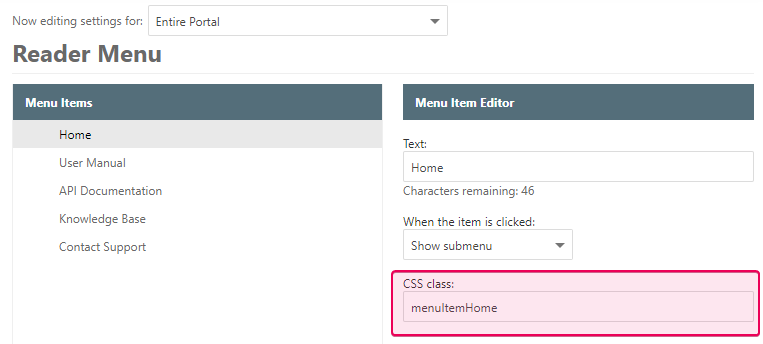
Customize your CSS class. In our case, it will
be menuItemHome.
- Click Save Changes.
- Then open Portal Branding CSS.
-
Copy and paste the following code.
CSS[CSS] .menuItemHome:hover { background: transparent !important; } .menuItemHome a { background: #009900 !important; color: white !important; transition: background-color .1s !important; border-radius: 3px; padding: 10px !important; display: inline !important; } .menuItemHome a:hover { background-color: #00aa00 !important; }
-
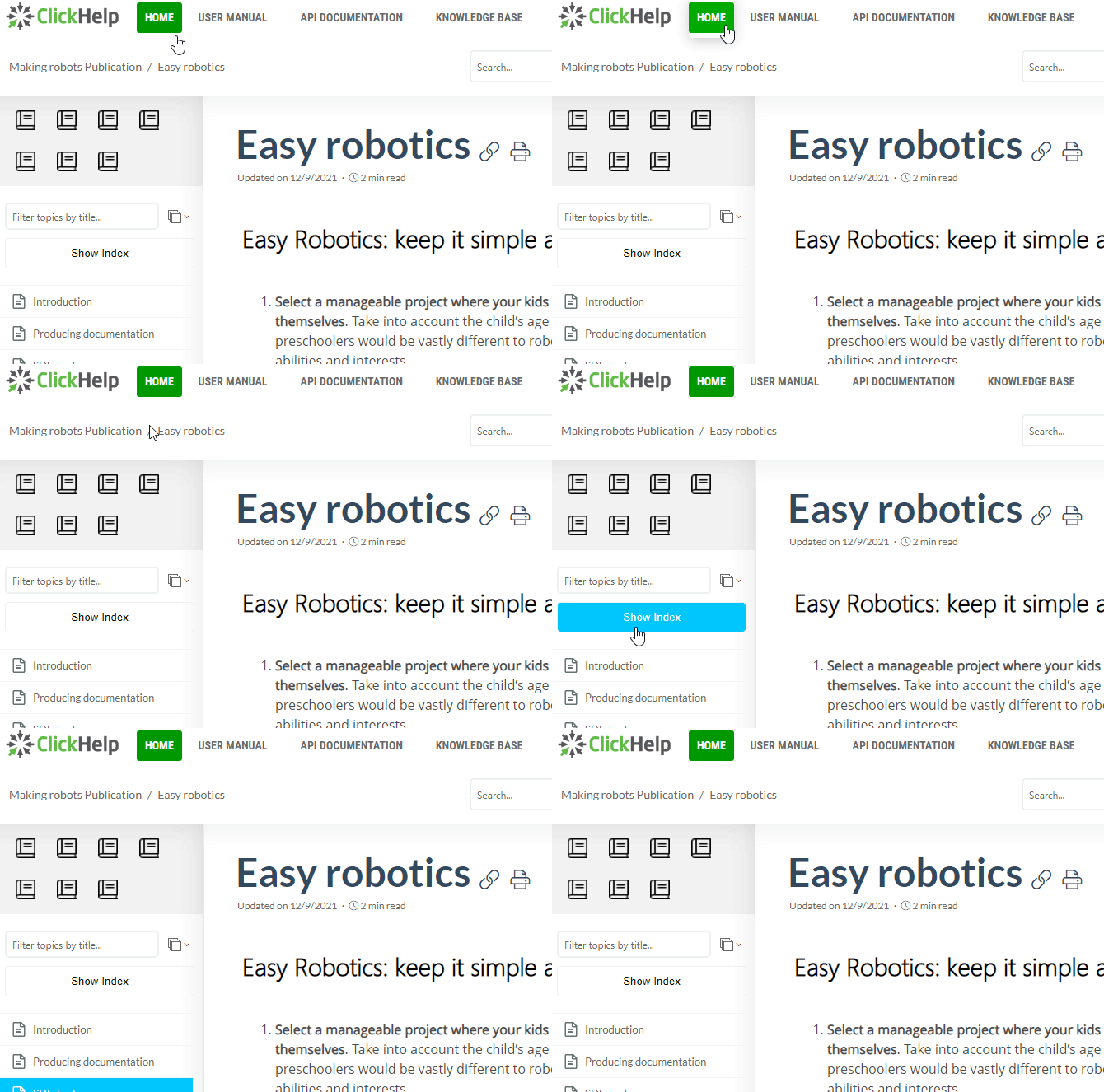
Here is the result.
Scenario #3 - how to colorize menu items
- Open Reader Menu.
-
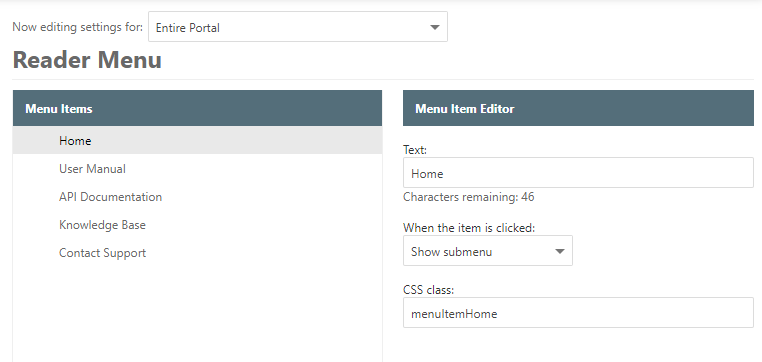
We've already created five menu items.
- Open Portal Branding CSS.
-
Now, we should set up CSS classes for every menu item. In our case, we will set up .menuItemHome for the
Home menu item. Then, we
paste the following code.
CSS[CSS] .menuItemHome a { color: #00695c !important; } .menuItemHome:hover a { color: white !important; background-color: #00695c !important; } .menuItemUserManual a { color: #0277bd !important; } .menuItemUserManual:hover a { color: white !important; background-color: #0277bd !important; } .menuItemApiDocs a { color: #283593 !important; } .menuItemApiDocs:hover a { color: white !important; background-color: #283593 !important; } .menuItemKb a { color: #6a1b9a !important; } .menuItemKb:hover a { color: white !important; background-color: #6a1b9a !important; } .menuItemSupport a { color: #bf360c !important; } .menuItemSupport:hover a { color: white !important; background-color: #bf360c !important; }
-
Here is the result.

Scenario #4 - how to center-align menu items
Imagine we have four menu items. So, open Portal Branding CSS, then copy and paste the following code:
CSS |
[CSS] .BaseMaster_mainMenuContainer { width: 900px; margin: 0 auto; box-shadow: none !important; } @media (max-width: 979px) { .BaseMaster_mainMenuContainer { width: auto; margin: 0; } } |
Here is the result:
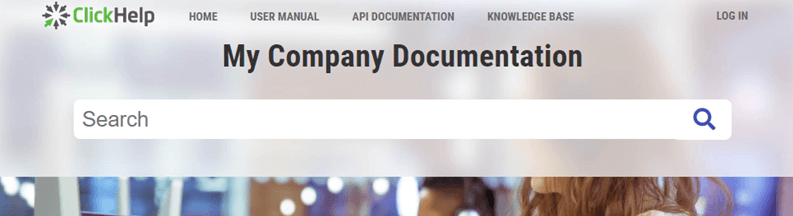
Scenario #5 - how to center-align menu items between your logo and other elements
For example, we have three menu items. So, open Portal Branding CSS, then copy and paste the following code:
CSS |
[CSS] .BaseMaster_mainMenuContainer #pnlMainMenuContainer { width: 280px; margin: 0 auto; float: none !important; } |
In this case, keep in mind that you should customize the width attribute based
on the number of your menu items.
Here is the result: