ClickHelp users with the Administrator role can reset other users' passwords. Refer to the steps below to learn how to do this.
- Go to Settings by clicking the gear icon at the bottom left corner.
- Select the Contributors or Power readers section of the User management, depending on the user account type.
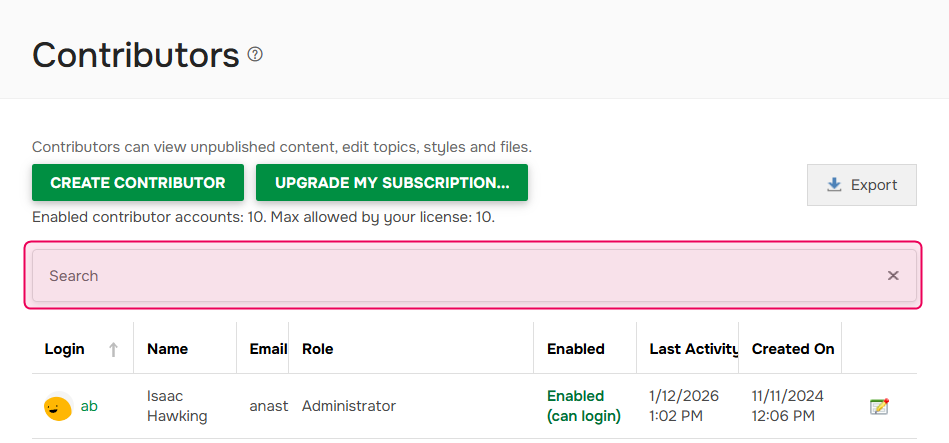
- Find the needed user account. You can use the Search box for this:
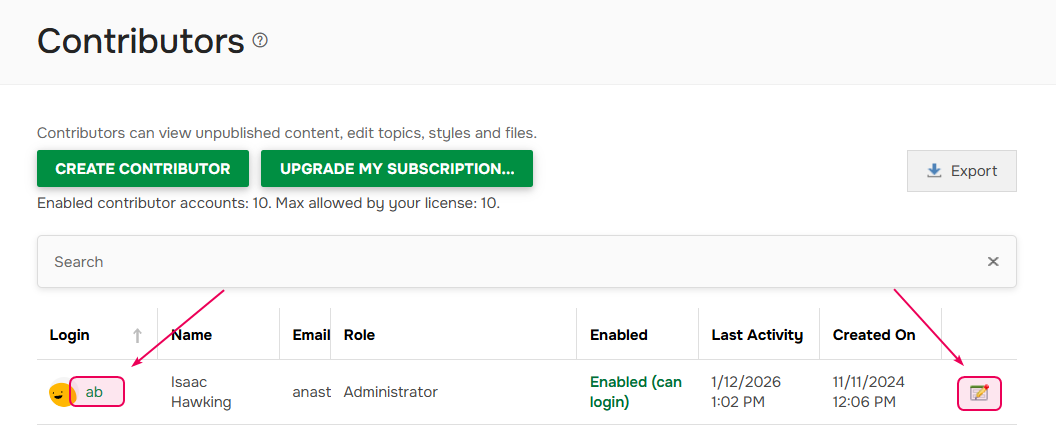
- Click on the user's Login or on the Edit user profile button to open the user's profile.
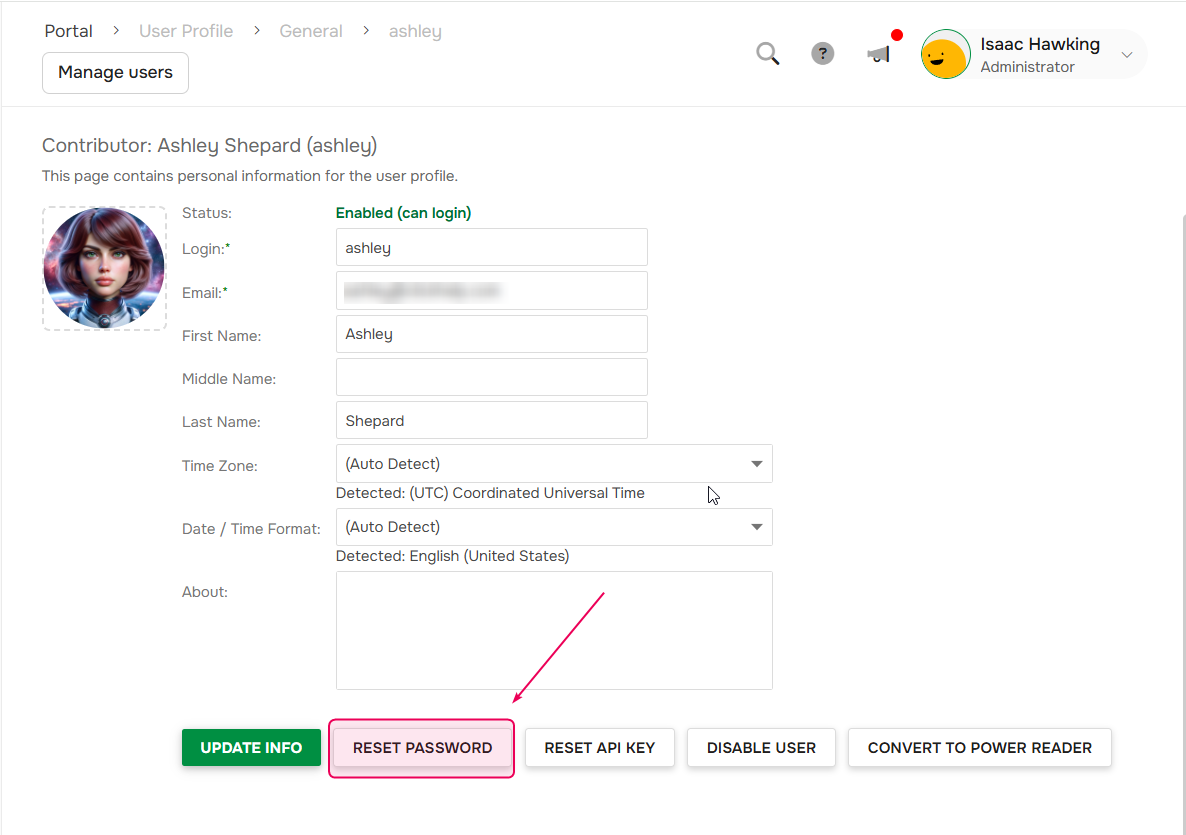
- You'll be switched to the Personal information section of the user's profile.
- Click the Reset Password button to reset the user's password.
| After you click Reset Password, the user can no longer log in with their old password. |
The user will receive an email with a link to set a new password. By default, the link expires in 24 hours. Administrators can change the expiration period in the Password strength settings if the Enterprise security addon is enabled.