ClickHelp uses Universal Links to handle links efficiently. In simple terms, this logic ensures that users always reach the most relevant version of a topic, even if they click a link to a project instead of a specific publication.
| Universal Links are the default way of handling links for portals created after November 20, 2025. Portals created before this date use the old link-handling method, but can enable Universal Links via Settings – Where to set up Universal Links. |
- How Universal Links to Topics Work
- How Universal Links to Publications Work
- Where to Set up Universal Links
- Peculiarities
- Universal Links vs. Smart Links
How Universal Links to Topics Work
If you've already used Smart Links, Universal Links will feel familiar. The great thing is that any copied link will work: just copy a URL from the address bar, and ClickHelp will take the user to the right article based on their role and permissions.
Quick Overview
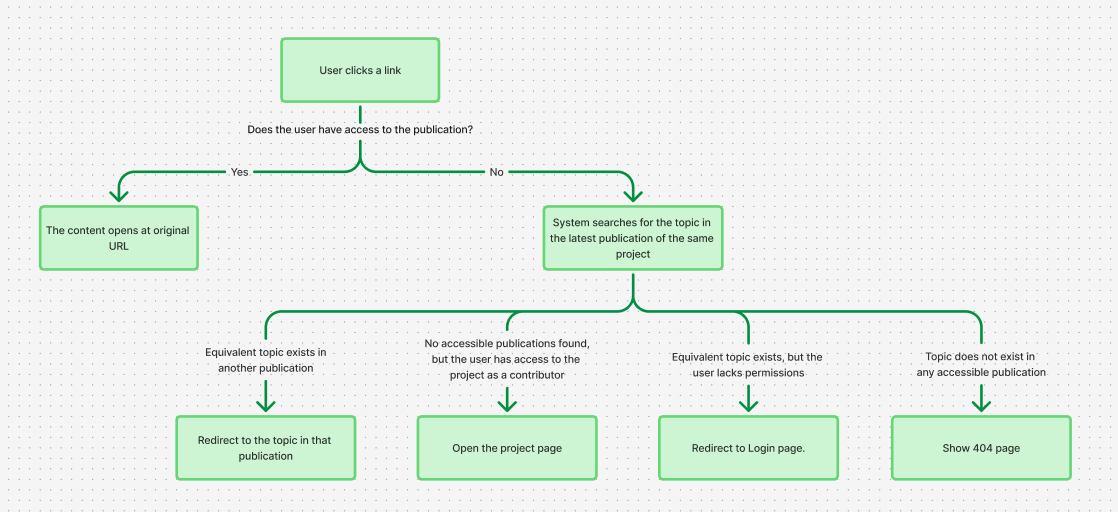
Detailed Description
When a user clicks a link, ClickHelp checks their access rights and determines what to do next:
-
User has access to the publication → The content opens at the original URL.
-
User does not have access to the publication →
-
The system searches for the topic in the latest publication of the same project available to the user.
-
There are three possible outcomes:
-
An equivalent topic exists in another publication → The user is redirected to that topic.
- No accessible topics are found, but the user has access to the project → The project page opens.
-
The topic exists, but the user lacks permissions → The user is redirected to the login page.
-
The topic does not exist in any accessible publication → A 404 page is displayed.
-
-
How Universal Links to Publications Work
If you’ve worked with Smart Links before, Universal Links will feel similar. The key benefit is that any URL works: simply copy a link from the address bar, and ClickHelp will route the user to the correct article based on their permissions.
Quick Overview
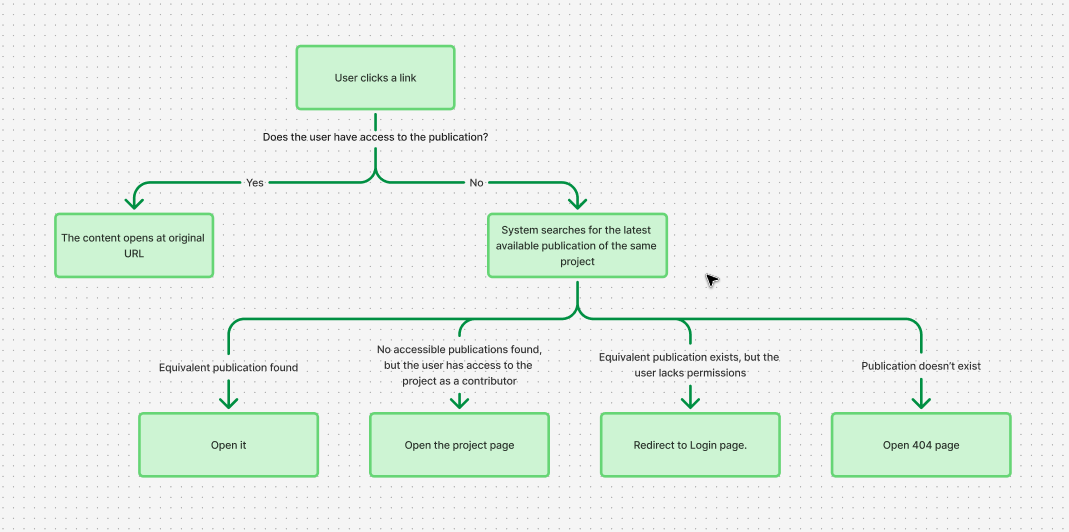
Detailed Description
When a user clicks a link, ClickHelp checks their access rights and determines what to do next:
-
User has access to the publication → The content opens at the original URL.
-
User does not have access to the publication →
-
The system searches for the latest publication of the same project available to the user.
-
There are three possible outcomes:
-
There's an equivalent publication of the same project → The user is redirected to that publication.
- No accessible publications are found, but the user has access to the project → The project page opens.
-
The publication exists, but the user lacks permissions → The user is redirected to the login page.
- Such a publication doesn't exist → A 404 page is displayed.
-
-
Where to Set up Universal Links
You can manage link behavior in Settings → Administration → Link Behavior. Just tick the Enable Universal Links checkbox.
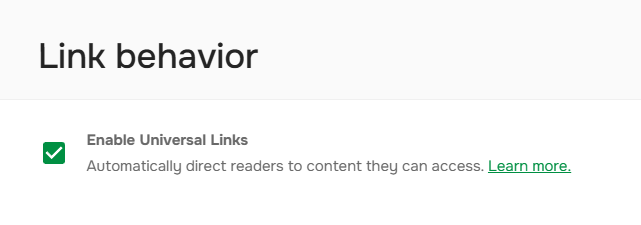
| The setting is accessible for portals created before November 20, 2025. Other portals use this logic by default. |
Peculiarities
Universal Links have several nuances:
-
Selecting the latest topic version
When choosing which version of a topic to open, ClickHelp always selects the one from the most recently published publication — even if there’s another topic that was updated later in an older publication. The publication's date is visible next to its name in the portal dashboard:

The publication’s release date takes priority over individual topic updates. -
Fallback to the project
If no equivalent topic is found, but the user has access to the project as a contributor, ClickHelp will open the project page instead. -
Language matching
Universal Links only search for topics in the same language as the original project.
There is no cross-language redirection — projects in different languages are treated as separate.
Universal Links vs. Smart Links
| Universal Links | Smart Links |
|---|---|
| A link-handling logic that works with any format. | A specific link format. |
| Open the publication specified in the link, if available. | Always point to the project, so the most recent publication opens automatically. |