Visual Workflow Editor lets you edit workflow statuses and transitions through a visual interface and apply the changes to your portal with a single click. This article covers all the editor's features.
| To create a custom workflow in your portal, your plan must include the API & Extensibility module. See the Pricing page to learn more. |
- Adding Visual Workflow Editor to your Portal
- Connecting to a Portal
- Navigating the Canvas
- Managing Statuses
- Managing Transitions
- Validation
- Export and Import JSON
- Applying Changes to the Portal
Adding Visual Workflow Editor to your Portal
To add the tool to your portal:
- Download this file.
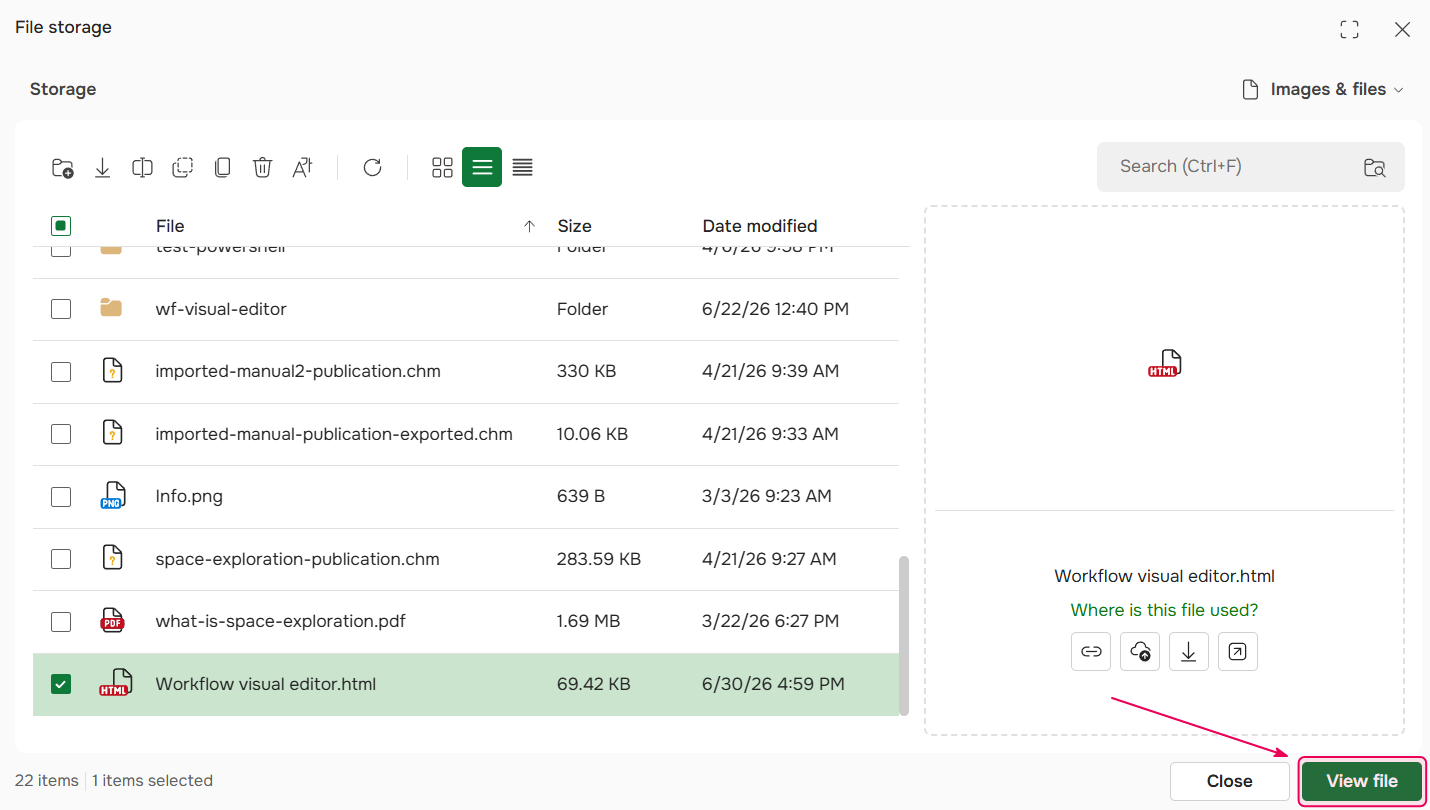
- Upload it to your storage — either to the root folder or to any other folder of your choice.
-
In File Manager, select the file and click View file to run the tool.
Connecting to a Portal
When you open the editor, you'll see an authorization screen. Enter your ClickHelp portal URL, login, and API key (you can reset your API key on your profile page).
Once connected, the editor loads your current workflow — all statuses and transitions. The portal name appears in the status bar at the top.
Navigating the Canvas
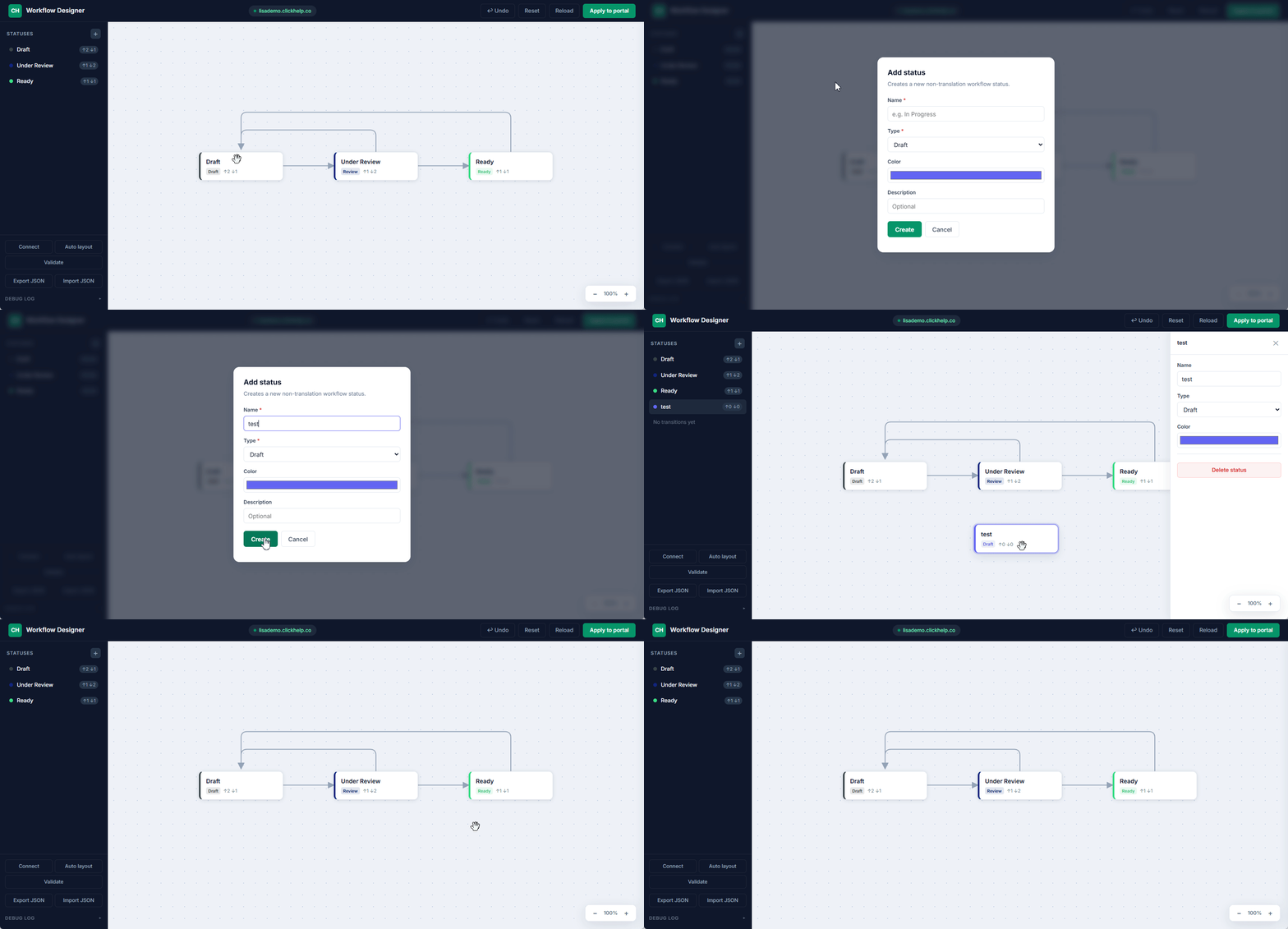
The workflow diagram is displayed on an infinite canvas. You can:
-
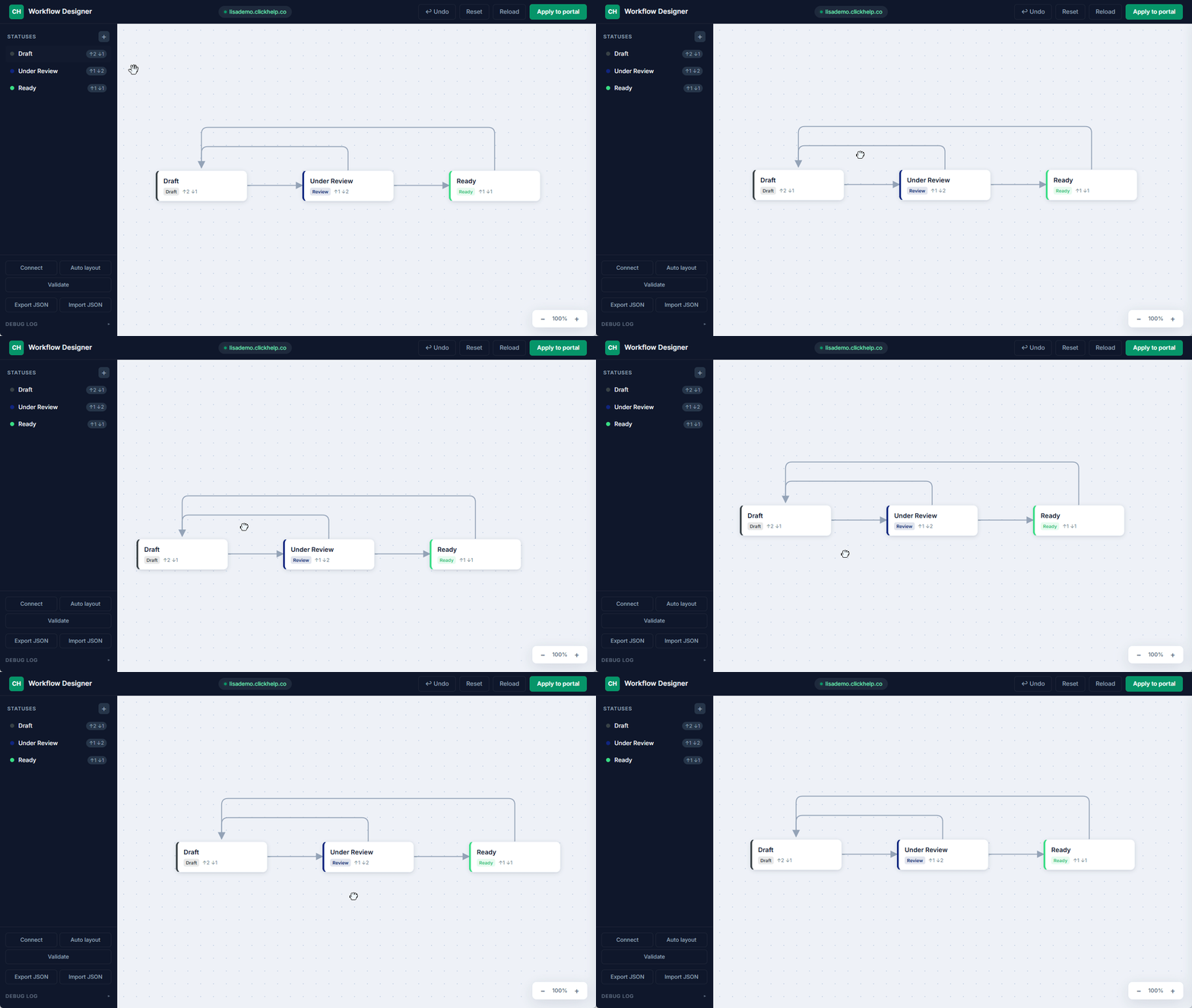
Pan — click and drag on an empty area of the canvas.
-
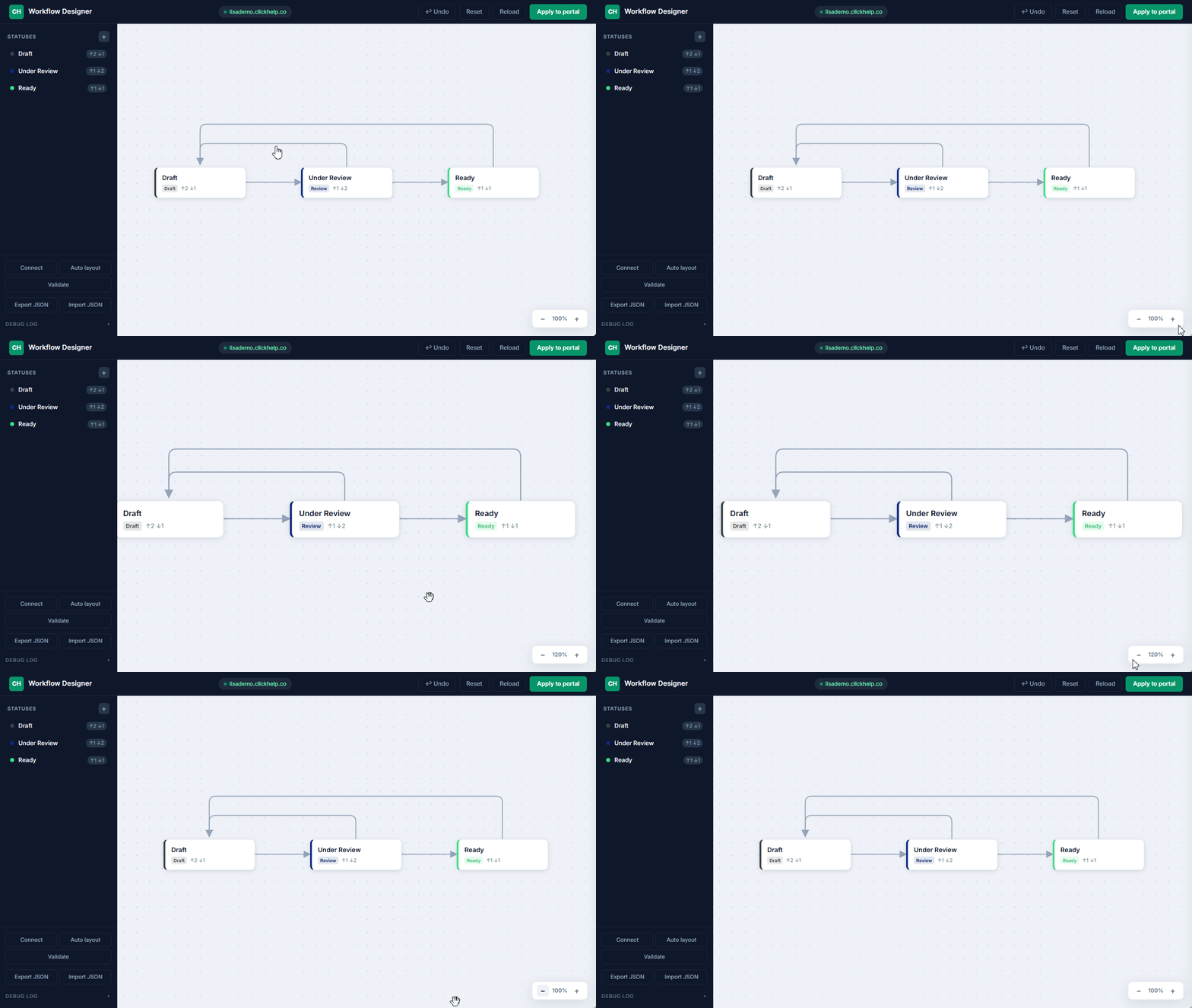
Zoom — use the − / + buttons in the bottom-right corner.
-
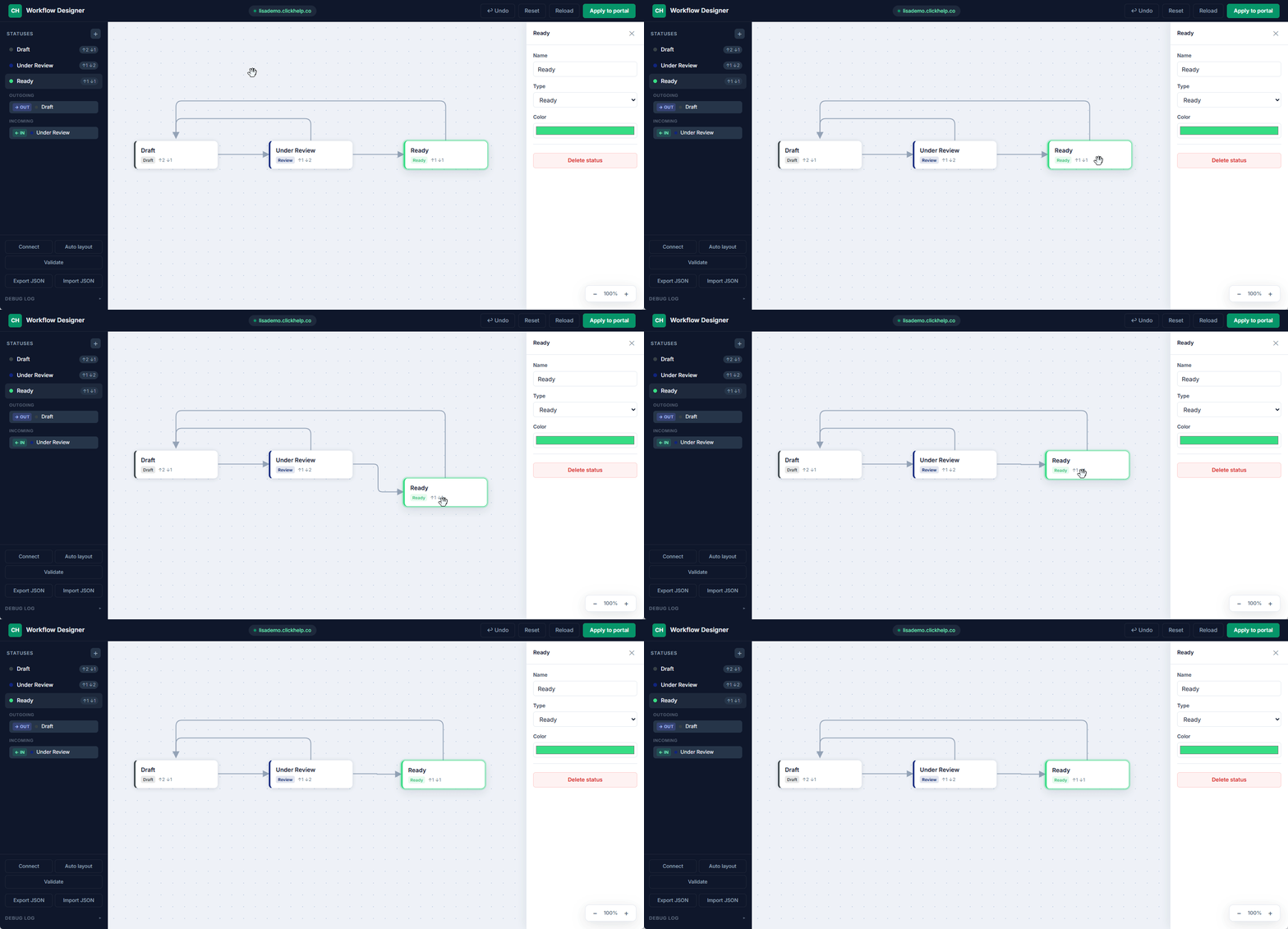
Move a status — drag its card to any position.
-
Undo — press Ctrl + Z or Undo in the top right corner.
Managing Statuses
You can add, edit, and remove workflow statuses.
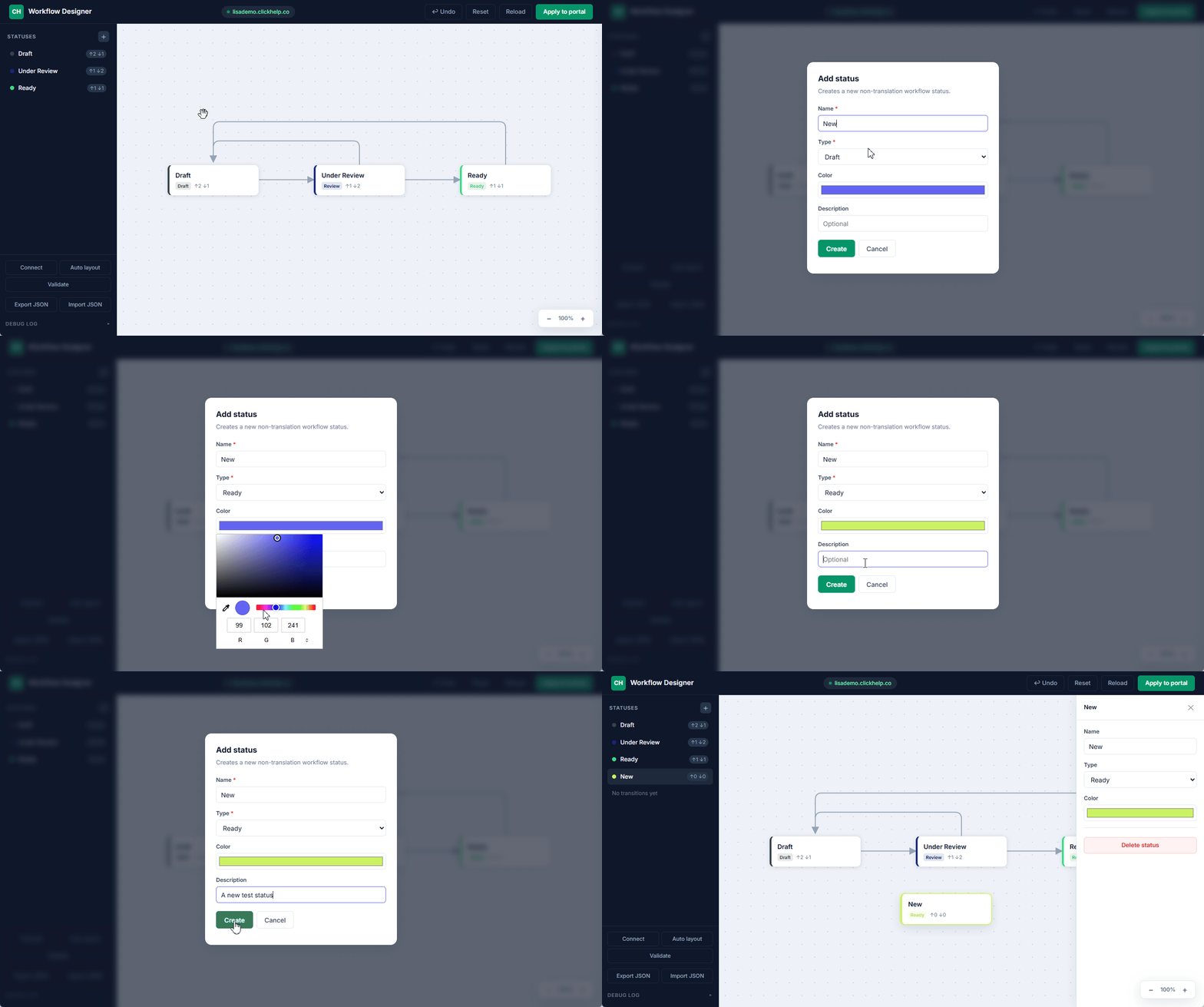
Adding a status
Click + in the top-left corner and specify:
- Name — the status name displayed in the ClickHelp interface.
- Type — one of the three status types: Draft, Review, or Ready, defining the role of the status in the workflow.
- Color — the color that will be visible in the interface.
- Description (optional) — an internal description visible in the Workflow editor and through the API.
Editing a status
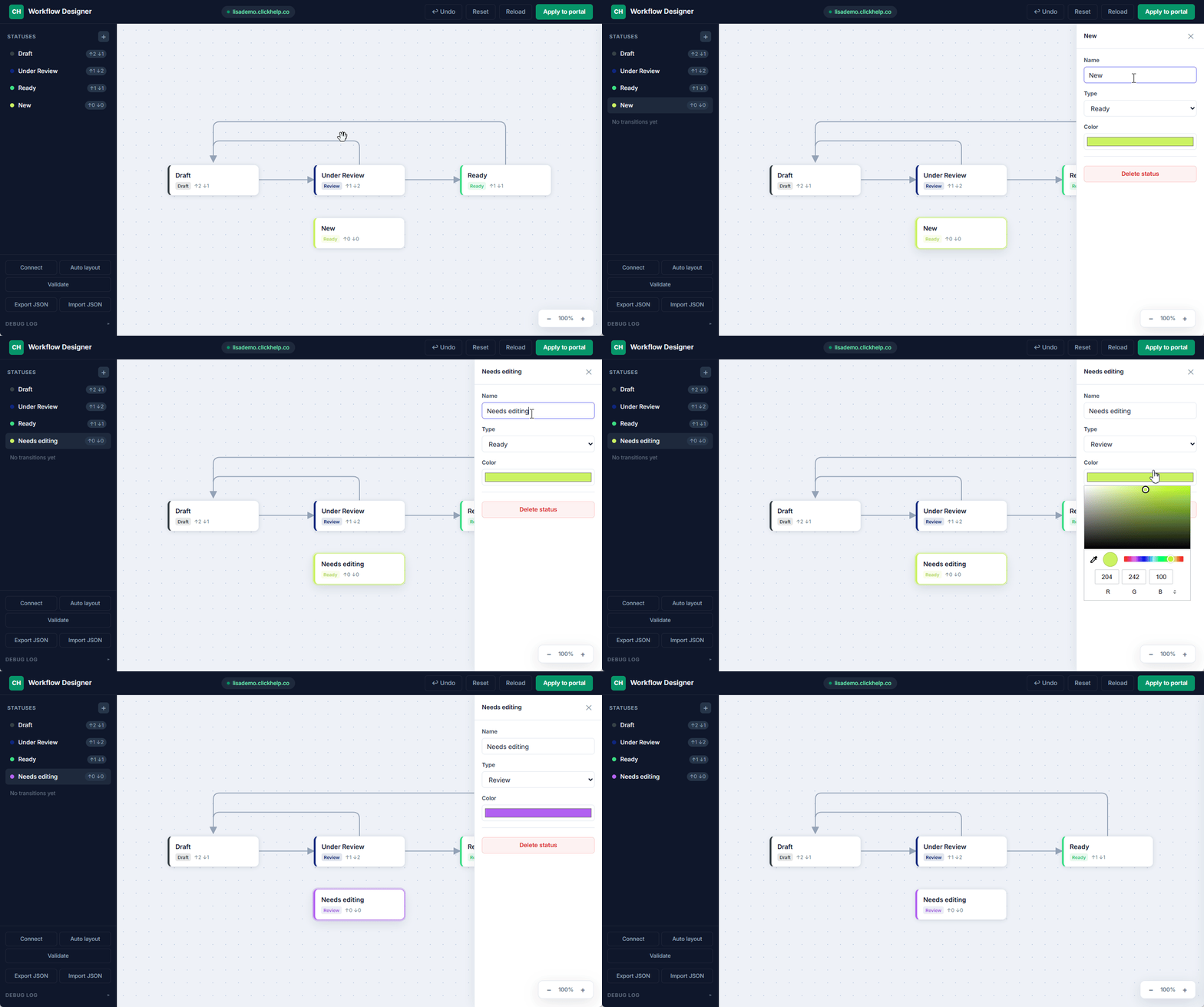
Click a status to open the properties panel on the right, then update its name, type, color, or description.
Removing a status
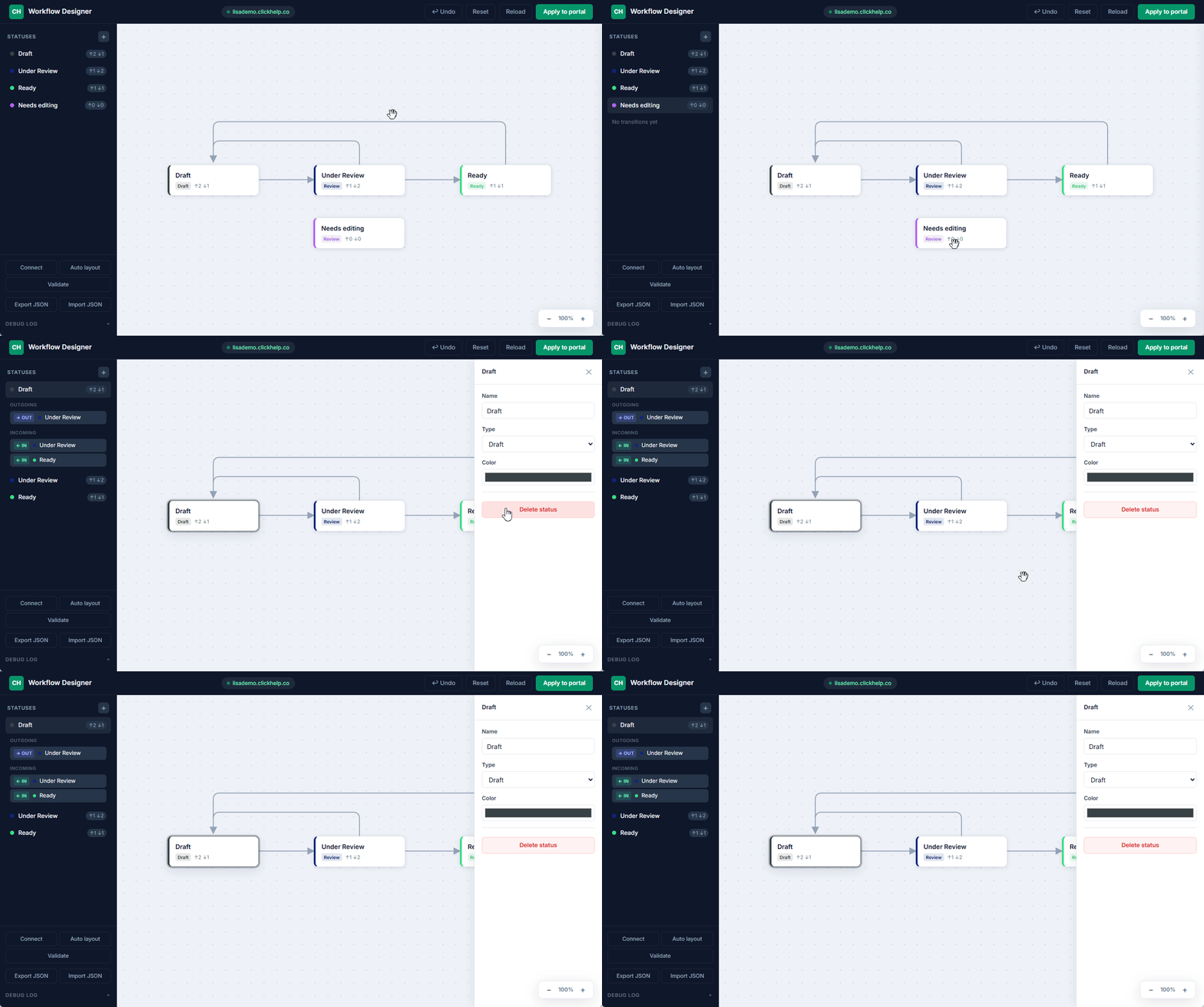
Select a status and either:
- press Delete or Backspace on the keyboard, or
- click Delete in the right-side panel.
| Deleting a status also removes all of its transitions. |
Managing Transitions
Transitions define which status-to-status moves are allowed. You can add them and remove the ones you no longer need.
|
Each status must have at least one incoming and one outgoing transition. If not, the
workflow won't pass validation, and you won't be able to apply the changes to the portal.
|
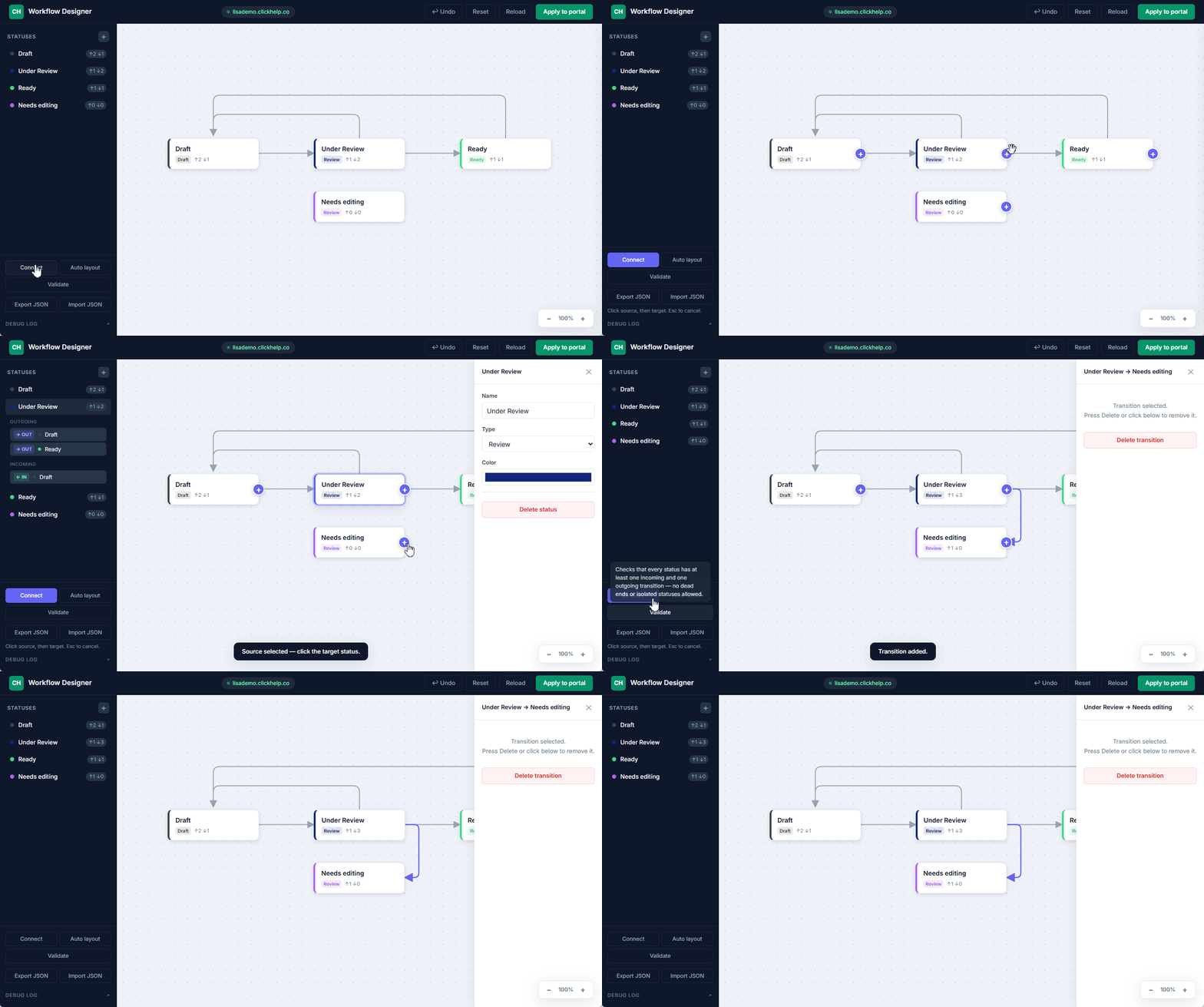
Adding a transition
- Click Connect in the toolbar.
- Click the + icon on the source status.
- Click the + icon on the target status.
- Press Esc or click Connect again to exit connection mode.
Removing a transition
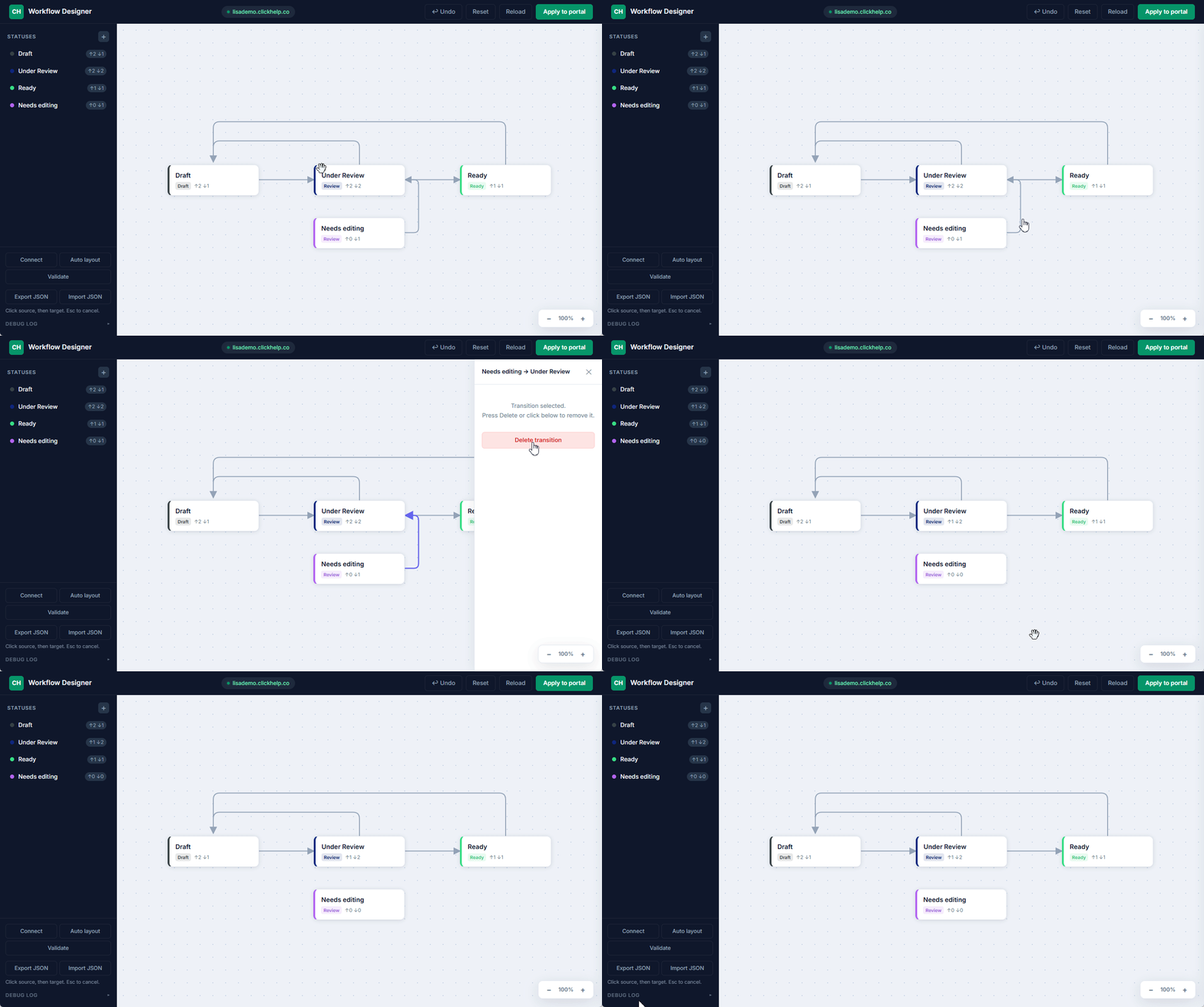
Click a transition arrow to select it, then press Delete on the keyboard or click Delete transition in the right-side panel.
Validation
Before applying changes, click Validate to check the workflow.
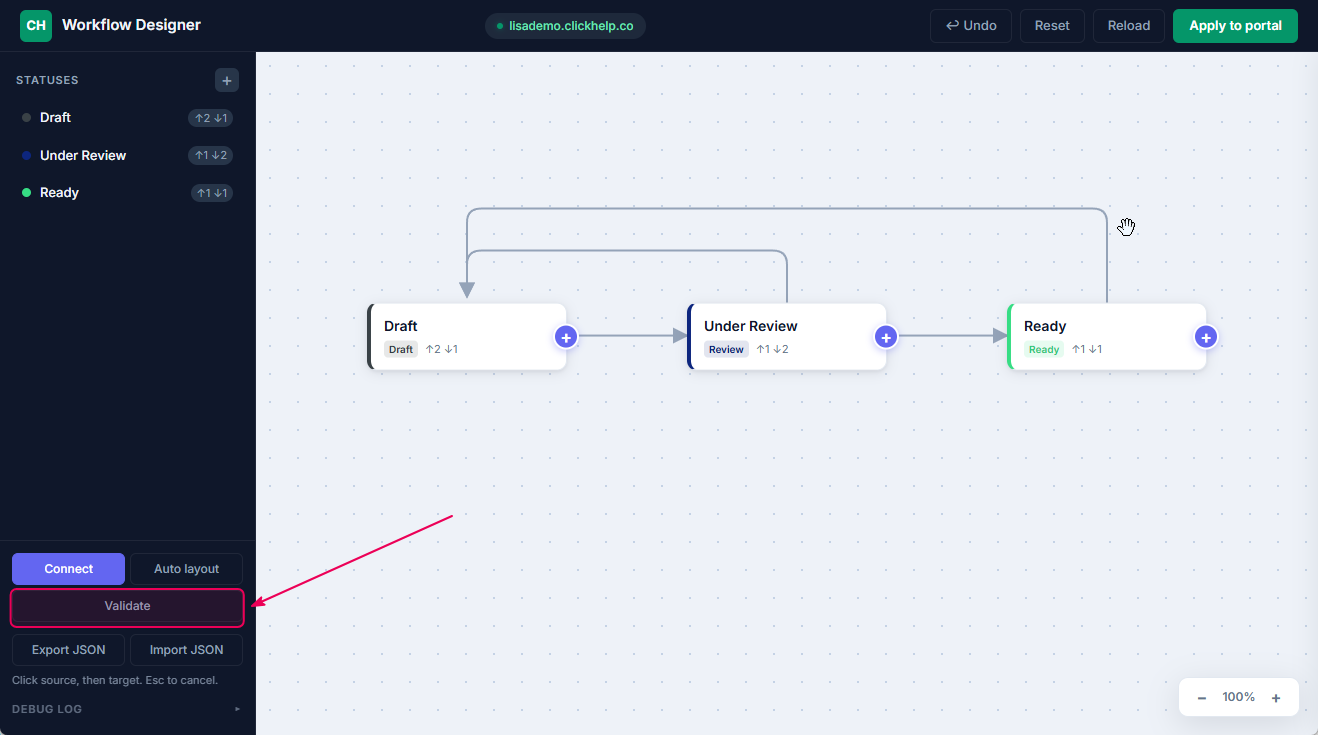
The editor reports two types of issues:
- No incoming transitions — the status is unreachable; nothing in the workflow leads to it.
- No outgoing transitions — the status is a dead end; there is no way out of it.
Results appear at the bottom of the sidebar. Applying changes to the portal is only possible once all issues are resolved.
Export and Import JSON
The Export JSON and Import JSON buttons let you save the current workflow state to a file and restore it later. The file includes all statuses, transitions, and node positions on the canvas.
This is useful for a workflow before making major changes or sharing a draft with teammates.
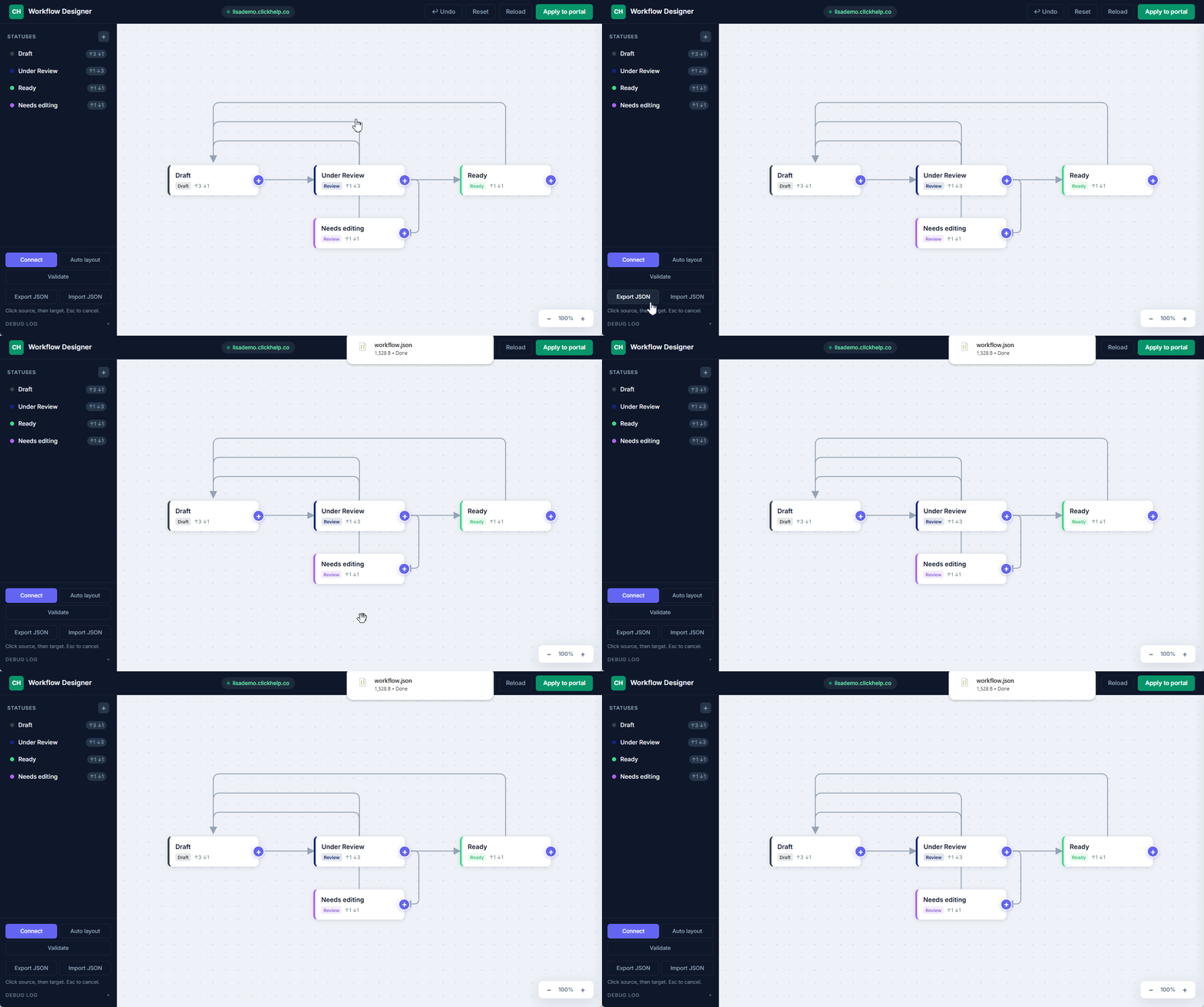
Exporting
Click Export JSON — the file downloads automatically.
Importing
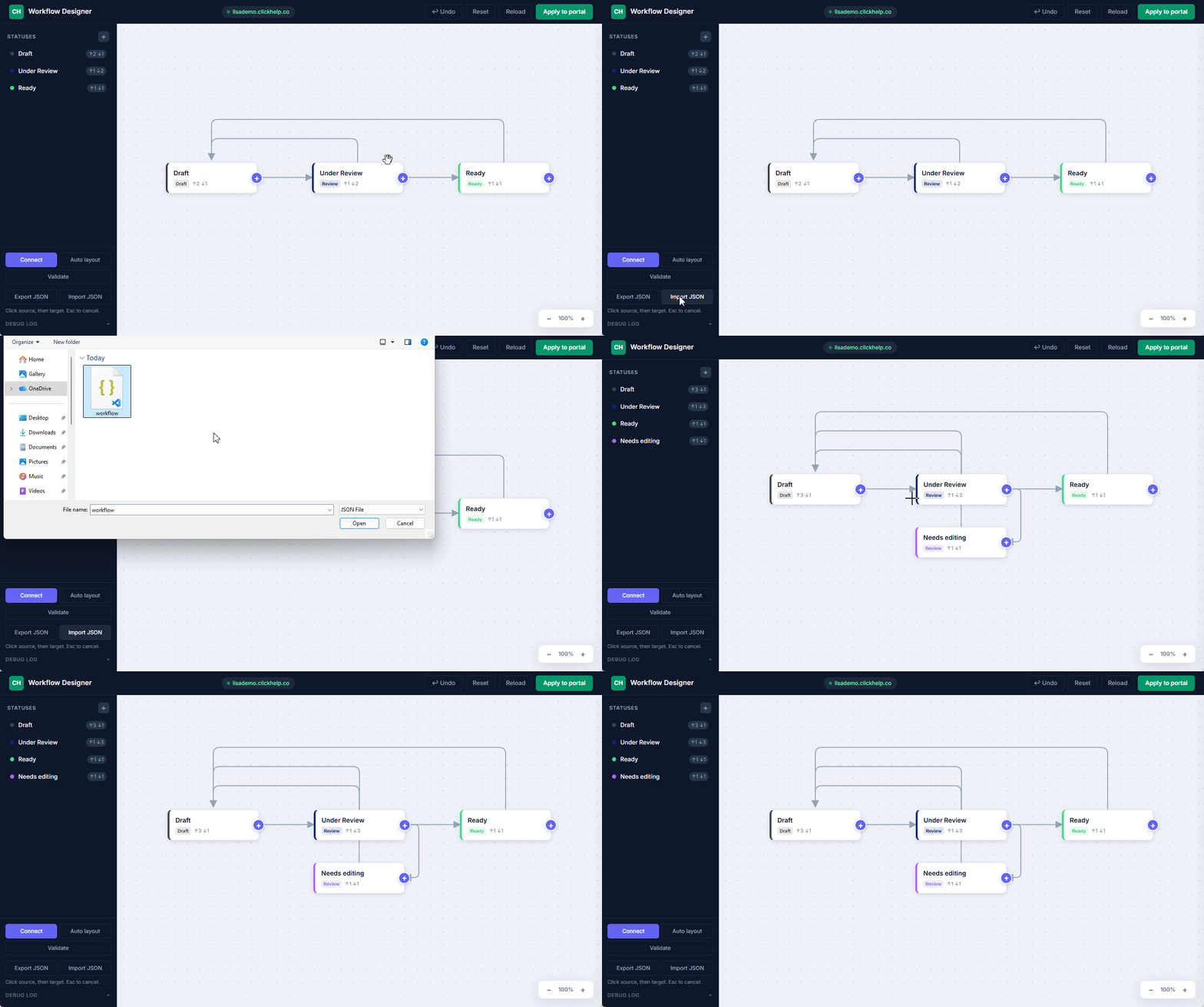
Click Import JSON and select a previously exported file. The imported workflow replaces the current workflow on the canvas.
If needed, press Ctrl + Z to undo the import and restore the previous workflow.
Applying Changes to the Portal
When you're done editing, click Apply to portal at the top of the screen.
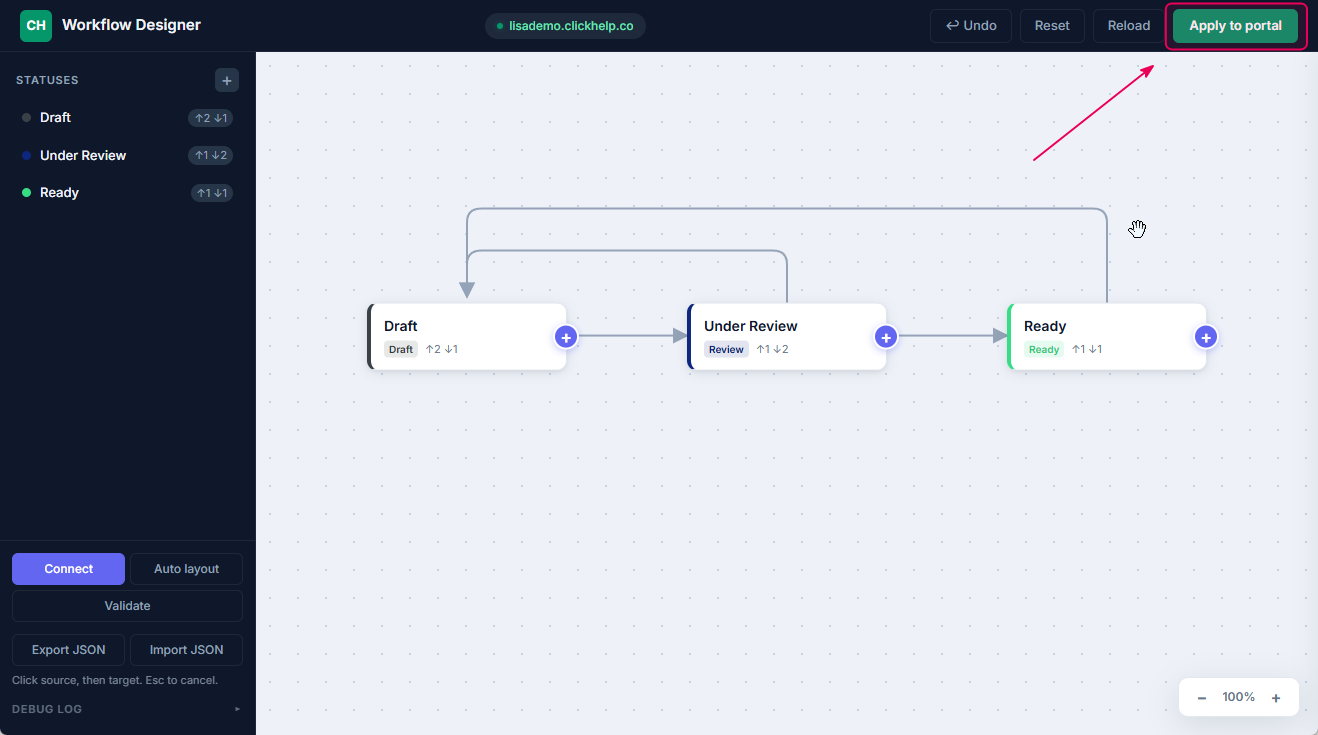
The editor applies all changes to your ClickHelp portal: it creates new statuses and transitions, updates the modified ones, and deletes anything that was removed from the diagram.
The button is active only when there are unsaved changes. If validation fails, the errors are displayed at the bottom of the screen.
After applying the changes, simply refresh the page to see the updated workflow.