This topic shows how to set up a Guest Review, share it with your reviewers, and work through the notes that come back. For what Guest Review is and how it behaves, see About Guest Review.
Before you start, have these ready:
- The ClickHelp URL of each topic you want reviewed.
- The name of each reviewer (an email works too; see step 3).
- Your link to the Guest Review service. You get it from the ClickHelp team; Guest Review doesn't open from inside ClickHelp.
Send a Topic for Review
- Open the Guest Review service link.
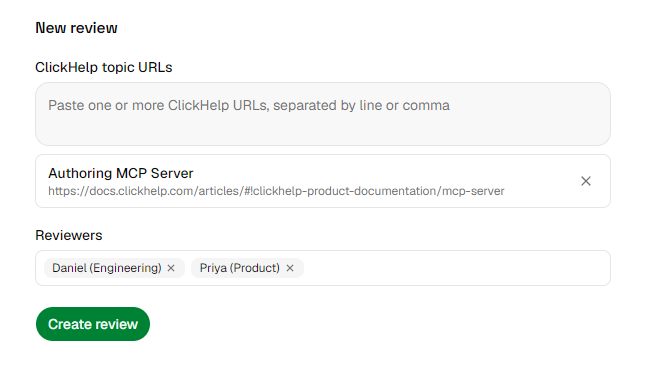
- Under ClickHelp topic URLs, paste one or more topic URLs (up to 20), separated by a line break or comma.
- Under Reviewers, type each reviewer's name and press Enter (up to 20). The name is just a label so you can tell reviewers apart; no one gets an email, and you share the links yourself.
- Select Create review. You get a private link for each reviewer, and the Send reviewer links dialog opens.
- For each reviewer, select Copy invite to copy a short message with their link, or Copy link for just the link. The invite message already explains how to leave notes, so you don't need to add instructions of your own. Send each person only their own link, however you normally reach them: email, chat, and so on. If you close the dialog, select Share to open it again.
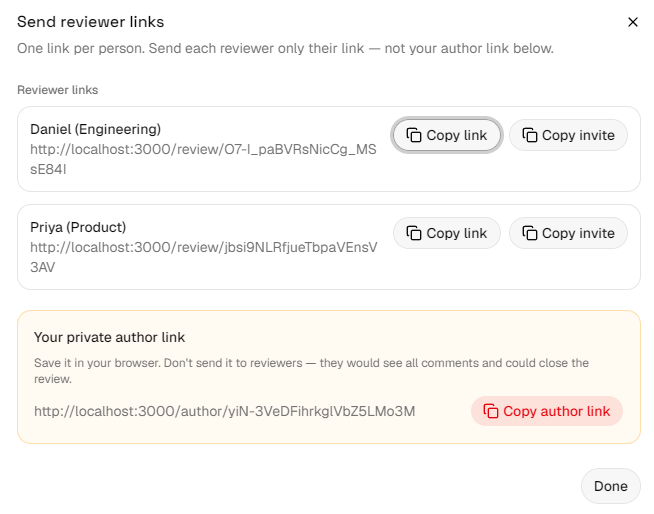
| Keep your author link private. It's how you reopen the review to read the notes, and anyone who has it can see every note and close the review. Save it somewhere safe, and never give it to a reviewer. |
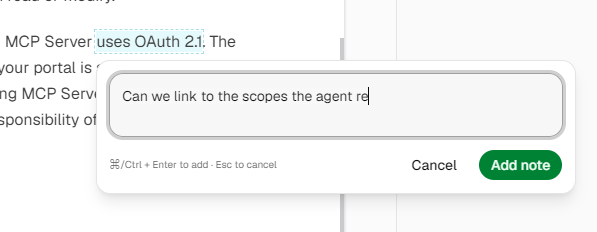
Your reviewers see the article with an Add note box on any text they select.
Collect Feedback and Close the Review
To see the feedback so far, open your author link. The page where you create reviews also lists the ones you've started, so you can reopen a review from there. That list lives only in this browser, so keep the author link somewhere safe too. The notes are in the Feedback panel, grouped by topic and labeled by reviewer.
- Read the notes for the current topic. Selecting a note highlights the text it refers to.
- To focus on one person, hide or show reviewers in the Reviewers section.
- As you deal with each note, select its check to mark it handled, then move on to the next open one.
- See who's finished in the Reviewers section: who marked themselves done, and which topics they approved. Reviewers can keep adding notes until you close the review.
- When you're done, open the More actions menu (···) and select Close link. Confirm in the dialog.
Once closed, the review is read-only: reviewers can still open their links and read their notes, but no one can add new ones. This is final, so a closed review can't be reopened.