Web Help is a static HTML output you can export from ClickHelp. You can open it offline or host it on your own server, for example, in an isolated network without Internet access. It includes a Table of Contents and Search. After export, the files are independent of your ClickHelp portal, so you can customize them as needed.
This article explains how to export a publication to Web Help and open the output.
| For more information about Web Help customization and behavior, see Web Help Overview. |
Exporting a project
-
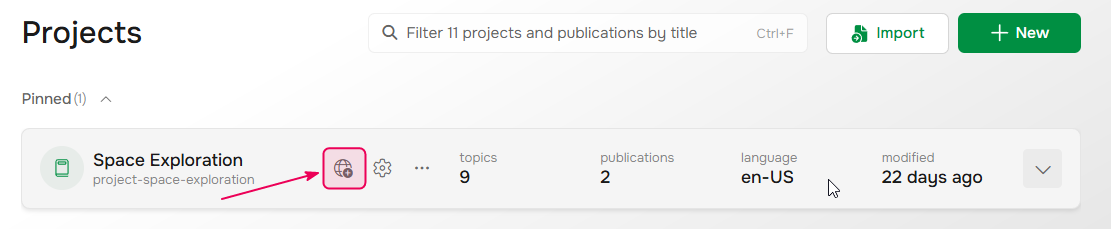
Hover over the project and click Publish.
-
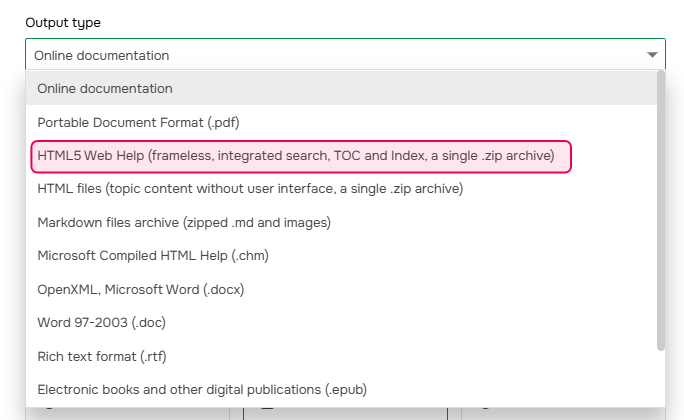
Set Output type to HTML5 Web Help.
- Review the export settings and continue through the wizard.
-
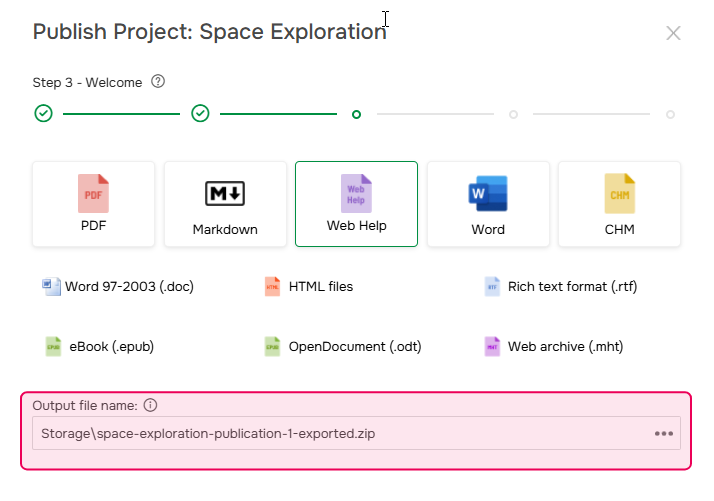
Specify the archive name and destination. Click Next.
-
Complete the wizard and download the archive if needed.
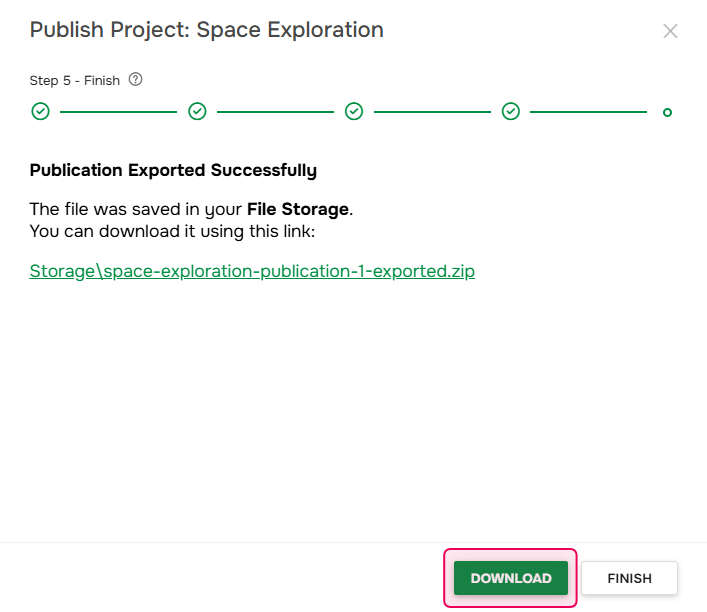
You can also find the exported archive later in Storage, in the location selected in step 4.
Exporting a publication
To export a publication to Web Help:
-
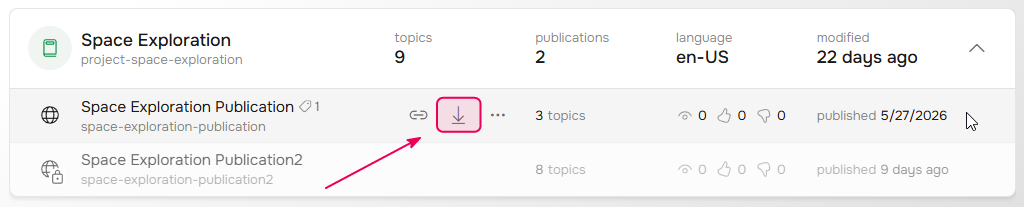
Hover over the publication and click Export.
-
Select Web Help, then specify the archive name and destination.
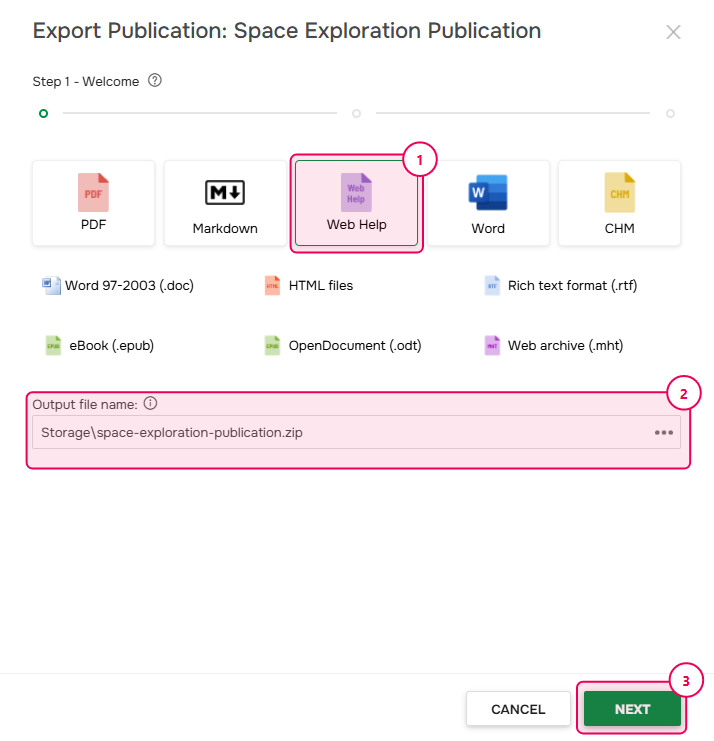
- Wait for the export to complete, then click Next.
-
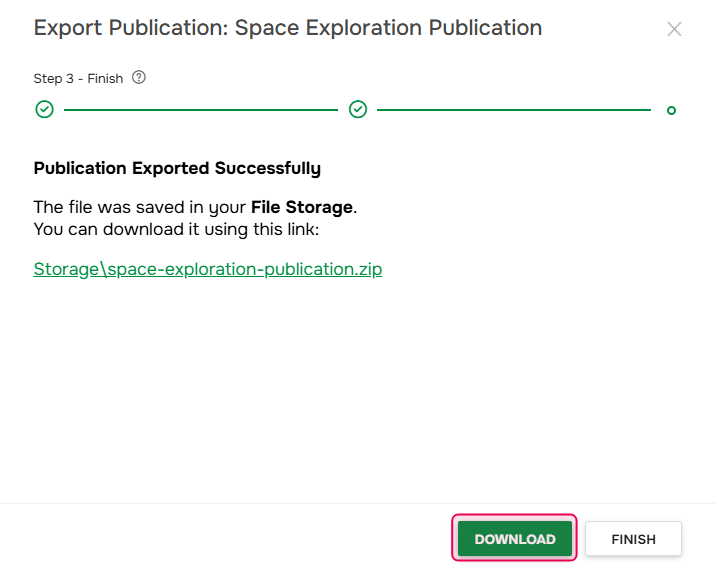
Download the generated archive if needed.
Open the Exported Web Help
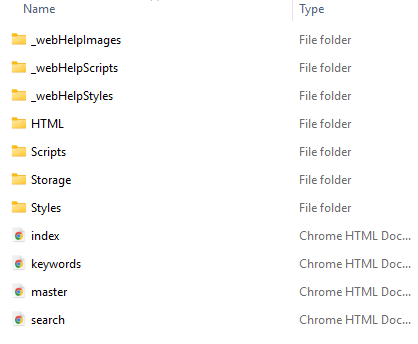
The exported ZIP archive contains all the files required to run Web Help, including HTML, CSS, and JavaScript files. Here's what it will look like:
To open Web Help:
- Extract the archive to a folder.
- Double-click index.html in the root folder.
| You can also open individual topics' HTML files in the HTML folder. |
This is an example of how your Web Help documentation will look when opened in a browser: