When inserting a table into your topic content, you see the dialog as shown in the screenshot below.
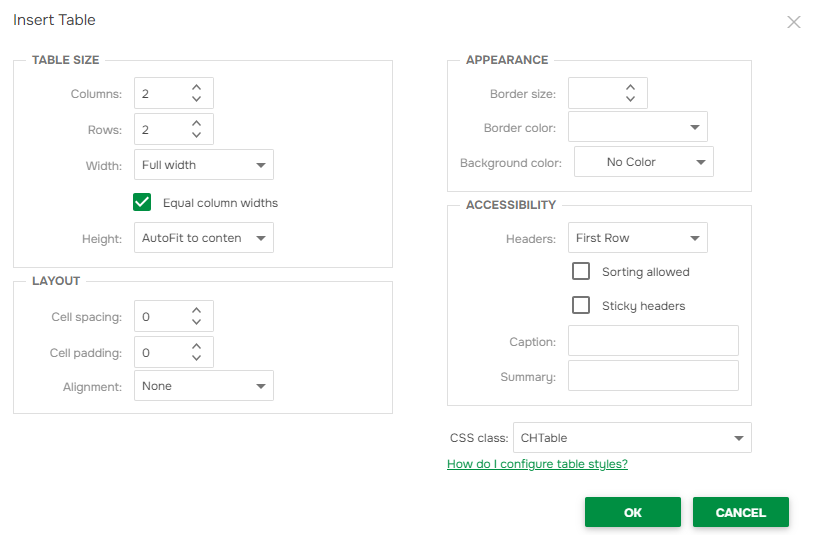
This topic describes the options available there.
| Some appearance settings (such as width, height, borders, and colors) may not be applied exactly as configured in the dialog. Their effect depends on the CSS styles defined for tables in your project. |
Table Size Section
Columns. Sets the number of columns in the new table.
Rows. Sets the number of rows in the new table.
Width. Defines how the table will fit horizontally. Available options:
- Full width. Stretches to the topic width.
- AutoFit to contents. Adjusts the column width automatically to fit the content.
- Custom. Allows you to set a fixed width in pixels or as a percentage of the topic width.
Equal column widths. If selected, all columns will have the same width.
Height. Defines the vertical size of the table. Available options:
- AutoFit to contents. Adjusts the row height automatically to fit the content.
- Custom. Allows you to specify a fixed height value in pixels or as a percentage.
Layout Section
Cell spacing. Sets the space between table cells.
Cell padding. Sets the space between cell content and the cell border.
Alignment. Specifies how the table is aligned in the topic: left, right, center, or none.
Appearance Section
Border size. Defines the width of table borders in pixels.
Border color. Sets the color of the table borders.
Background color. Sets the background color for the table cells.
Accessibility Section
Headers. Specifies which row or column should be treated as table headers: None, First Row, First Column, or Both (i.e., first row and first column). This improves screen reader support and allows special styling for header cells.
Sorting allowed. If selected, allows readers to sort the table by clicking column headers.
Sticky headers. Keeps the header row visible when scrolling through a long table.
| Sticky headers work in the online output. In printed export, the first header row is always repeated at the top of each page if the table spans multiple pages. |
Caption. Adds a descriptive title above the table. Useful for accessibility and clarity.
Summary. Provides a short description of the table’s contents, mainly for screen readers.
CSS Class
CSS class. Allows you to assign a predefined CSS class to the table. This controls styling based on your project’s CSS settings. For more information on table CSS styling, please refer to the following topic: Configure Table Styles.