If you don't want your ClickHelp documentation to be publicly available, you can restrict access to it by publishing a publication with the Restricted visibility level. Such publications are available only to Contributors and Power Readers you explicitly select to grant access to.
- Things to know about restricted publications
- Set up users
- Create a restricted publication
- Change access to existing content
- Publication settings
- User settings
- Other ways to protect documentation
Things to know about restricted publications
When using restricted publications, keep the following in mind:
- Anonymous users who open a direct link to a restricted publication are redirected to the login page.
- Restricted publications require users to sign in, so they are not indexed by search engines such as Google, Bing, or Yahoo. If search engine visibility is important for your documentation, consider this before restricting access.
Set up users
Publications in ClickHelp portals can be restricted to specific Power Readers — users who can sign in to your documentation portal. Before you create a restricted publication, create the required Power Reader accounts. For details, see Create Power Reader Account.
| You can also restrict manuals to Contributors — users who create, edit, or review documentation, depending on their roles. Unlike Power Readers, Contributor access is managed both at the publication and project levels. For more information, see Project Access for Contributors. |
For easier permission management, users can be organized into Access Groups. Instead of updating permissions for each Contributor or Power Reader individually, you can grant access to an entire group.
Create a restricted publication
-
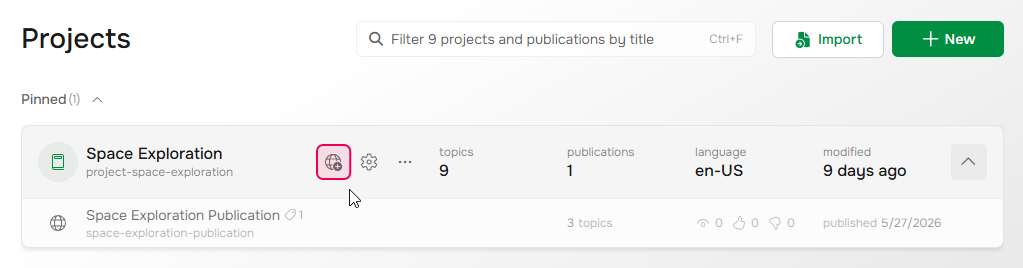
Hover over the project and click Publish.
-
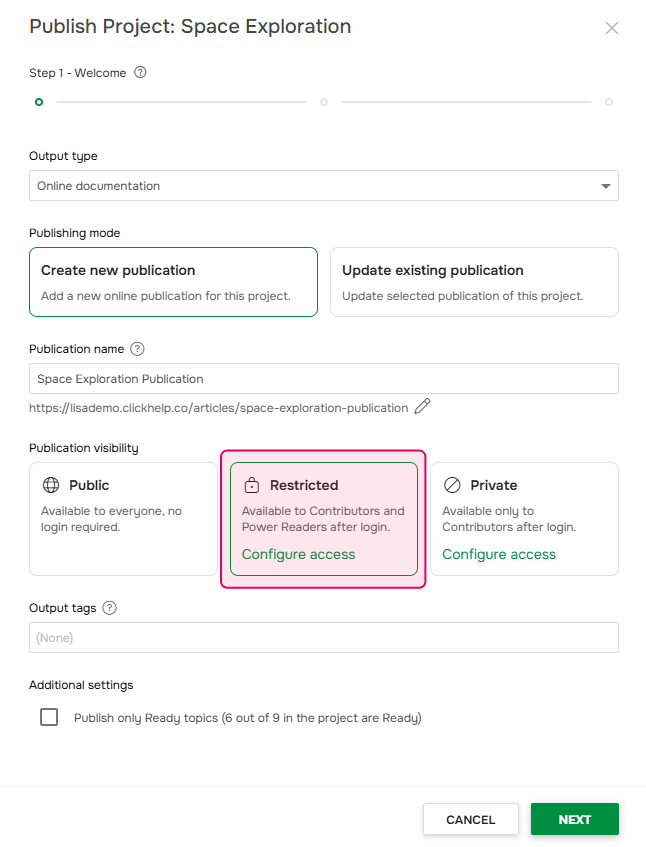
On the first step of the publishing wizard, select Restricted.
-
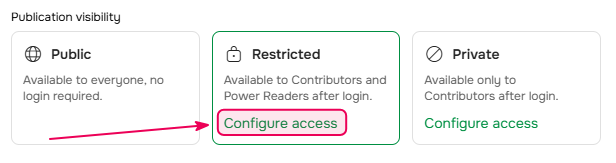
If you need to set access to only specific users, click Configure access and select the required users or Access Groups.
- Complete the remaining publishing steps.
After publishing, open your documentation portal in a private or Incognito browser window to verify that the publication is not visible to anonymous visitors.
Change access to existing content
You can change access permissions for an existing publication at any time. You can manage access either from the publication settings or from a user's profile.
Publication settings
You can change access permissions for an already created publication at any time, even restrict a public publication. The changes will be applied immediately.
-
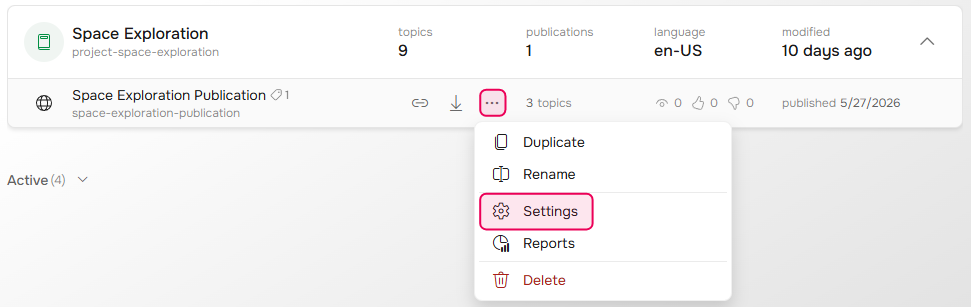
Hover over the publication and click More... → Settings.
- Open the Visibility & Access tab.
-
Change the access level to Restricted and select the Access Groups, Power Readers, and Contributors who should have access to the project. Save the changes.
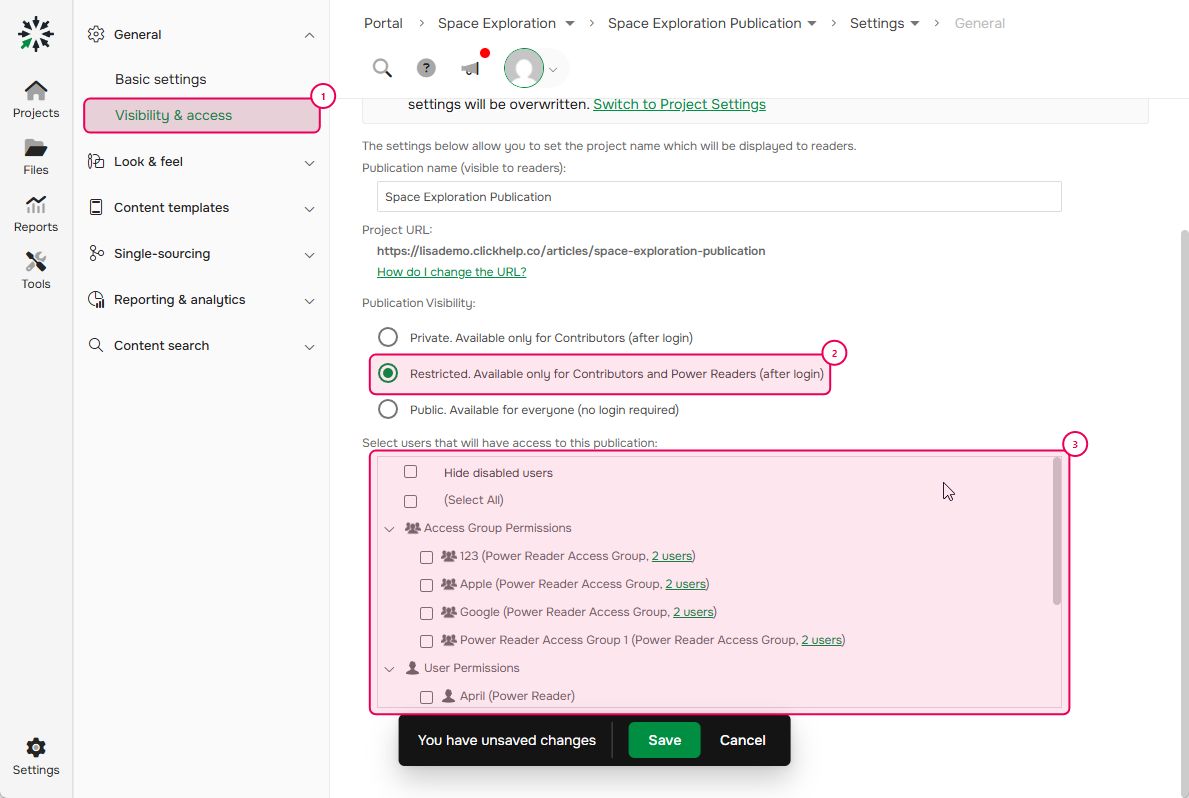
After clicking Save, the changes take effect immediately.
User settings
You can also manage publication access from a user's profile. The steps below show how to do this for a Power Reader.
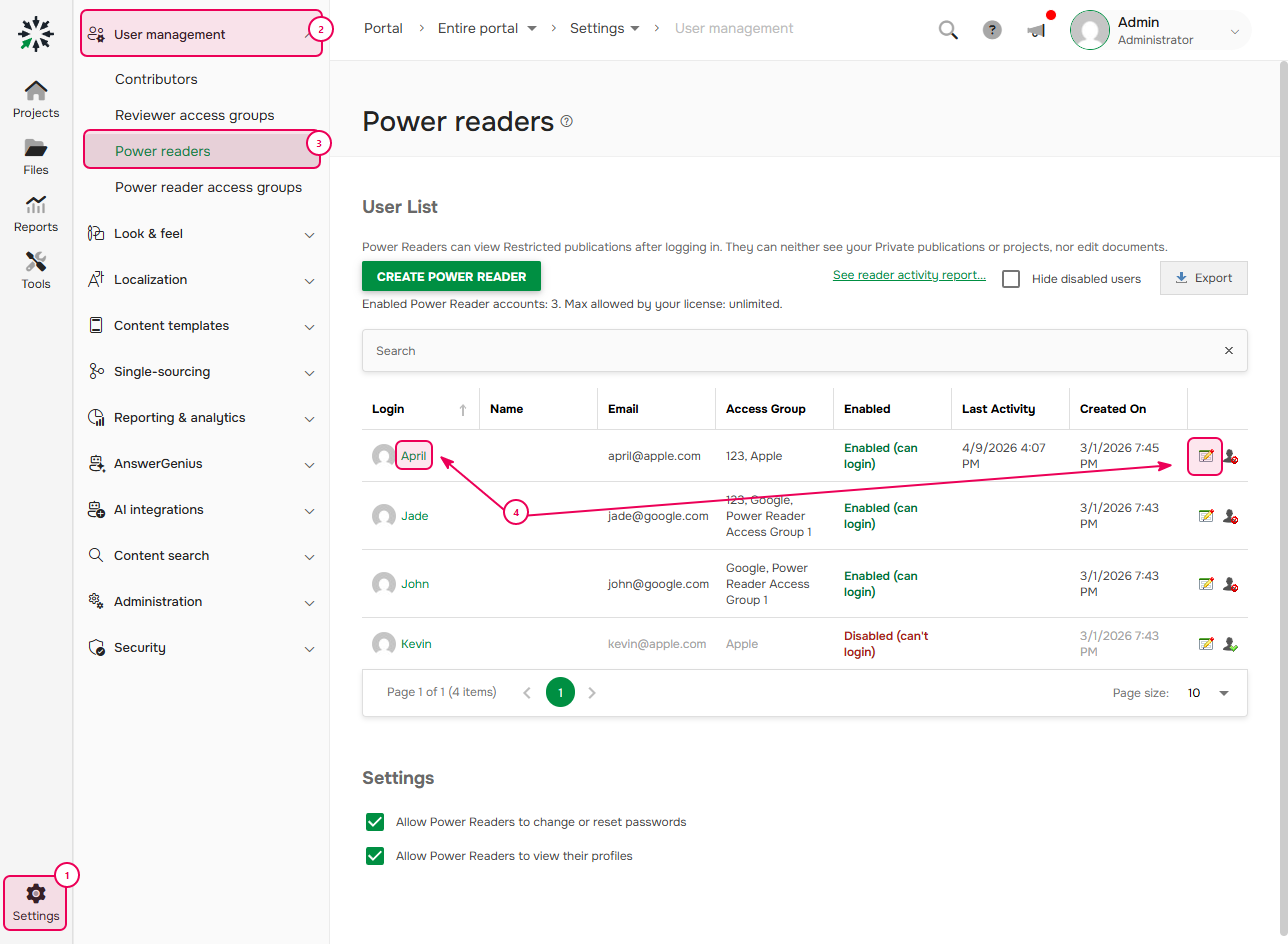
- Go to Settings → User management → Power readers.
-
Click the user's login or Edit user's profile next to it.
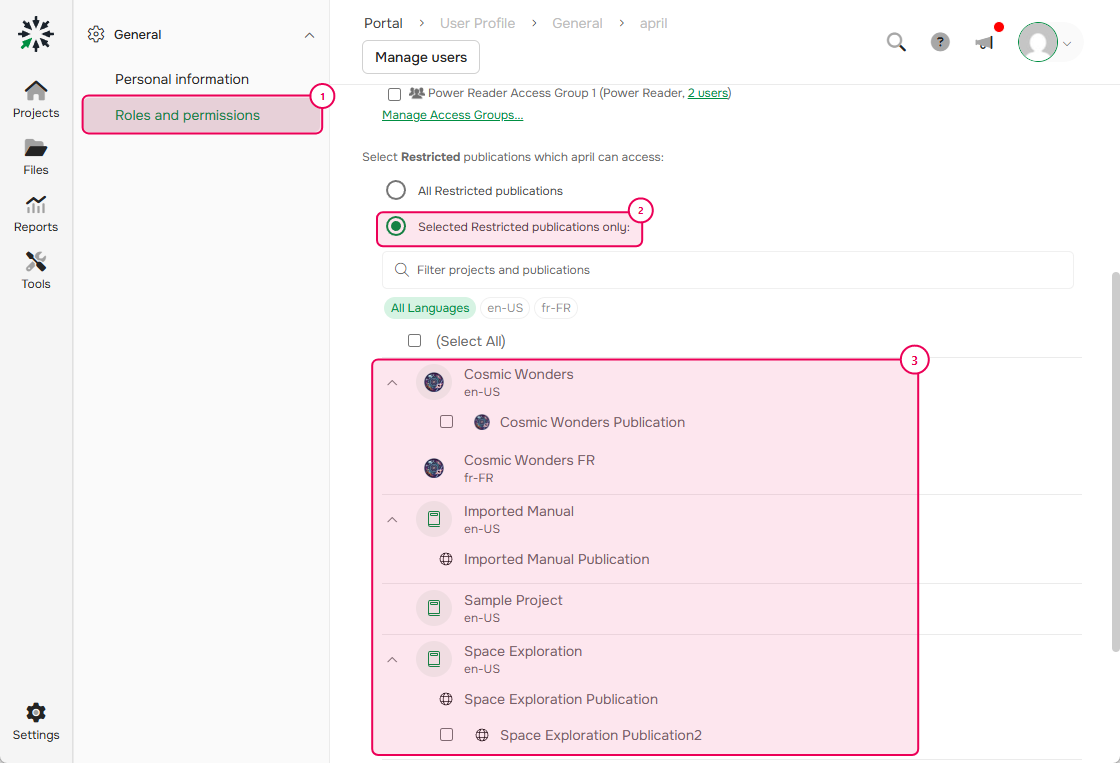
- Switch to the Roles and permissions tab.
-
Select Selected Restricted Publications Only and choose the publications the user should have access to, then save the changes.
Other ways to protect documentation
ClickHelp provides several ways to protect your documentation. For more information, see Protecting Your User Manuals.