If your custom SSL certificate has expired or you want to change the certificate type, you can easily update it through the portal settings. Please follow the steps outlined below to complete the process:
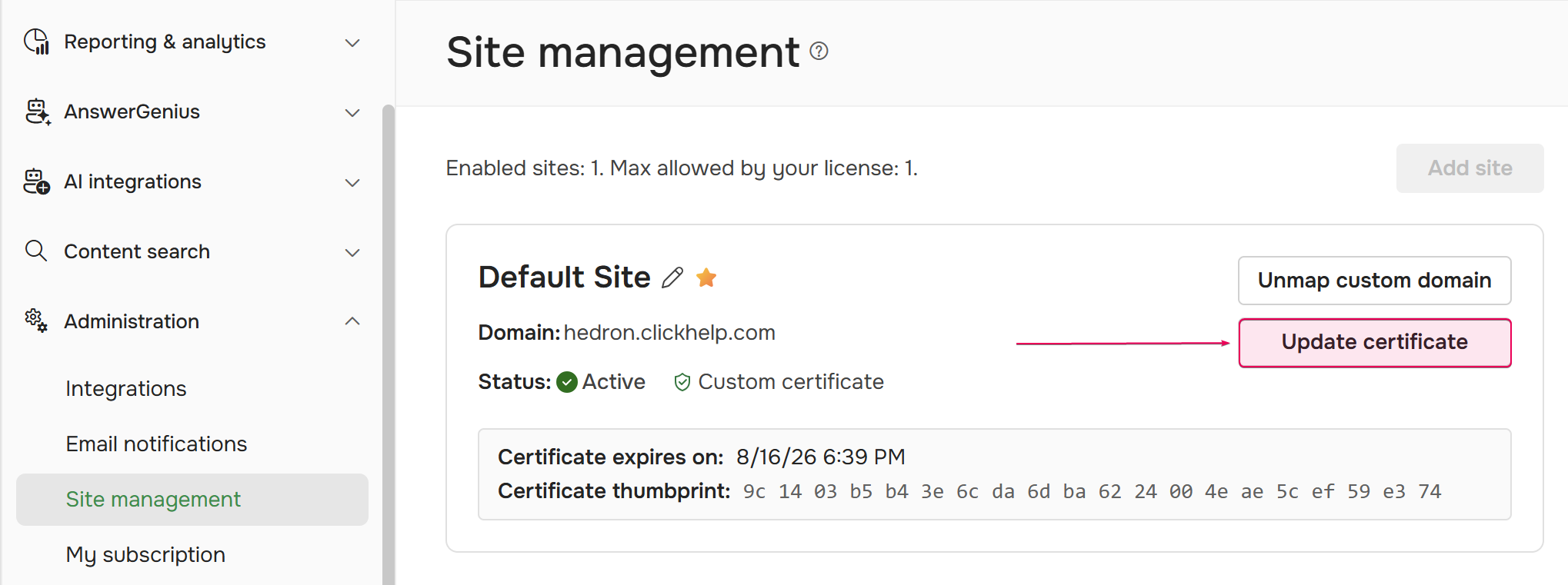
- Go to Settings → Administration → Site management.
-
Click on the Update certificate button to launch the Update certificate wizard.
-
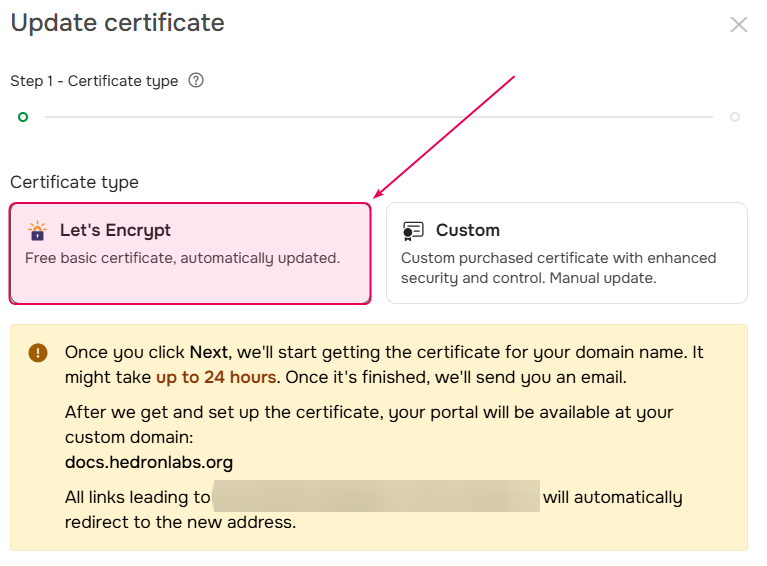
Select the certificate type. In the wizard, you will have two options:
-
Let's Encrypt: a free, basic SSL certificate that is automatically issued and renewed, eliminating the need for manual updates.
-
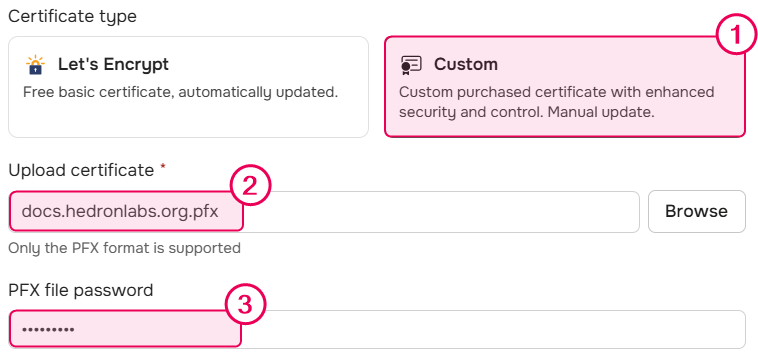
Custom: if you prefer a custom SSL certificate, upload your certificate in PFX format and enter the PFX file password in the corresponding field. If no password is required, leave the password field empty.
-
Let's Encrypt: a free, basic SSL certificate that is automatically issued and renewed, eliminating the need for manual updates.
- Click Next to review the setup results. If you selected Let's Encrypt, the certificate is requested now, and we will email you once it has been applied.
- Click Finish.
The updated certificate is now in use.