Creating new topics from scratch can be repetitive. To streamline your documentation process and ensure consistency across your projects, there are Topic Templates in ClickHelp.
Topic Templates are reusable blueprints for your topics. When you create a new topic based on a template, ClickHelp automatically populates it with the pre-defined content, saving you time and enforcing a uniform structure across your documentation.
- Managing New Topic Templates
- Creating a Topic from a Template
- Using Existing Topics as Topic Templates
- Using Quick Parts as Topic Templates
Managing New Topic Templates
You can centrally manage all of your templates by navigating to Settings → Content templates → New topic templates.
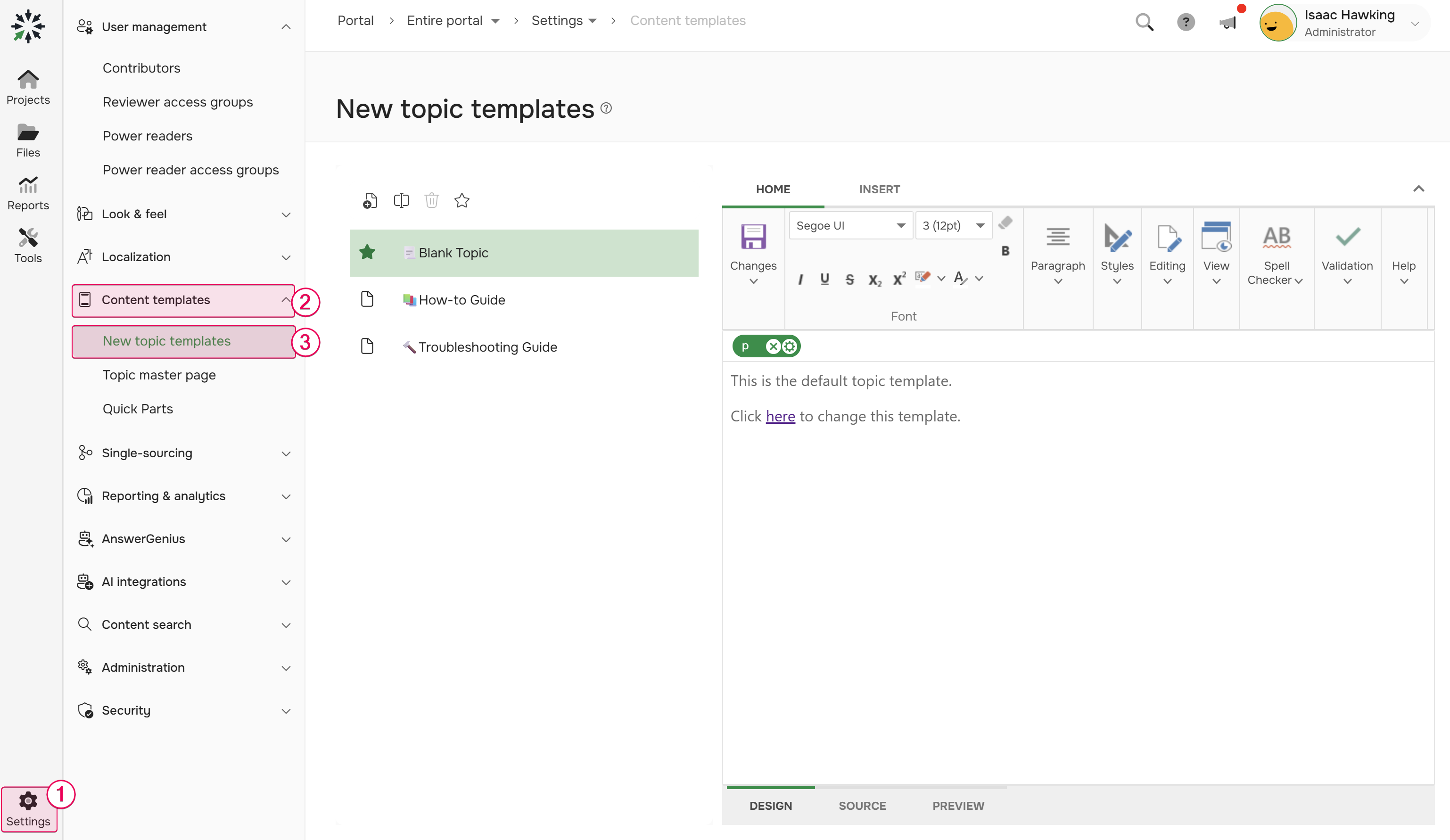
By default, ClickHelp provides three standard templates:
- Blank topic
- How-to Guide
- Troubleshooting Guide
In the New topic templates settings, you have full control over your templates:
-
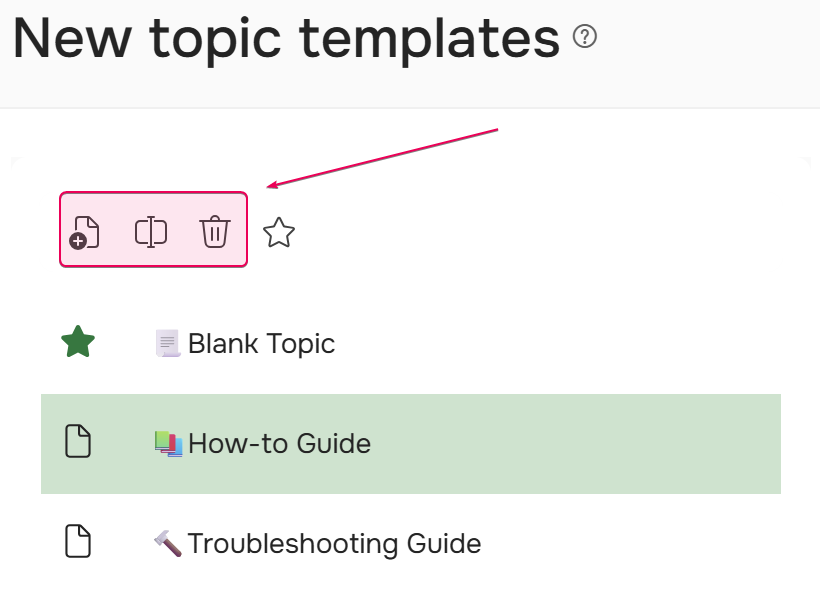
Add, Rename, and Delete: Easily create new templates tailored to your needs, rename existing ones for better organization, or delete outdated ones.
-
Edit: Modify templates in the editor on the right side of the page. You can add any content you require.
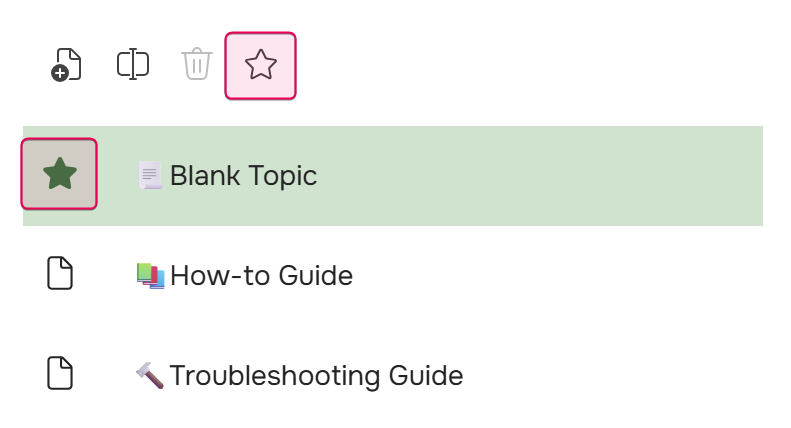
The New topic templates editor uses a Style.css file from the Blank project template. This file can be found in the File Storage at the following path: resources/Styles/Templates/blank-template/Style.css. If your project has custom styles, these will be applied to the content of the topic. As a result, it may look different in your project compared to how it appears in the New topic templates editor. - Set a Default Template: Select one template as the default. It is indicated by an asterisk in the list. When an author creates a topic from a template, this default option is automatically preselected.
You may notice that certain elements, such as snippets or See Also blocks, cannot be inserted directly in the editor. This is because many of those elements expect the topic to belong to some project, and this is not the case for a topic template. However, you can insert them using Source mode. For example, to insert a snippet:
- Create a new temporary topic (you can delete it later).
- Insert a snippet.
-
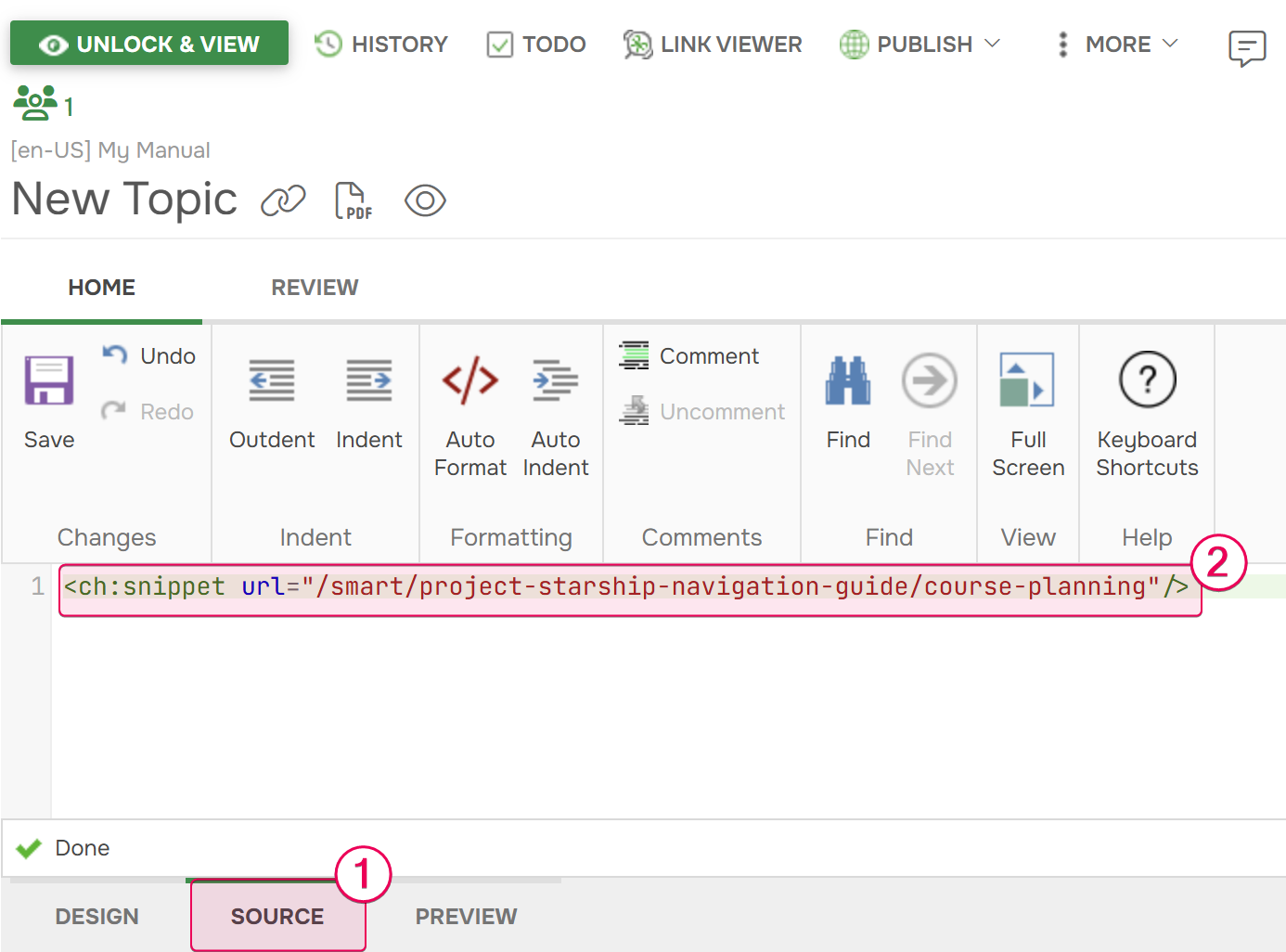
Go to Source and
copy the snippet tag.
-
Go to Settings → Content templates → New topic templates. Select the template you want to modify, switch to Source mode in the editor and paste the snippet markup.
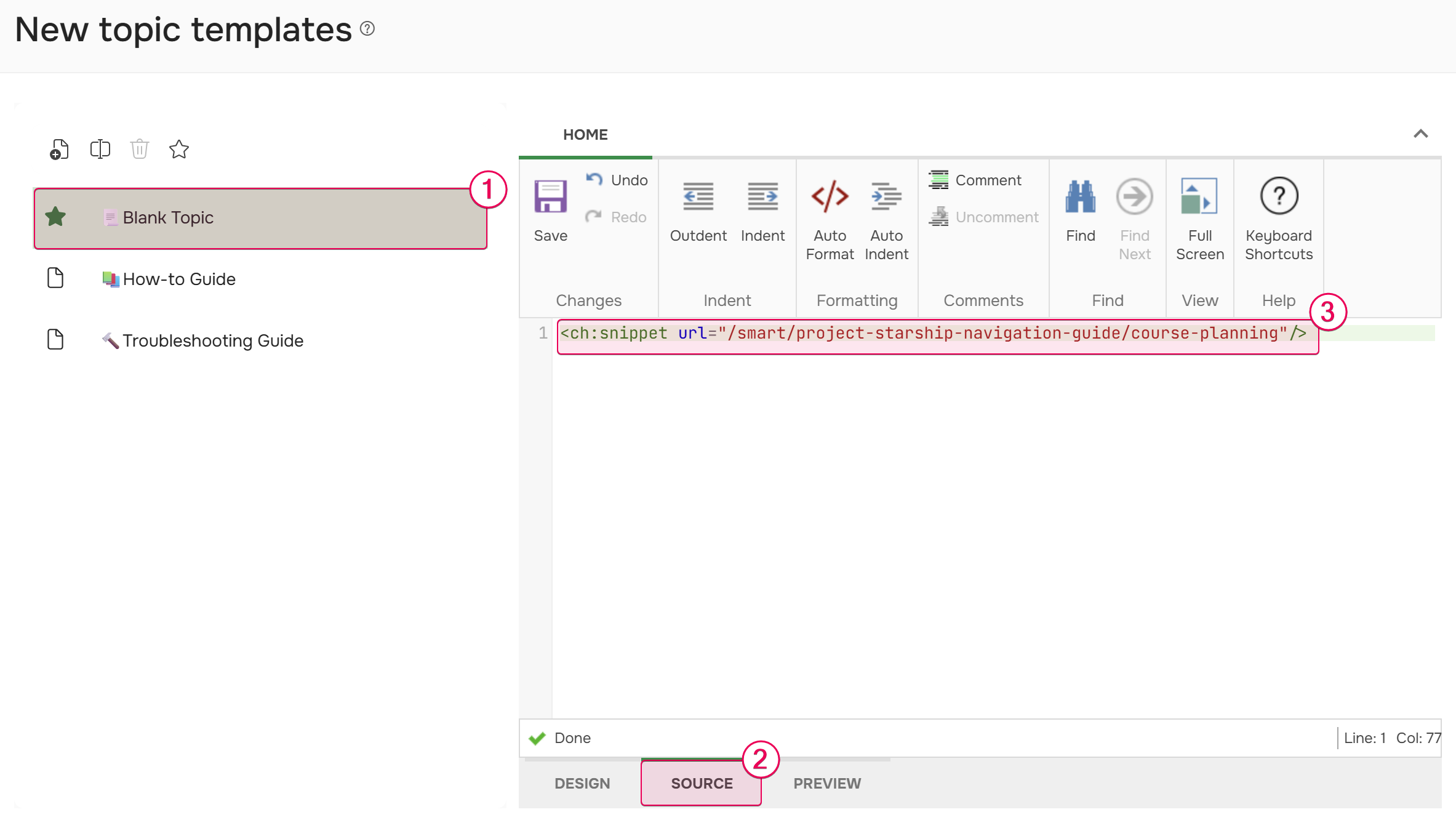
This way, you can insert any such elements into the topic template.
Creating a Topic from a Template
To create a new topic using a template:
- Click the New topic button in your project.
- In the dialog box, open the Content dropdown and select Use topic template.
- From the Template dropdown, choose the template you want to use. Your designated default template is automatically preselected.
- Click OK.
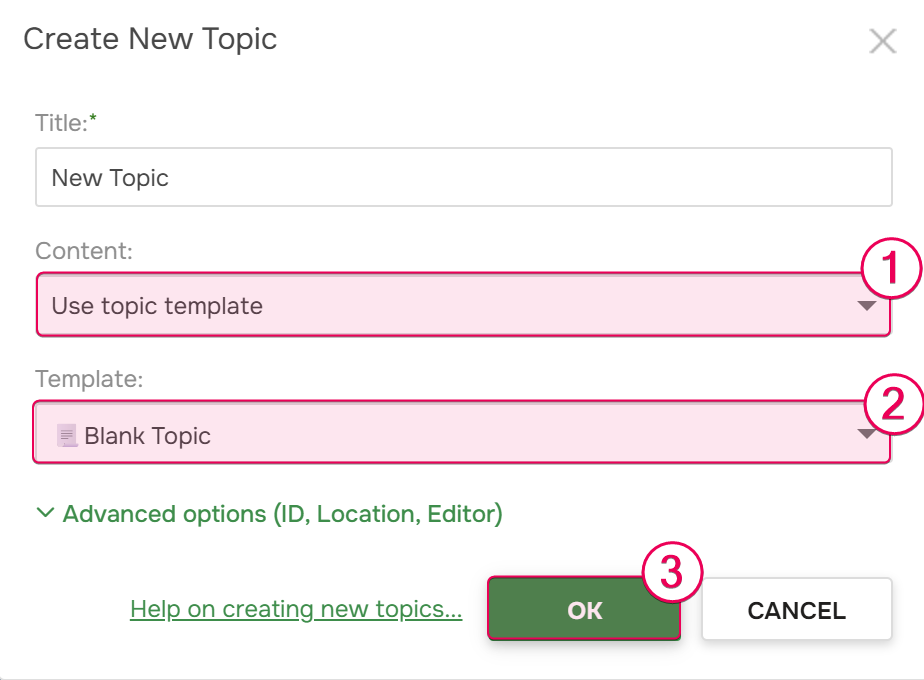
After that, a new topic will be created based on the selected template. For more information on how to create topics, see: Create a Topic.
Using Existing Topics as Topic Templates
In ClickHelp, you can use existing topics or specially created topics as topic templates - just select an existing topic when creating your new topic, and the content will be fully copied to the new topic. You can read more about it here: Create a Topic.
Using Quick Parts as Topic Templates
Since ClickHelp supports Quick Parts, you can leverage this feature to create topic templates. Here is how you can do it:
- Create a new topic.
- Create the content you want to use as a topic template.
- Select the entire topic content in the visual editor.
- Create a Quick Part from the selection
To distinguish topic templates from the Quick Parts in the list, you can use prefixes. For example, "Topic Template: API Method" or even "TT: API Method" is easily distinguished from the rest of the quick parts.