If the default Reader Interface settings are not enough, you can use the branding CSS and branding script files to style and modify the Reader Interface content. To learn if any branding CSS and script files are already applied to your portal, go to Settings → Look & feel → Reader interface.
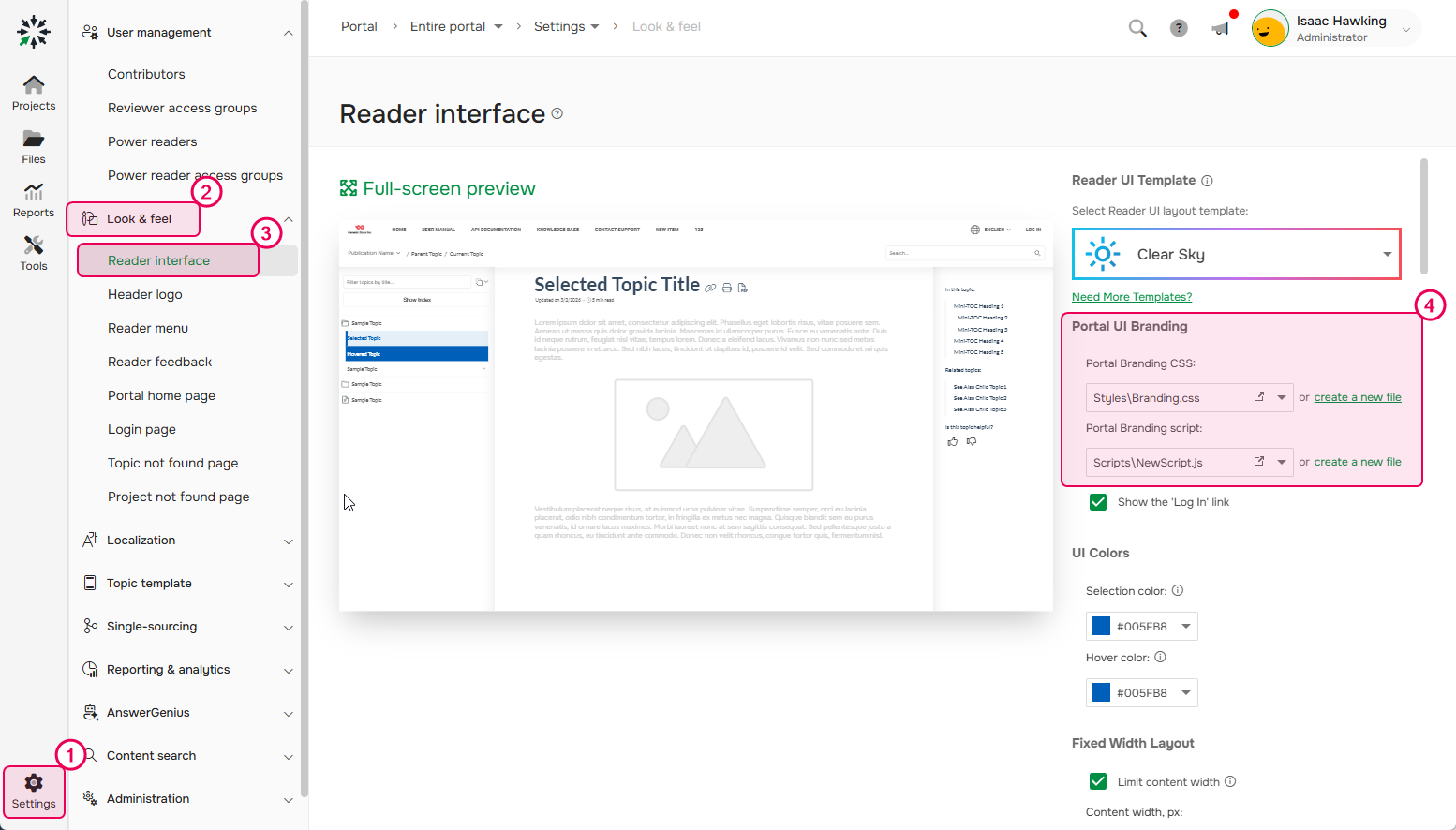
In the Portal UI Branding section, you will see two settings:
- Portal Branding CSS
-
Portal Branding script
Portal Branding CSS
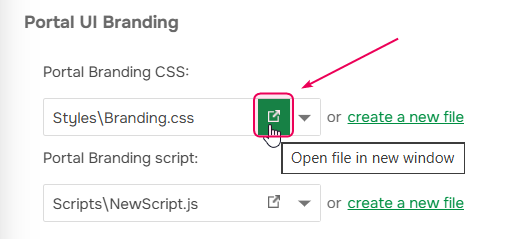
This setting holds the path to the branding CSS file that will be applied to every page the readers see including Home, Login, Search, etc. Click the Open file in new window button to open the file.
If the setting is empty, this means that you are using the default interface without any branding CSS file. To start doing some custom branding, click the Create a new file link to the right of the edit box.
By default, every new portal has a Branding.css file created in the File Manager → Styles storage and containing the default content. Use the File Manager command of the left sidebar to access the Styles storage. You will see the Branding.css file in the root folder of the Styles tab, so select it, and double-click to open the file.
The CSS file editor will open in a new browser window so you can see and modify the file contents.
In the default Branding.css file, you will find a number of CSS selectors that demonstrate how to access the main UI elements.
The style attributes are commented out on purpose; read the comments in the CSS selectors to understand which element that selector affects. You can uncomment some style attributes to see how they affect the Home page header (see the note below). Those are just examples for you to experiment with, so you may need to write your own CSS rules to achieve the needed results.
You can find more examples here: Reader interface branding.
To learn more on different styling options, refer to this topic: The Difference Between Branding.css, Project Styles, and Home Page Styles.
Portal Branding script
This is the script file that will be loaded for every reader-facing page. So, if you are implementing some advanced functionality using JavaScript, you can invoke that script file by selecting the needed script file in this setting. To learn more, refer to this topic: Project Styles and Scripts.
| The advanced branding settings are applied only to the reader interface for anonymous users and Power Readers. These settings are not applied to the Contributor interface. To see UI changes while you are changing the CSS file, open the Home page of your portal in a different web browser or in a separate Incognito / In-Private window of the browser to act as an anonymous user. |