AI Overview is an AnswerGenius-powered answer that appears right in the search results. It gives your readers an instant response to their query without opening the AnswerGenius widget first.
The answer is generated from your documentation and displayed directly in the Quick Search pop-up. Readers can also continue the conversation and ask follow-up questions if needed.
| Available with the AI Suite add-on and uses CAPs. For more information, see ClickHelp AI Suite and ClickHelp Pricing Plans. |
Enable AI Overview
AI Overview uses the same settings and custom prompts as AnswerGenius, so the generated answers depend on your AnswerGenius configuration. To learn more about how to configure AnswerGenius, see AnswerGenius Customization.
| AI Overview is available only with the Next Reader UI template. |
To enable AI Overview:
- Go to Settings.
- Select Content search → Full-text search.
-
In the AI Overview section, check Show AI Overview in search results.
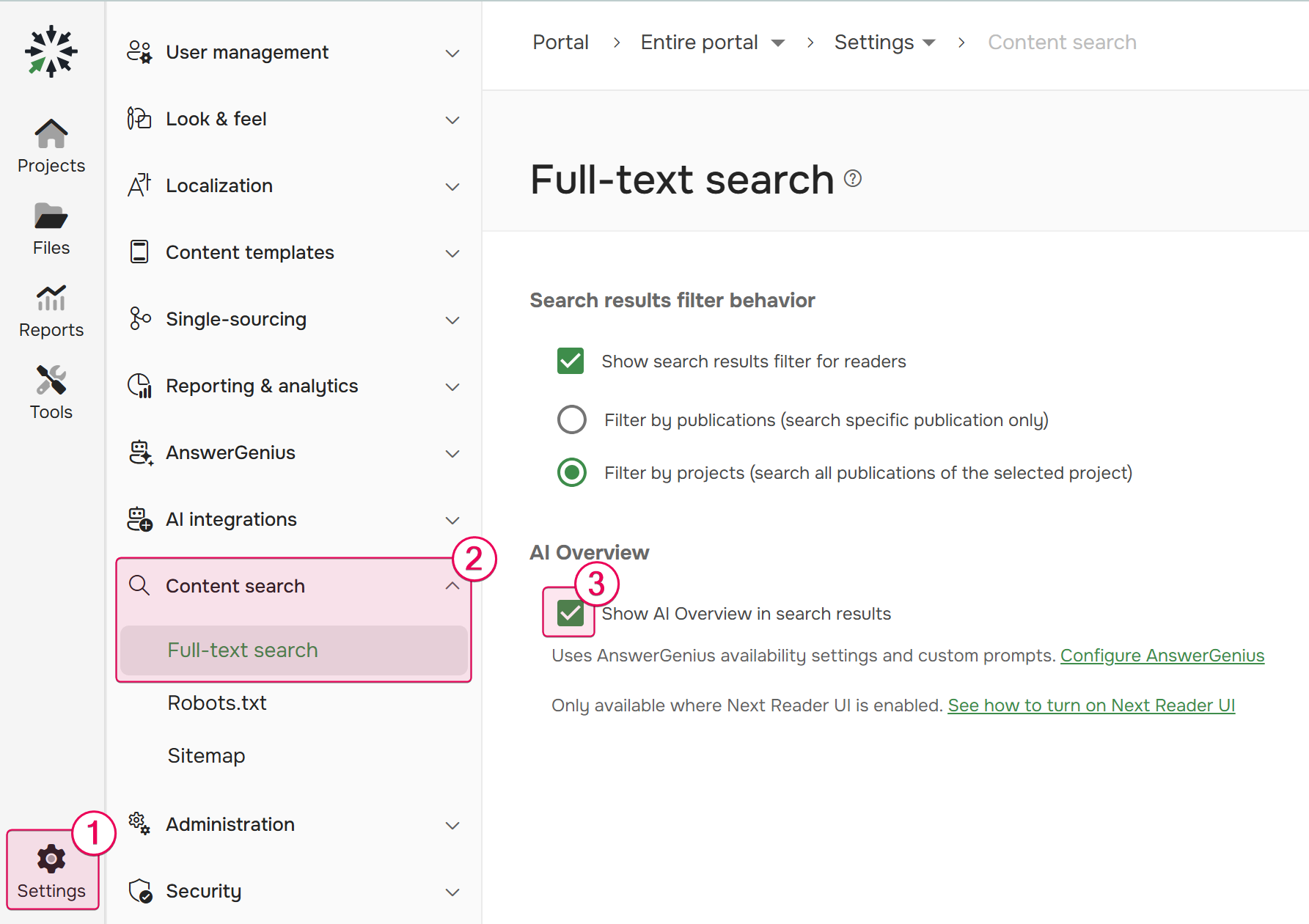
- Save the changes.
Once enabled, AI Overview becomes available to your readers in the Quick Search pop-up.
How AI Overview works for readers
When a reader starts typing a query in the Quick Search pop-up, ClickHelp shows an Ask AnswerGenius entry above the regular search results. The reader can trigger an AI answer by clicking the Ask AnswerGenius entry or pressing Enter.
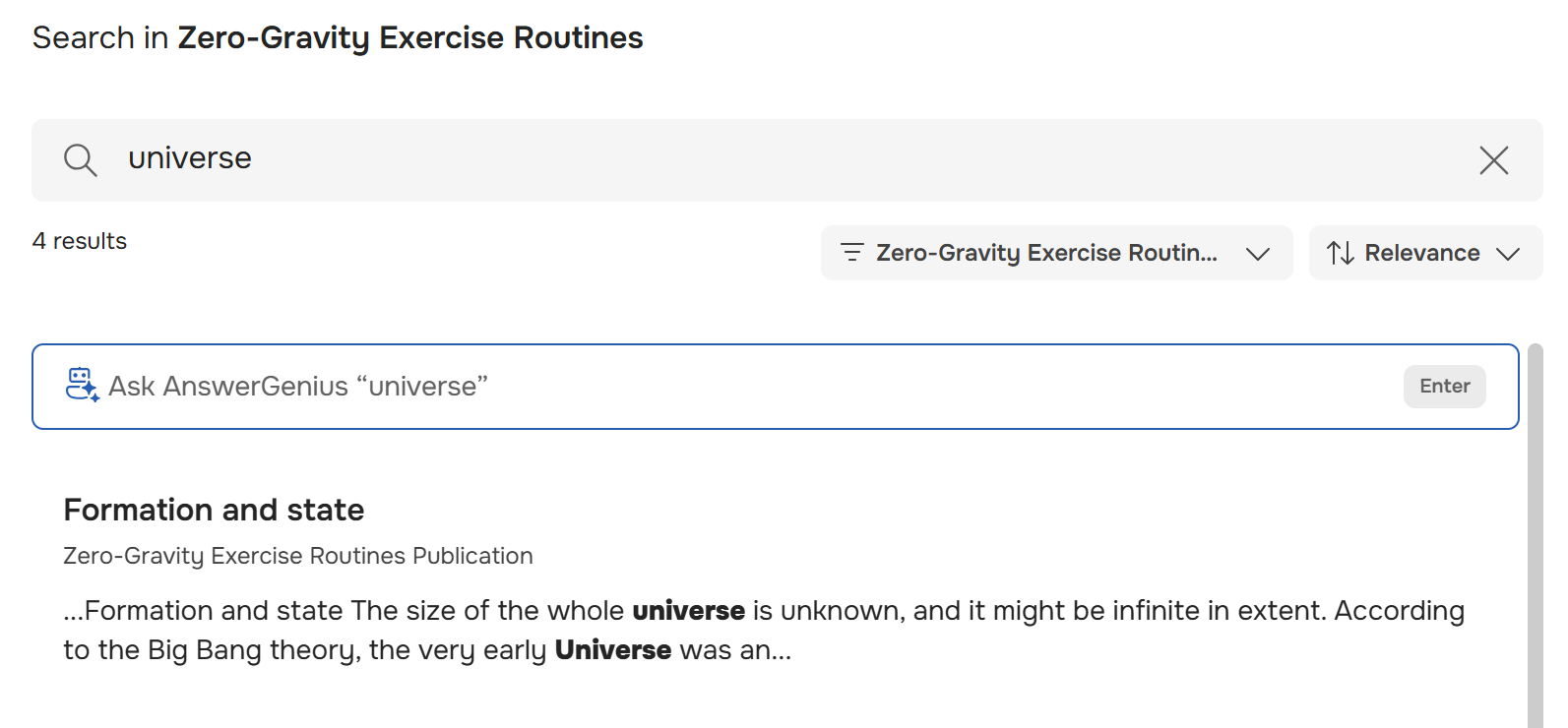
AnswerGenius generates the answer based on your documentation and displays it in the Quick Search pop-up. From there, the reader can continue the conversation and ask follow-up questions.