The llms.txt file is a plain-text Markdown file usually located at the root of your documentation portal (e.g., https://yourportal.clickhelp.co/llms.txt). It provides AI agents and large language models (LLMs) with a concise, structured overview of your portal's content and links to its most important pages.
Think of it as a robots.txt for AI tools — except instead of restricting access, it actively guides AI agents toward your best content.
Why It Matters
Without llms.txt, an AI assistant querying your documentation has to guess which pages are authoritative. It may surface outdated topics, ignore key sections, or fail to understand your content's structure altogether. A well-written llms.txt file gives AI tools a reliable starting point.
This is especially relevant for technical documentation, API references, and knowledge bases — exactly the kind of content that developers query via AI coding assistants like GitHub Copilot, Cursor, or Claude.
| llms.txt is an emerging community convention rather than a ratified standard. Support among AI providers is still evolving, so the practical impact may vary. That said, it is a low-effort addition that positions your documentation well as AI tooling matures. |
How to Use llms.txt
The most practical way to use llms.txt is to pass its URL directly to an LLM instead of linking to your portal's home page. This gives the model an immediate, structured overview of your documentation — what it covers and where to find key content — without requiring it to crawl or guess the site's structure.
For example, when asking an AI assistant a question about your product, start the conversation with:
Here is an overview of the documentation for this product: https://yourportal.clickhelp.co/llms.txt. [Your question here.]
This works because llms.txt is designed to be a compact, human-readable index — exactly the kind of context an LLM can act on immediately.
| Some AI-powered tools may fetch llms.txt automatically when given a site URL. However, this behavior is not universal. For most LLMs and chat interfaces, you will need to provide the llms.txt URL explicitly. Until automatic support becomes standard, treating llms.txt as a manually shared context file is the most reliable approach. |
Configuring llms.txt
To configure llms.txt for your portal, go to Settings → AI integrations → llms.txt.
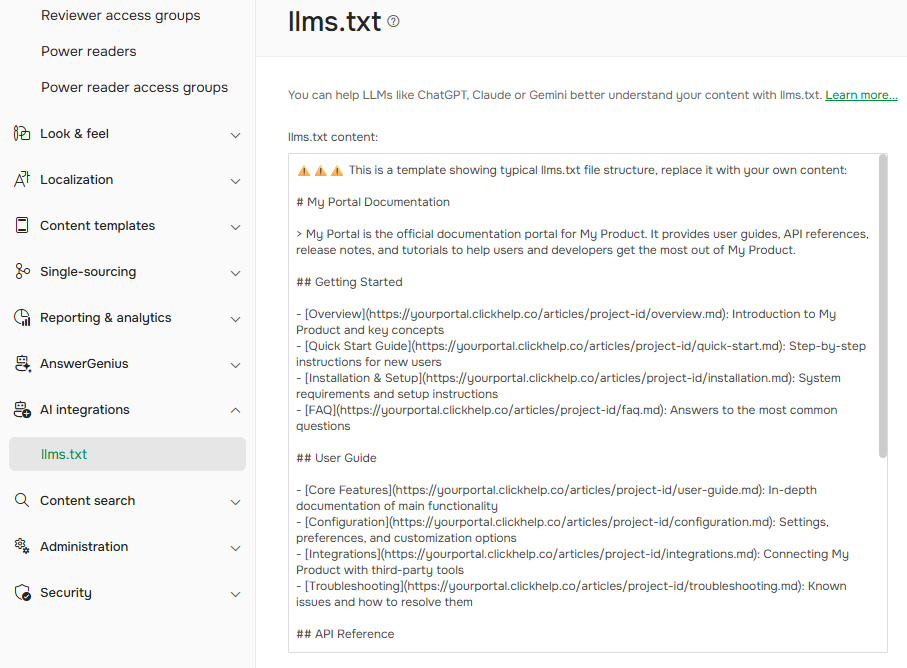
In the llms.txt content field, you write the file content manually, and ClickHelp serves it at https://yourportal.clickhelp.co/llms.txt.
| Unlike robots.txt, llms.txt has no directives and does not control crawling. It is purely informational — a curated index you provide to help AI agents navigate your content. |
A default sample is provided in this field to help you get started. If you deleted the sample but want to check it out for reference, you can find it in this topic a bit below.
| Keep in mind that AI agents are considered anonymous users, so use public publication links in the llms.txt file. |
File Format
The llms.txt file uses Markdown. The specification recommends the following structure:
- H1 heading — the name of your project or portal. This is the only required element.
- Blockquote — a short summary of what your portal covers. Keep it to 2–3 sentences.
- Optional body sections — plain Markdown paragraphs or lists with additional context about your content.
- H2 sections with links — organized groups of links to your most important topics. Each link can include a short description after a colon.
Example of an llms.txt file
Markdown |
⚠️⚠️⚠️ This is a template showing typical llms.txt file structure, replace it with your own content: # My Portal Documentation > My Portal is the official documentation portal for My Product. It provides user guides, API references, release notes, and tutorials to help users and developers get the most out of My Product. ## Getting Started - [Overview](https://yourportal.clickhelp.co/articles/project-id/overview.md): Introduction to My Product and key concepts - [Quick Start Guide](https://yourportal.clickhelp.co/articles/project-id/quick-start.md): Step-by-step instructions for new users - [Installation & Setup](https://yourportal.clickhelp.co/articles/project-id/installation.md): System requirements and setup instructions - [FAQ](https://yourportal.clickhelp.co/articles/project-id/faq.md): Answers to the most common questions ## User Guide - [Core Features](https://yourportal.clickhelp.co/articles/project-id/user-guide.md): In-depth documentation of main functionality - [Configuration](https://yourportal.clickhelp.co/articles/project-id/configuration.md): Settings, preferences, and customization options - [Integrations](https://yourportal.clickhelp.co/articles/project-id/integrations.md): Connecting My Product with third-party tools - [Troubleshooting](https://yourportal.clickhelp.co/articles/project-id/troubleshooting.md): Known issues and how to resolve them ## API Reference - [API Overview](https://yourportal.clickhelp.co/articles/project-id/api-overview.md): Authentication, base URLs, and usage conventions - [Endpoints](https://yourportal.clickhelp.co/articles/project-id/api-endpoints.md): Full list of available API endpoints - [Code Examples](https://yourportal.clickhelp.co/articles/project-id/api-examples.md): Sample requests and responses ## Release Notes - [What's New](https://yourportal.clickhelp.co/articles/project-id/whats-new.md): Latest updates and new features - [Changelog](https://yourportal.clickhelp.co/articles/project-id/changelog.md): Full version history ## Optional - [Glossary](https://yourportal.clickhelp.co/articles/project-id/glossary.md): Definitions of product-specific terms - [Video Tutorials](https://yourportal.clickhelp.co/articles/project-id/tutorials.md): Screencasts and walkthroughs |
Writing Tips
- Be selective. Link to your most important topics instead of including everything. AI models work within limited context windows, so a shorter, curated list helps them prioritize the most relevant content.
- Use descriptive link titles. A brief description after the colon helps agents understand a page's purpose without fetching it.
- Use Markdown topic URLs. Link directly to the .md version of each topic (see Retrieving Topics as Markdown) so that agents can read clean content if they follow the links.
- Organize by section. Group links under H2 headings that reflect the structure of your documentation (e.g., Getting Started, API Reference, Tutorials).
- Keep it updated. Revise the file when you add major new sections or retire old ones.
- Mark the optional content. Use an ## Optional section at the end for supplementary topics (changelogs, legacy content, etc.). Some AI tools skip optional sections when context is limited.