Documentation index for AI tools: /llms.txt
This topic describes how to export the content of your projects to the HTML format. Note that this is not a WebHelp. We suggest reading HTML Files Export Specifics to understand the difference.
Export a Project
Now, let's look at how you export a project to HTML.
-
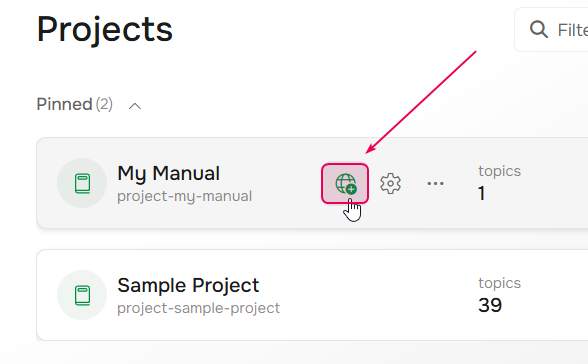
On the Projects page, hover over the project name and click Publish.
-
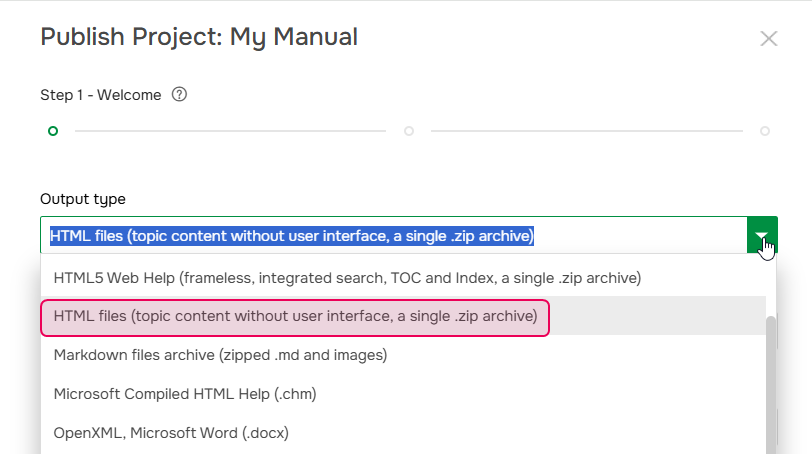
Select HTML files as the Output type.
- Specify the Publication name and Output tags.
- Select or clear the Publish only Ready topics option depending on your needs.
- Click Next.
-
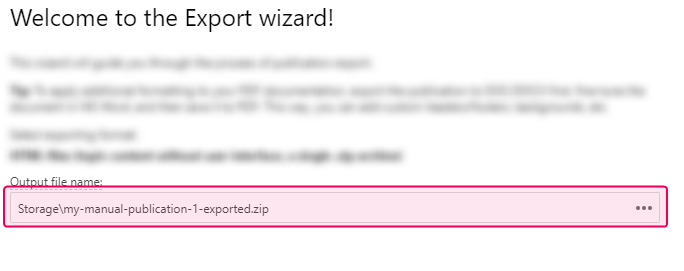
After the publishing process is finished, choose a location in the ClickHelp File Storage to save the .zip file containing the exported files, then click Next.
- Wait until the export process is complete and click Next.
- In the final step, you can download the HTML files archive.
Export a Publication
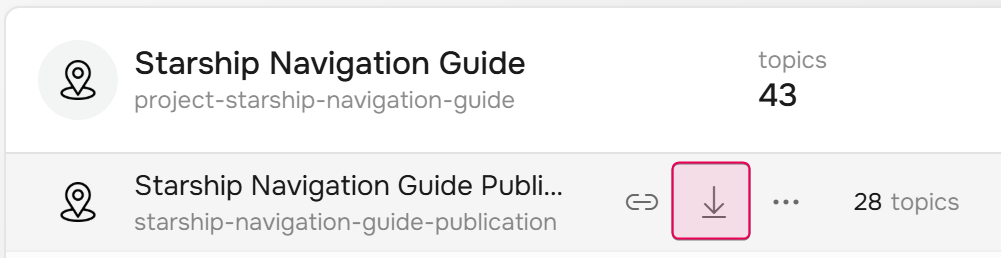
If you need to export a publication to HTML, click Export next to the publication name on the Projects page.
Other steps are the same as for exporting projects.