When you work on your Home page, all changes are saved only in the draft version. To make the Home page available to readers, you need to publish it. You can publish it either from the Portal home page screen or directly from the Home page editor.
| Currently, there is no version history for Home pages. This means that when a new version is published, the previously published one will be lost. |
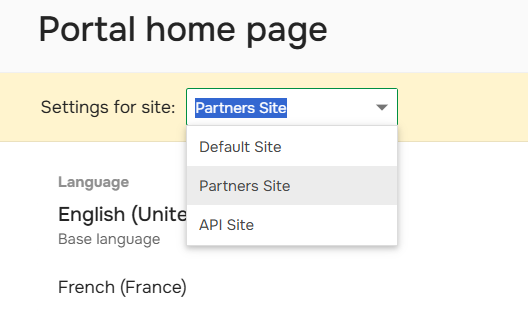
If you have additional Documentation Sites, make sure to select the required site before publishing:
Publish from Portal Home Pages Screen
To publish a Home page, do the following:
- Go to Settings → Look & feel → Portal home page.
-
Make sure the Home page is ready for publishing. You can use the Preview option of the Home Page Editor to check how it looks.
-
Hover over the Home page and click Publish.
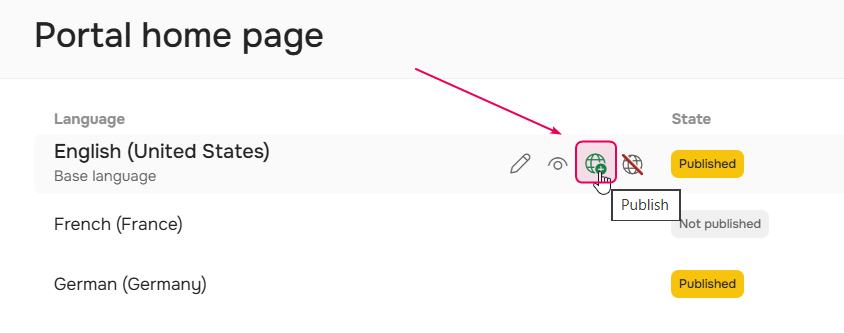
- Click Publish in the confirmation dialog.
After this, your readers can see the new version of the Home page. You can use View published version to view the current live version.
Publish from Home Page Editor
Before publishing your Home page, you might want to make sure it looks as expected. To check the draft version of the Home page, click Preview Draft Page in the top-right corner of the Home page editor screen:
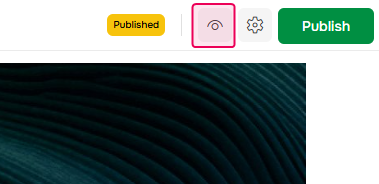
This shows exactly how the page will look to readers after publishing.
If everything is fine here, just go back to the editor and click the green Publish button to "push" all the changes to the published Home page. In the confirmation dialog, click Publish, and the new version of the page will become available to your readers.
The Home page state indicator will show the green Published label.
Publish Translated Home Pages
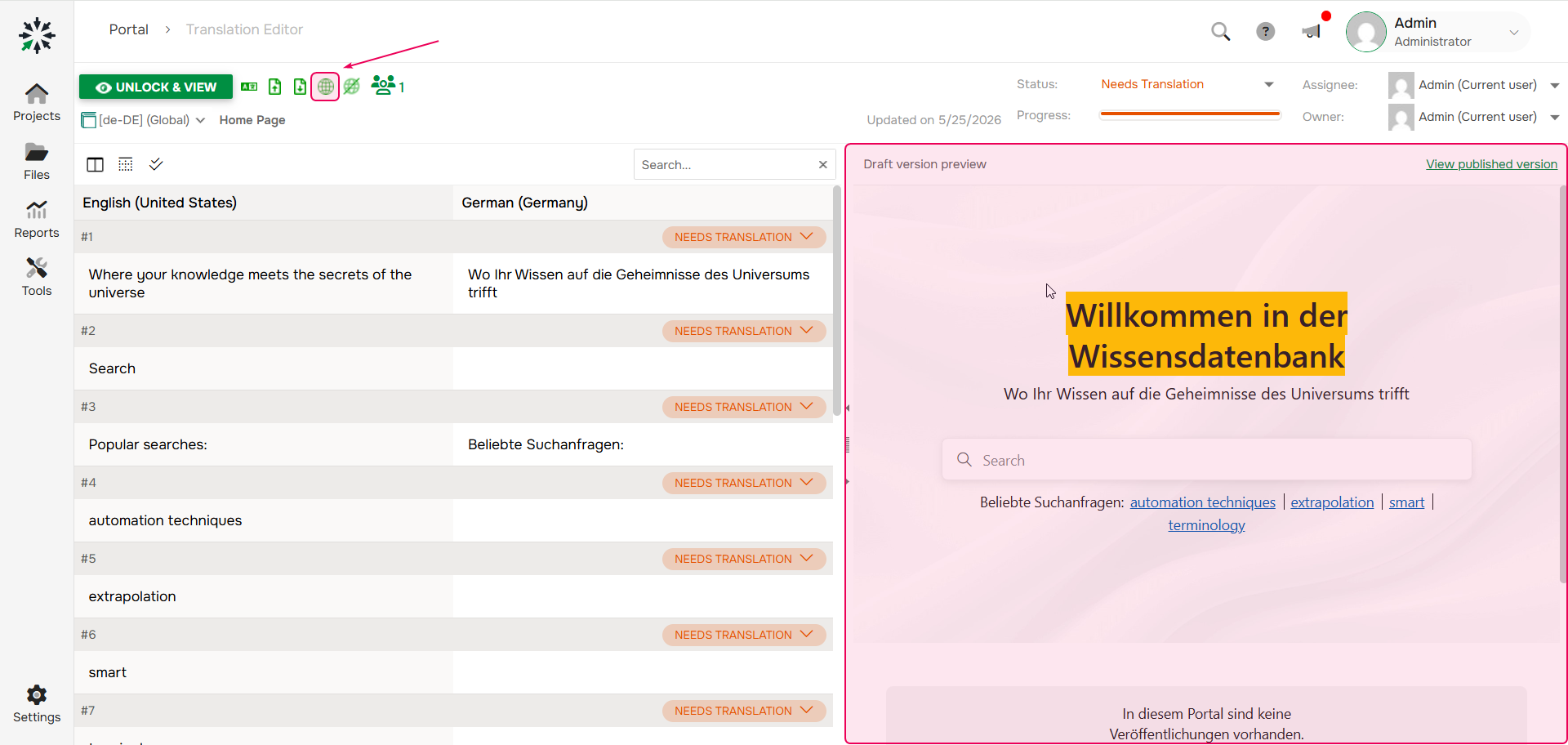
You can publish translated Home pages directly from the Translation Editor using the Publish button. The preview of the draft version is shown on the right.
Unpublish Home Page
You may need to unpublish the Home page so it is no longer visible to your readers.
|
At least one language must have a published version. |
To unpublish a Home page, do the following:
- Go to Settings → Look & feel → Portal home page.
-
Hover over the home page and click the Unpublish button.
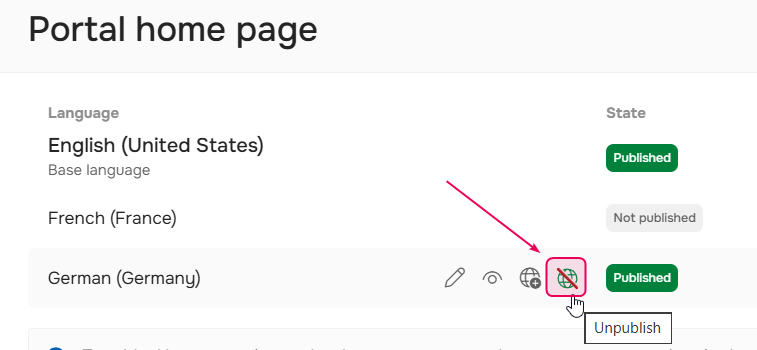
- Select Unpublish in the confirmation dialog.