If your company manages multiple products, brands, or audiences, creating a unified documentation experience can be challenging. A multi-site setup allows you to run multiple independent, public-facing websites from a single ClickHelp portal. Each site features its own web address — a domain of your own, such as docs.hedronlabs.org, or a ClickHelp subdomain that we create for you — plus its own branding, custom pages, and assigned publications, while users, storage, permissions, and most global settings remain shared.
| Just want to see how it works? Add a second site on a ClickHelp subdomain — it works almost immediately, and no DNS setup on your side is required. |
Portal Hierarchy
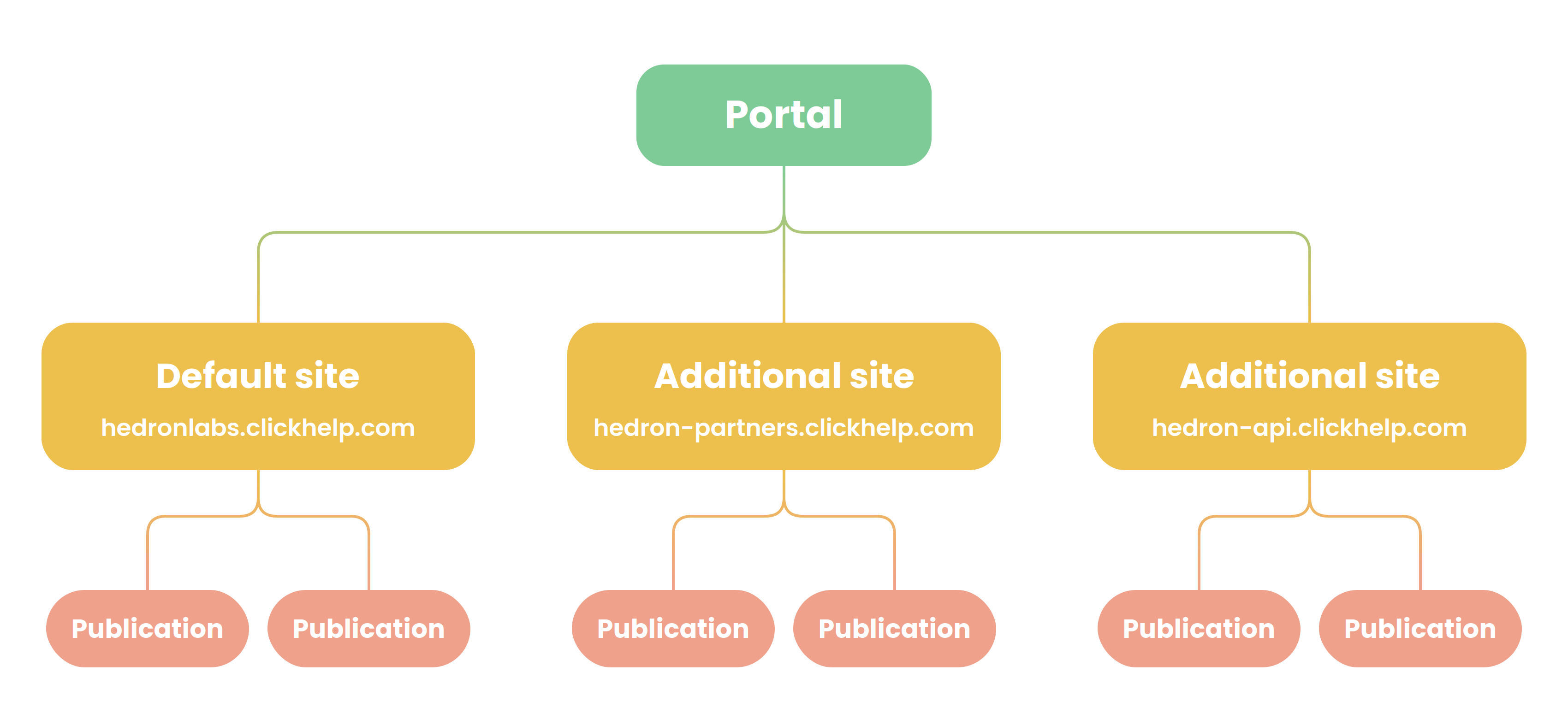
To understand how a multi-site setup works, it helps to look at the overall architecture of your portal:
- Portal: The global environment where all your users, storage, and overall settings are managed.
- Sites: The gateways through which people access your content. As detailed below, there is always one Default site (the primary domain where contributors log in and manage all projects), and you can configure multiple additional Documentation Sites for your readers.
- Publications: The finalized, published manuals. You choose exactly which publications to display on which site. Publications can be published on the default site or assigned to additional sites, each with its own public domain.
For your readers, these sites appear as completely independent websites, each with its own domain and content.
What Is a Site?
A site is a specific part of your portal that readers access via a designated domain. While multiple sites exist within the same portal, they appear as completely separate resources to your readers.
Each individual site includes its own:
- Look & Feel settings: Logo, colors, and reader interface.
- Custom pages: The reader-facing pages you can design for each site: the Home page, Login page, and the Topic and Project not found pages.
- Translations of custom pages: If your portal has the Translation ecosystem enabled and supports translations, you have separate translations of these pages for each site.
- Assigned publications.
- AnswerGenius settings: Appearance, visibility, and behavior of the internal and external AnswerGenius widgets.
| When you create a new site, it receives a one-time copy of the default site's settings. After creation, the site-specific settings operate independently. Changes made to one site do not affect the others. |
Portal search and AnswerGenius can be scoped either to the entire portal or to the current site only, depending on your configuration. See Multi-Site Search Configuration and Multi-Site AnswerGenius Configuration for instructions.
Everything else is shared across the portal: User management, File storage, Email notification templates, and so on. For a full reference, see Site settings.
What Is the Default Site?
Every portal has one default site — the primary domain through which contributors access and manage content. All contributors are automatically redirected to the default site after login and can only work within it. For more details on authentication, visit Authentication across documentation sites.
To identify the default site, go to Settings → Administration → Site management. The default site is marked with a star icon and cannot be changed.
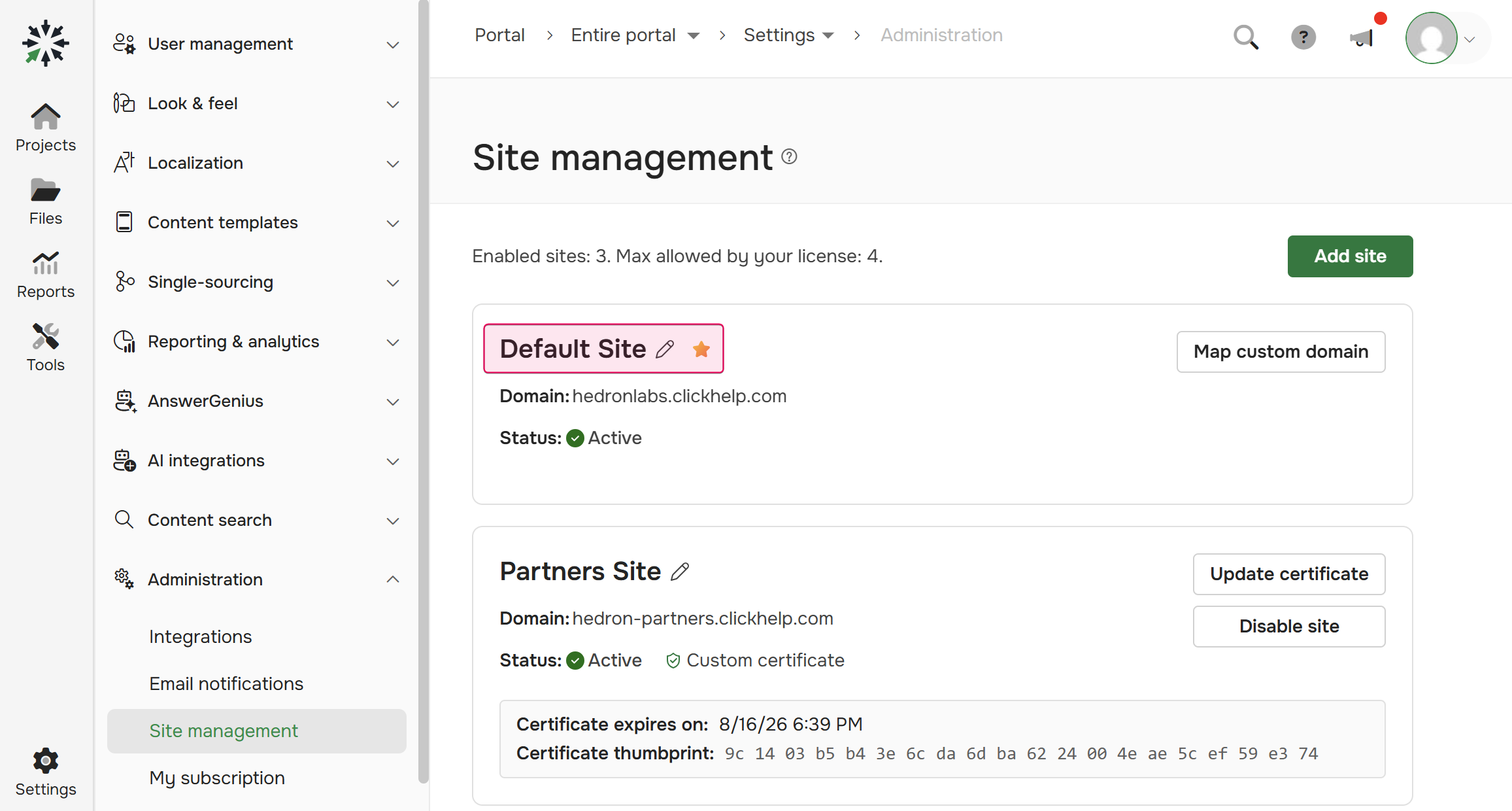
New projects, imported projects, translation projects, and duplicated projects are always created on the default site. You can select the default publishing site for these projects afterward in the project settings.
Use Cases
- Different brands for different markets. If your company operates multiple brands, you can create a completely separate documentation site for each. Each site can have its own custom domain, logo, and Look & feel, while your team manages everything from one portal.
- Multi-product companies. Instead of mixing all user manuals on a single portal, you can make a dedicated site per product or product line. This keeps the navigation clean and provides a focused, uncluttered experience for users of a specific product.
- Different audiences. Separate your content based on the reader's technical level or role. For example, you can maintain a public Support Center on one site, and a technical Developer Knowledge Base with API docs on another.
- Language separation. While ClickHelp supports multi-language content natively, you might want to completely separate content in different languages. In ClickHelp, you can assign specific publications to distinct domains and create a unique site for each language.
- Trials and proofs of concept. If you want to try a multi-site setup before you commit a domain to it, create the site on a ClickHelp subdomain — no DNS setup on your side is required.
To learn more about setting up separate sites, see Create several sites with different content.
- Create Several Sites with Different Content
- Managing Additional Documentation Sites
- Site Settings
- Assign Projects and Publications to Sites
- Set up Home Pages for Sites
- Authentication across Documentation Sites
- Search Configuration in Multi-site Setup
- AnswerGenius Configuration in Multi-site Setup
- Multi-site Setup Limitations