To separate content across different Documentation Sites, you need to assign publications to specific sites. Publications generated from one project can be assigned to different sites - there are no restrictions. Additionally, a translation publication can be assigned to a completely different site than its associated base publication.
| A single publication can only be assigned to one site at a time. If you need the exact same publication on multiple sites, you must create a separate publication for each site. |
Assign Publication to a Site during Publishing
You can select a site during publishing. Here is how you can do this:
- Start publishing either from a topic editor or from the projects page.
-
In the Publish project wizard select the needed site in the Site field.
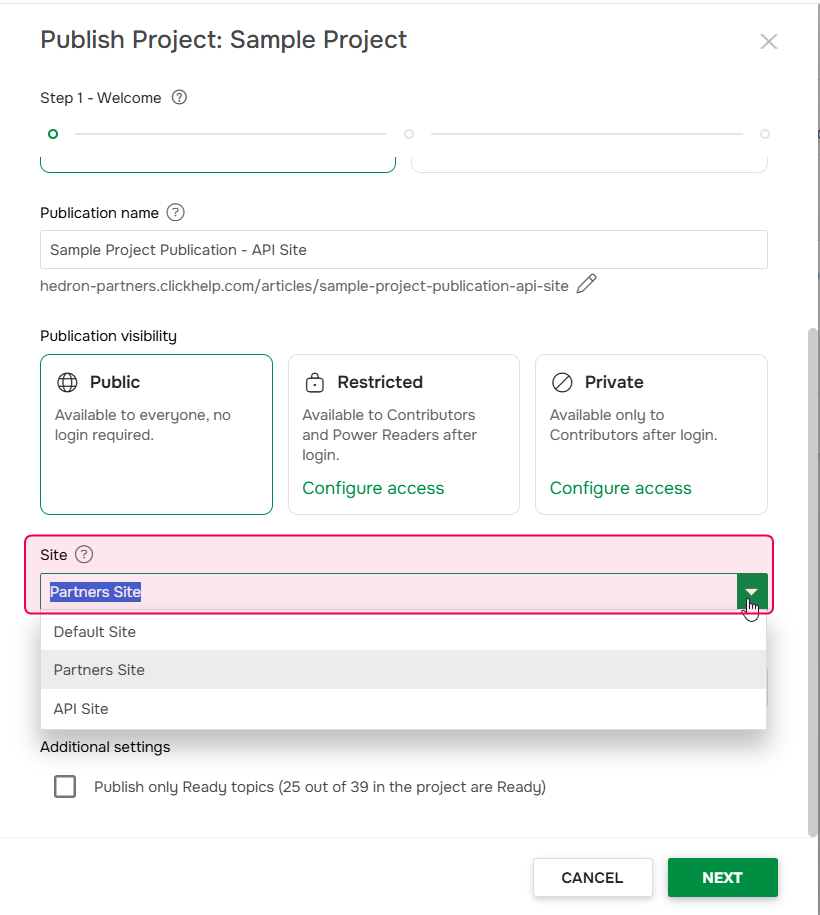
- Click Next to continue the publishing process.
After the publishing is finished, you can copy a link to a publication using the Link button on the Projects page.
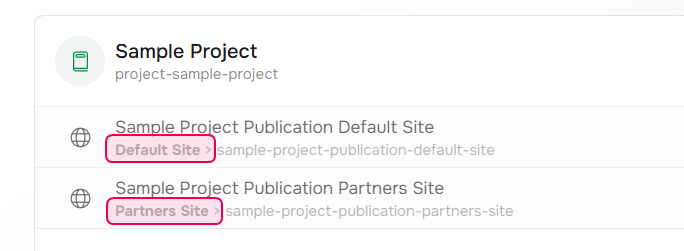
The publication will be available only on the selected site. On the Projects page, you will see the associated site listed directly on the publication's card:
Assign Publication to a Site in Publication Settings
To change or choose the site for an existing publication, do the following:
- On the projects page, hover over the desired publication.
- Click the three-dot icon (⋅⋅⋅) and select Settings in the menu.
-
On the Basic Settings screen select the needed site in the Site field.
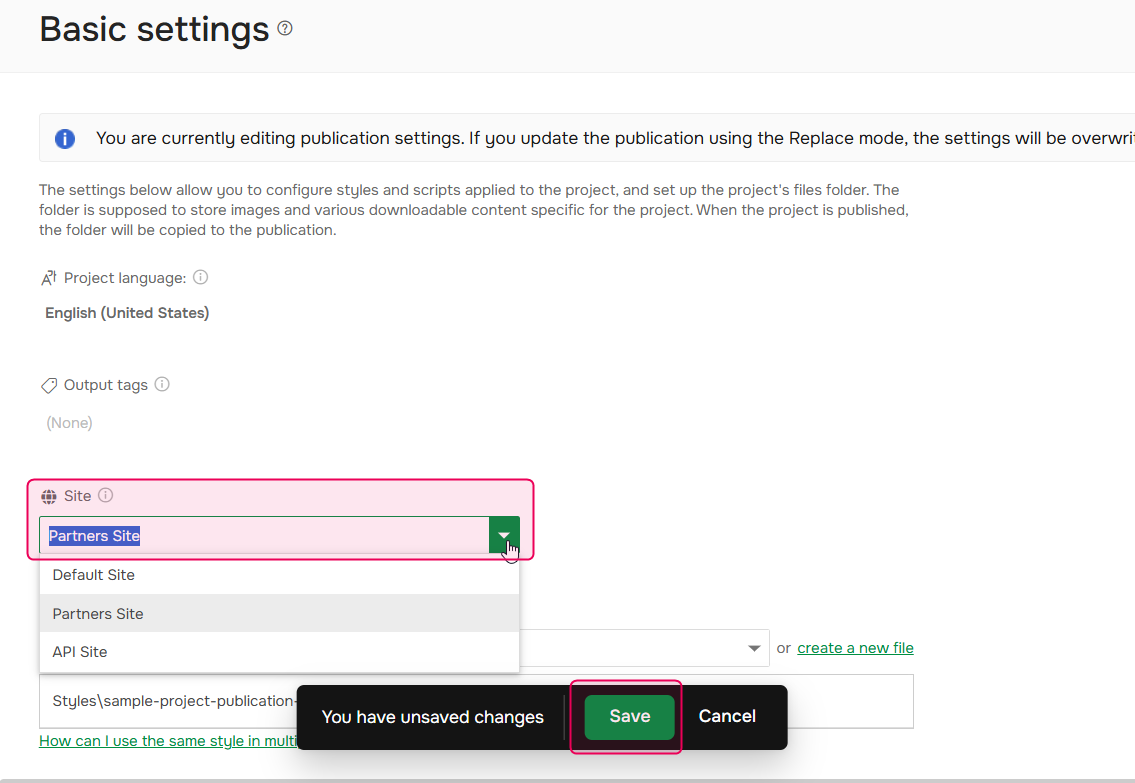
- Save the changes.
After this, the publication becomes available on the selected site, and the direct links to the publication will change accordingly.
Select Default Publishing Site for a Project
Since projects are always located at the Default site, you cannot assign them to a particular site. However, you can define which site is set as a default option for publications of this project.
- On the projects page hover over the needed project.
- Click the gear icon to open Settings.
-
On the Basic Settings screen, select the needed site in the Default publishing site field.
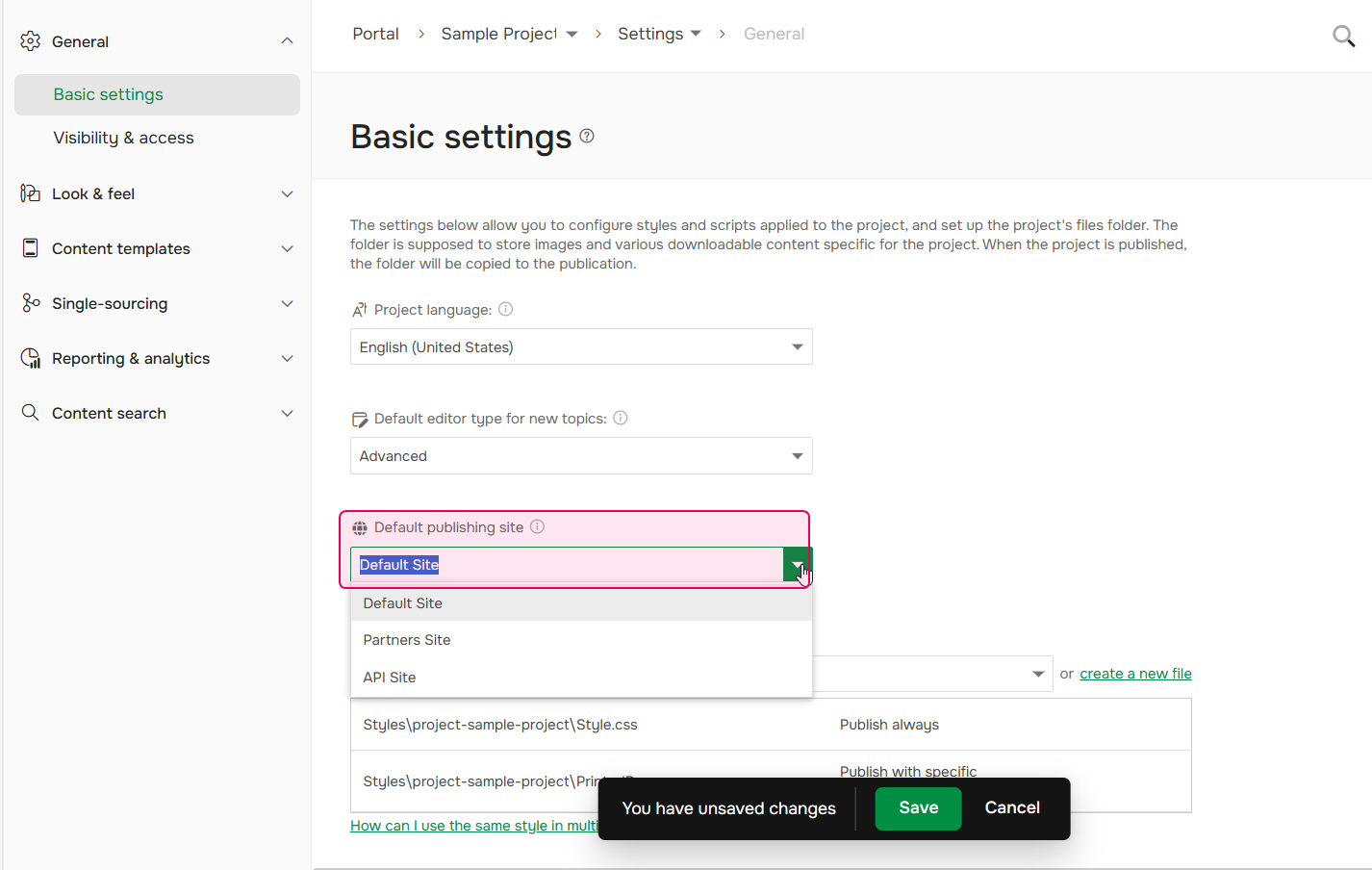
- Save the changes.
After this, you will see this selected site appear as the default option during the publishing process.
|
This change doesn't affect the existing publications; they will remain associated with their previously selected sites. You can select a new site for them in the publication settings. |