| The full publishing process is explained below. To quickly publish topics directly from the Author UI, see Publish Topics Directly from Topic Editor. |
To create a Publication, you need to follow these steps:
- Navigate to the Projects page.
- Hover over a project you want to publish and click the Publish button.
-
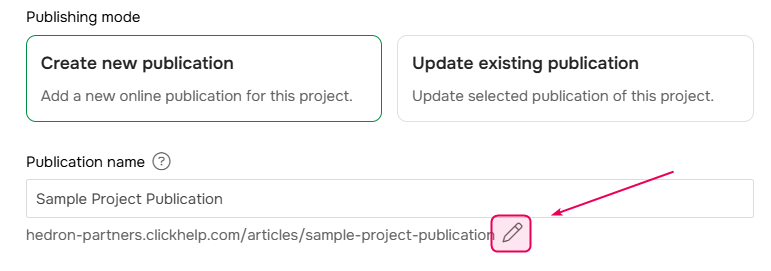
In the Publish Project Wizard specify a name for the Publication — this name will be visible to readers.
-
If needed you can change the automatically generated publication ID (URL). To do this, click the Edit button and specify the Publication ID.
-
If needed you can change the automatically generated publication ID (URL). To do this, click the Edit button and specify the Publication ID.
-
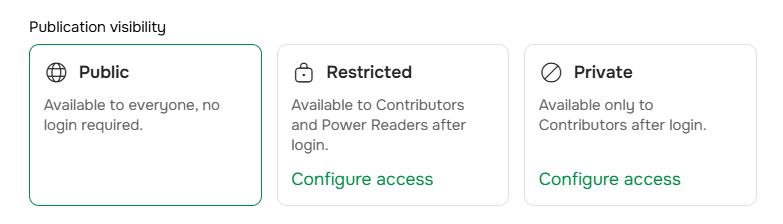
Set Publication visibility. It can be Public, Restricted, or Private:
- If you have additional documentation sites on your portal, choose the Site.
-
You can manage your Project's conditional content by using Output Tags.
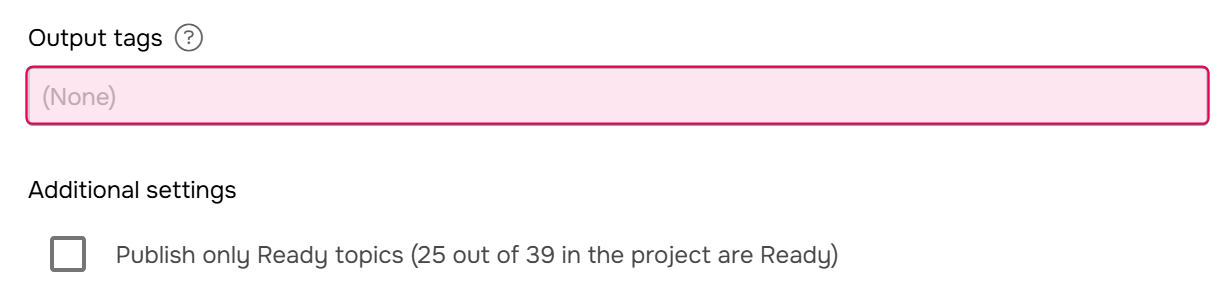
- Choose whether you need to publish only topics in the Ready status or all topics.
- Click Next and wait for the Publication to be created.
- On the final step, you will be provided with the link to your newly created Publication and links to the Style files copied from the Project.
- Click Finish or Open publication.
After you click Finish, you will see the new Publication on the Projects page. You can copy a link to it using the Link button.
| If you have links to topics that are not being published in the current operation (for example, in case of the Partial Update), they will be converted to Smart Links. |
What happens if a topic has been changed during publishing?
Publishing is not an instant process and can take some time. First, the system will gather a list of all the topics to be published, and then start copying them into the publication one by one. During this time, a topic can be changed. If that happens, ClickHelp will show a warning in the publishing log.
-
If you are publishing only Ready topics, and during the publishing a topic's status has been changed, ClickHelp will show this warning in the log:
The status of the X topic has been changed during the publishing process. The topic is no longer in the Ready status. The topic was published, but we recommend that you check the topic's contents in the publication: Y. -
If a topic is locked at the time it is being published (someone is editing it, for example), ClickHelp will show this warning in the log:
The X topic is currently locked by XYZ. The topic was published, but we recommend that you check the topic's contents in the publication: Y.
In both scenarios, the topics will be published. In the first case, the content has most likely not changed, whereas in the second case, someone might have edited the topic content, and a modified (and most likely unfinished) version may be published instead of the one you intended to publish.
In this case, go to your project and find the topic in question. Roll it back to the previous version, publish that single topic, and then roll it back again to the modified version so work can continue.