ClickHelp provides a simplified publishing flow directly on the Topic Editor, so you don’t need to switch to the Projects page. With this approach, you can publish content in just a few clicks: select a topic, confirm a few settings, and return to the editor within seconds.
The simplified publishing process can be triggered by clicking Publish This Topic or Select Topics to Publish in the Author UI.
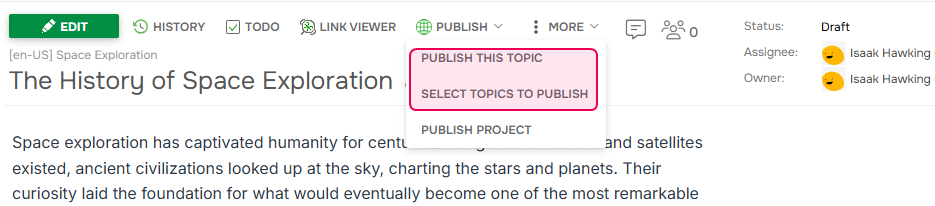
The publishing behavior depends on whether your project already has publications. There are three main scenarios, as well as an option to export topics:
|
If you need more control over publishing settings, click Open Advanced Publishing to switch to the full publishing wizard. |
No Publications (First Publication)
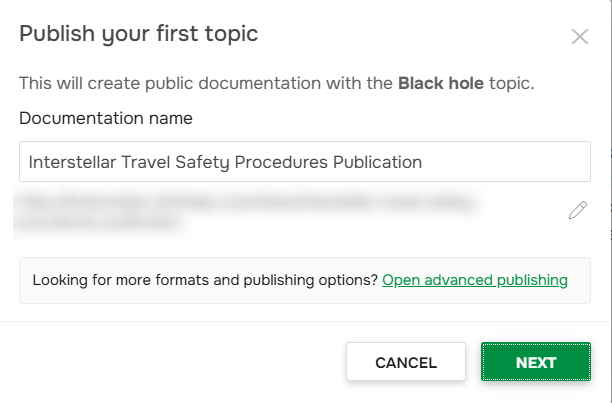
If your project has no publications yet, ClickHelp creates one with default settings:
- Output type: Online documentation
- Publication visibility: Public
- Output tags: None
Only the current topic or the selected topics will be published.
One Existing Publication
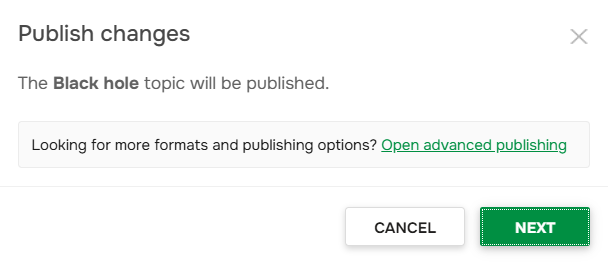
If your project has one publication, it is updated automatically using its current settings:
- Publishing mode: Update existing publication
- Publication visibility: Taken from the existing publication
- Output tags: Taken from the existing publication
- Update mode: Partial update
The following options are not applied:
-
Replace publication styles
- Replace publication scripts
-
Replace publication settings (icons, order, and visibility in the publication list)
Only the current topic or selected topics are published.
Multiple Publications
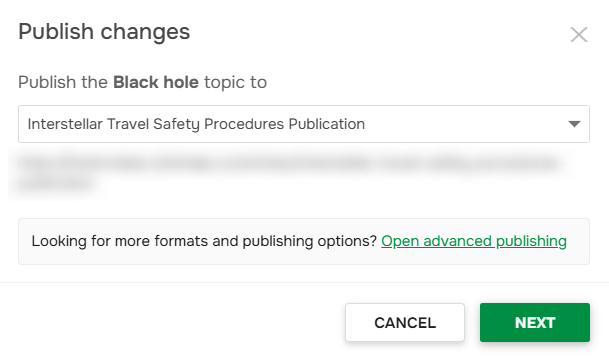
If multiple publications are available, the wizard works the same way as in the previous scenario. You can select which publication to update.
Your last selection is saved, so you don’t need to choose the same publication every time.
Exporting Topics
You can also export one or more topics using the advanced publishing options:
- Click Publish this topic or Select topics to publish.
- If you want to export multiple topics, select them in the TOC and click Publish Selected.
- Click Open Advanced Publishing.
You will be redirected to the full publishing wizard, where you can choose the required Output type (for example, PDF or Web Help) and other settings.