While a multi-site setup offers excellent flexibility for managing multiple brands and audiences, it does come with certain architectural boundaries. Below is a breakdown of current limitations, organized by category.
Site Management
- Sites cannot be deleted. Once created, a site can only be disabled, and this is only possible if no publications are currently assigned to it.
- All sites have the same server region. You cannot host different sites within the same portal on servers in different geographical regions.
- Custom SSL certificates are not available on ClickHelp subdomains. Sites hosted on a ClickHelp subdomain always use a Let's Encrypt certificate. To use your own certificate, host the site on your own domain.
-
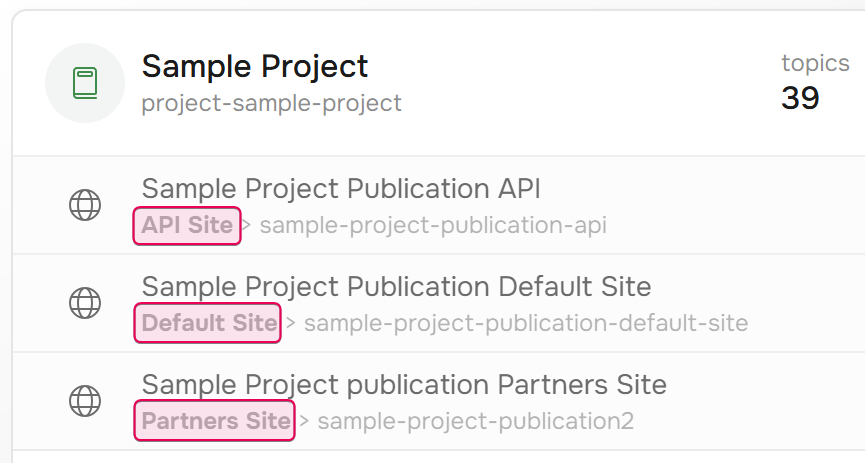
No combined view of all projects or publications for a site. There is no dedicated dashboard that shows a unified list of all publications assigned to a specific site. However, on the Projects page, you can easily identify which site a publication belongs to by looking at the site tag displayed beneath the publication's name.
Content and Linking
- Single-site publication assignment . A single publication cannot be assigned to multiple sites at the same time. If you need identical content on two different sites, create a separate publication for each.
-
Headers and footers are shared within a project. You cannot configure different headers and footers for publications on different sites within the same project. To vary the output, use conditional blocks within your topics and assign separate publications to separate sites.
- Project and publication IDs must be unique across the portal. You cannot have multiple projects or publications with the same IDs, even if they are on separate sites.
- Cross-site linking is not supported in the Topic editor. Links inserted via the Topic Editor use root-relative paths and only route readers within the current site. Linking to a topic on a different site will result in a broken link or a 404 error.
- Universal and Smart links work only within one site. Universal Links and Smart Links do not redirect from one site to another.
-
Domain limitations for link generation. Links generated in the Topic editor use the default publishing site domain specified in the project settings.
To obtain a link for a publication on another site, copy the generated link and manually replace the domain with the target site's domain. - Context Help is restricted to the default site. Context Help popups and iframe panels are tied to the default site domain. Because Smart Links cannot redirect across domains, ClickHelp does not support Context Help for publications hosted on non-default sites.
Users, Permissions and Authentication
-
No site-level permissions. You cannot grant a user bulk access to all publications on a specific site. Access control is managed strictly at the project or publication level.
To simplify access management, group users into Access groups. When assigning a new publication to a site, add it to the relevant access group at the same time. - Authentication is domain-specific. Authentication cookies and tokens are tied to individual domains, meaning users must log in to each site separately. Furthermore, Contributors can only work on the default site. Single Sign-On (SSO) adheres to this same per-site logic. Learn more: Authentication across documentation sites.
- Default login method is portal-wide. The default login method — whether ClickHelp native login or a specific SSO provider — is configured once for the entire portal and cannot be set differently per site.
Templates and Reporting
-
Email templates are shared portal-wide. Email notification templates apply globally across the entire portal and cannot be customized per site.
Keep your email templates neutral by avoiding site-specific branding, logos, localized text, or domain-dependent images. -
Reporting for separate sites is not available. Reporting does not support consolidated reports for an entire site. Generate and analyze reports at the project or publication level.