This guide explains how to set up multiple Documentation Sites where each site has its own branding and delivers its own content. A Documentation Site can host publications of different projects, different publications of the same project, or a translation of content published on another site — whatever fits your portal structure.
There are two scenarios:
- Scenario 1 — With Translations. Use this when both Documentation Sites are language versions of the same documentation maintained in a single source project using ClickHelp’s translation workflow.
- Scenario 2 — Without Translations. Use this if the documentation sites host unrelated content or content in different languages maintained as independent projects.
In the steps below, Site A and Site B refer to two Documentation Sites in the same portal.
Scenario 1: With Translations
In this scenario, Site A provides content in the source language, and Site B serves a translation of the same content. The example below uses English as the source language and French as a translation. If you've already completed any of the steps (for example, you already have a project or publication), simply skip them.
- Create a source project in English: Create a Project. Then create a translation project in French as described here: Create a Translation Project.
-
Create Sites A and B. Instruction can be found here: Adding a site.
The order of steps 1 and 2 does not matter — you can create the second site first and prepare content afterwards. -
Create a publication from the source project and assign it to Site A.
If you have an existing publication that you want to assign to Site 1, you can specify the desired site in the publication settings. - Create a translation publication linked to the publication on the Site A, and assign the translation publication to Site B.
-
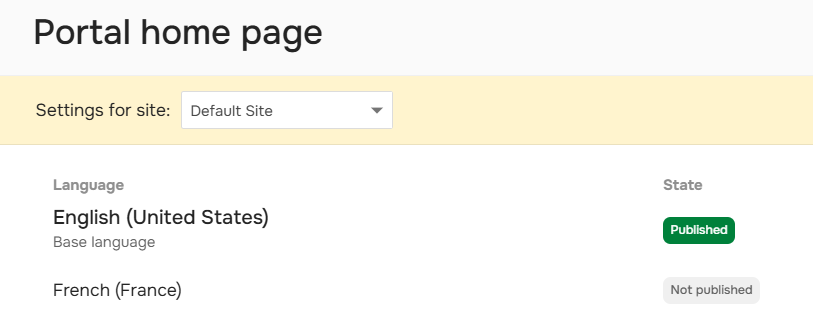
On Site A, create a home page in English and publish it. Make sure the French version of the home page on Site A is not published — otherwise, readers may land on it through language detection or direct links.
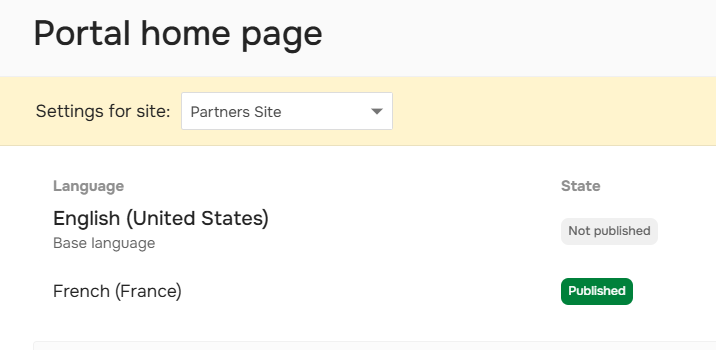
- On Site B, the home page in English should exist. You can write the content there in French — what matters is that, by settings, the page is registered as the English-language version. Do not publish this home page.
- Translate the Site B home page into French. Skip this step if you already wrote the content in French in the previous step and only need to make sure the French version exists in the system.
-
Publish the French version of the home page on Site B. The English version on Site B should be unpublished. To learn how to unpublish, refer to this article: Unpublish Home pages.
-
Configure site-specific settings for Site A. See Site-Specific Settings. Review the following:
- Look & feel: Reader interface, header logo, reader menu, reader feedback, portal home page, login page, topic not found page, project not found page.
- Search and AnswerGenius behavior: In this case, you may want Search and AnswerGenius to work only within the current site. See Search and AnswerGenius configuration topics to learn how to set this up.
- Repeat step 9 for Site B, this time tailoring each setting to the French-language reader experience.
After this, you can have two separate documentation sites with different home pages and content:
| Site A | 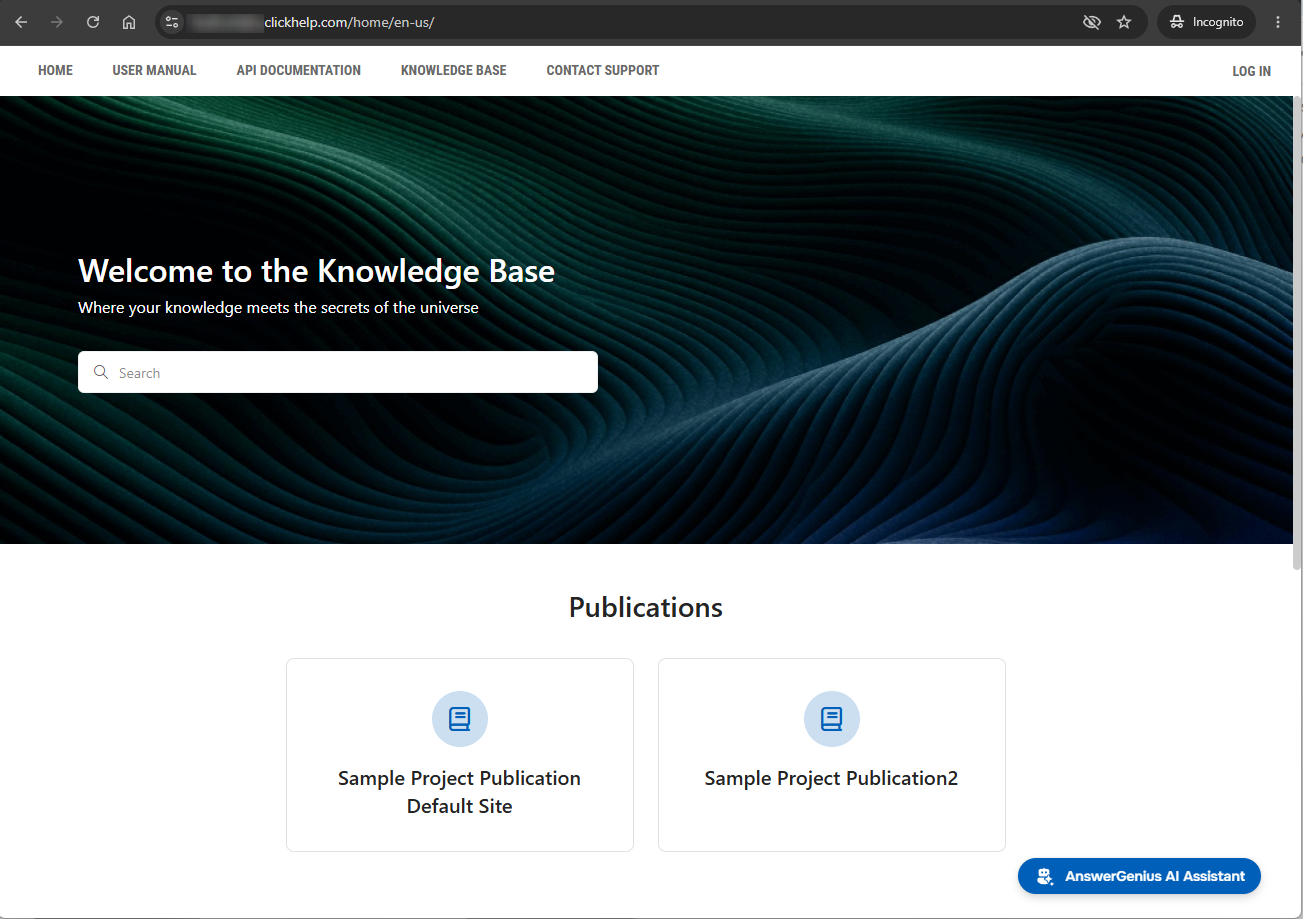 |
| Site B | 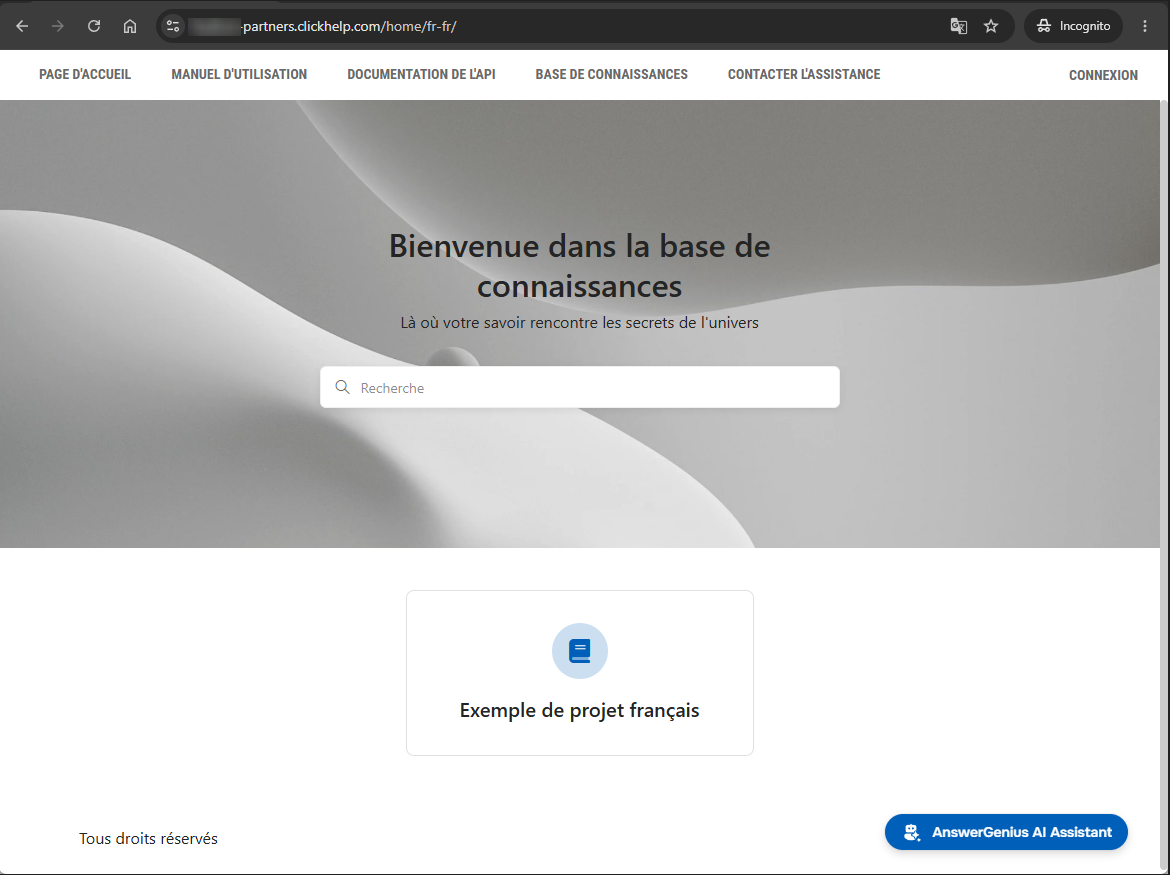 |
Scenario 2: Without Translations
In this scenario, Site A and Site B serve unrelated content, or content in different languages maintained as independent projects. If you've already completed any of the steps (for example, you already have a project or publication), simply skip them.
- Create the first project for Site A.
- Create the second project for Site B.
- Create Sites A and B in the same portal. The order of project creation and site creation does not matter — you can create the second site first.
-
Create a publication for the first project and assign it to Site A.
If you have an existing publication that you want to assign to Site 1, you can specify the desired site in the publication settings. - Create a publication for the second project and assign it to Site B.
- On Site A, create a home page and publish it.
- On Site B, create a home page and publish it.
-
Configure site-specific settings for Site A. Review the following:
- Look & feel: Reader interface, header logo, reader menu, reader feedback, portal home page, login page, topic not found page, project not found page.
- Search and AnswerGenius behavior: Decide whether search and AnswerGenius should cover the entire portal or stay within the current site. See Search and AnswerGenius when using additional Documentation Sites.
- Repeat step 8 for Site B, tailoring each setting to that site's audience.
- (Optional.) If Site B serves content in a different language than Site A, review the publication's language settings and the corresponding site-specific custom pages (login page, topic not found page, project not found page) to make sure they are in the correct language.