A Word template defines the layout of your printed output, with its very first page serving as the cover. When you export a project or a publication using an Export Preset based on a Word template, ClickHelp automatically uses this page as the cover of the resulting PDF or DOCX file.
The default cover page contains the {{TITLE}} placeholder, which is replaced with the publication name during export. You can customize this page — restyle the title, add a logo, a background, or a date. Every subsequent export based on this preset will pick up your changes automatically.
- Prerequisites
- Editing the Cover Page in the Word Template Editor
- Editing the Cover Page in Microsoft Word
- Common Cover Page Adjustments
- Styling the document title
- Adding a logo
- Positioning elements precisely
- Headers, footers, and backgrounds
Prerequisites
Before you start, make sure you have the following:
- An Export Preset based on a Word template.
- A template file (usually located in Storage/Templates/Export/Printed). We recommend copying a default template and editing the copy, so you always have the original file to fall back on.
You can choose your preferred editing tool: the built-in Word Template Editor is faster for quick text and styling adjustments, while Microsoft Word provides a full suite of advanced layout tools.
Editing the Cover Page in the Word Template Editor
To customize the cover page without leaving your portal:
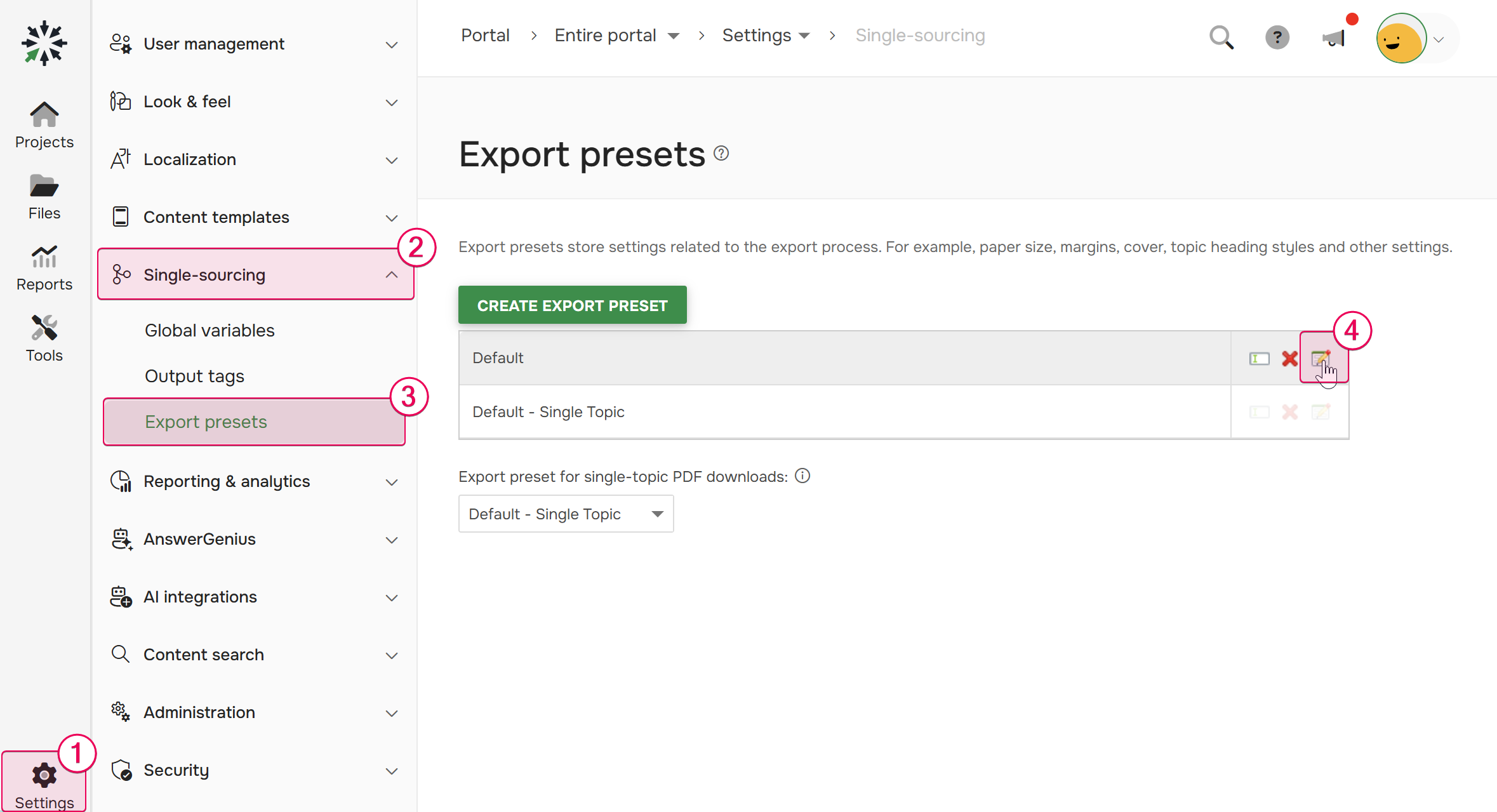
- Go to Settings → Single-Sourcing → Export Presets.
-
Hover over the preset that uses your template and click Edit.
- On the first step of the Export Preset Editor, click Edit template. The file will open in the Word Template Editor in a new browser tab.
- Edit the first page of the template and save the changes.
- Return to the Export Preset Editor and click Next to proceed to Step 2. Then click Finish.
Editing the Cover Page in Microsoft Word
If you need advanced layout control, edit the template file itself:
- In the File Manager, download the template file (usually located in Storage/Templates/Export/Printed).
- Open the file in Microsoft Word and design the first page. You can also restyle Template placeholders.
- Save the file and close Microsoft Word.
- Upload the file back to Storage/Templates/Export/Printed, replacing the original.
Common Cover Page Adjustments
The following customization techniques apply whether you are using the Word Template Editor or Microsoft Word.
Styling the document title
The {{TITLE}} placeholder is replaced with the publication name on export, so you style the placeholder text itself:
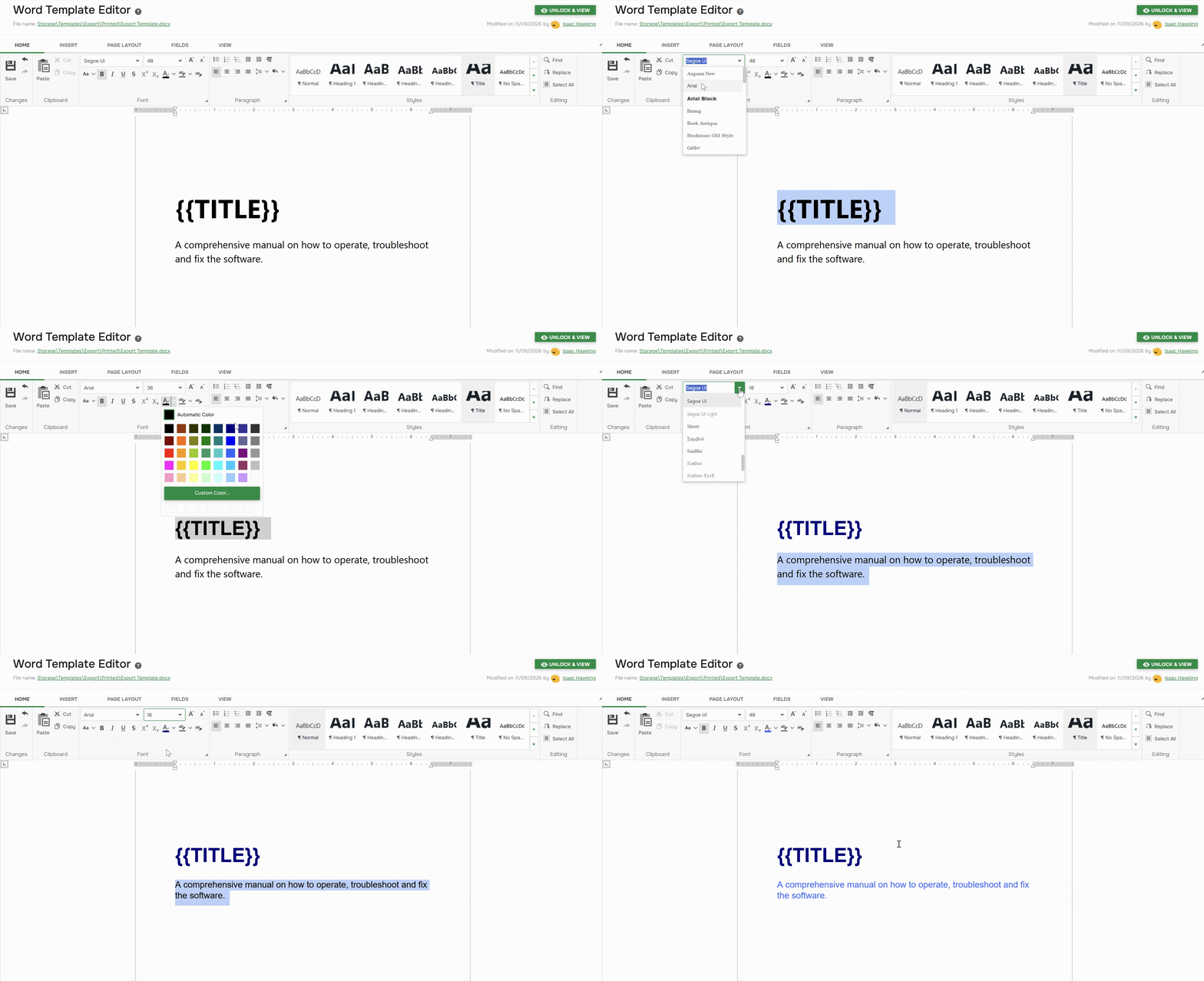
- Select the {{TITLE}} text on the first page.
- Choose your preferred font family, color, and size.
- Optionally, add a subtitle line below the title (e.g., "User Manual" or a product name). Use a smaller font size and a lighter color.
Adding a logo
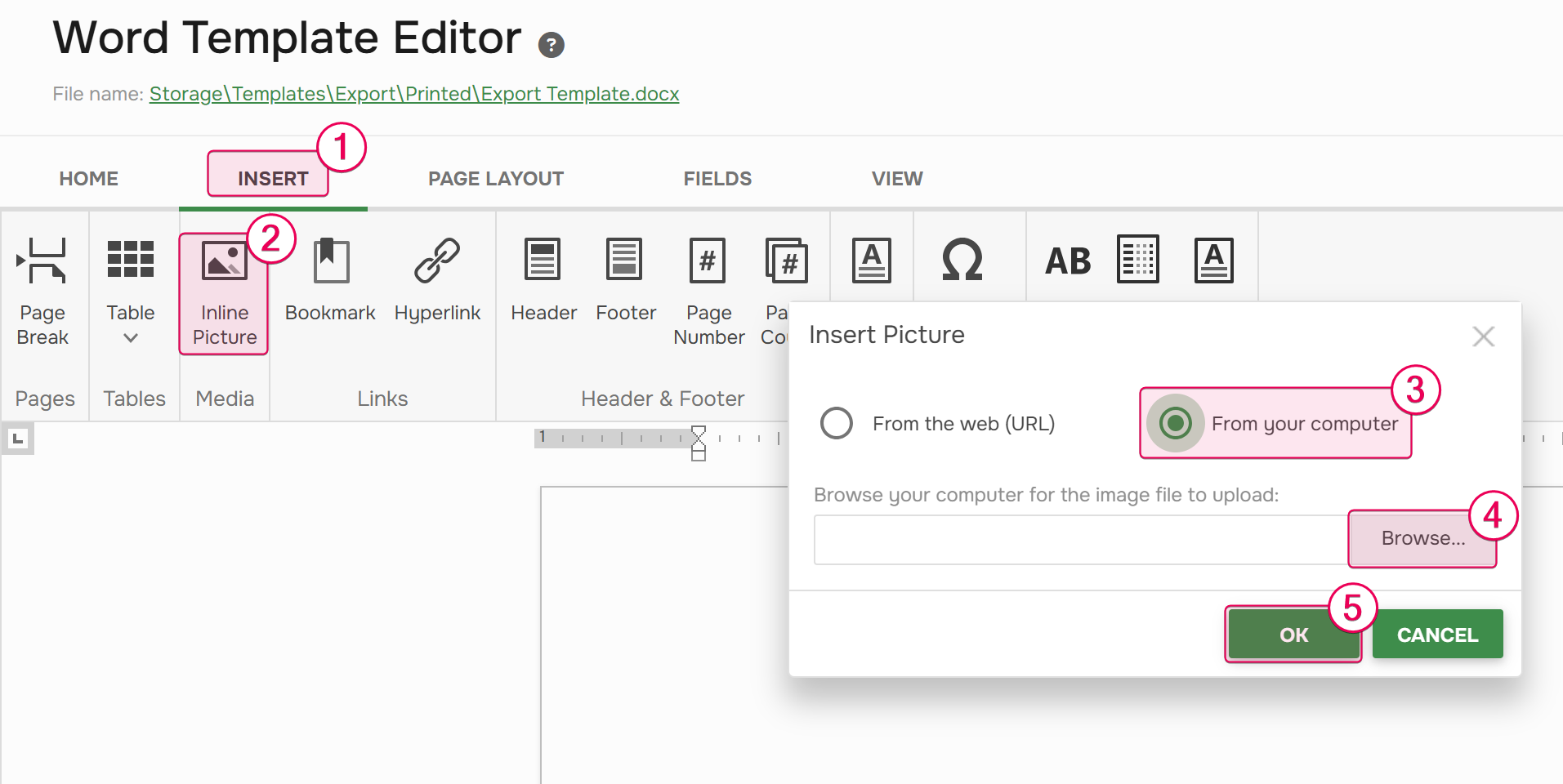
- Place the cursor on the first page and go to Insert → Inline Picture → From your Computer.
-
Select your logo file. A PNG with a transparent background works best.
- Drag the logo where you need it — usually the top-left corner or centered above the title — and resize it by the corner handles to keep the proportions.
Positioning elements precisely
Text boxes let you place content anywhere on the page, independently of the text flow:
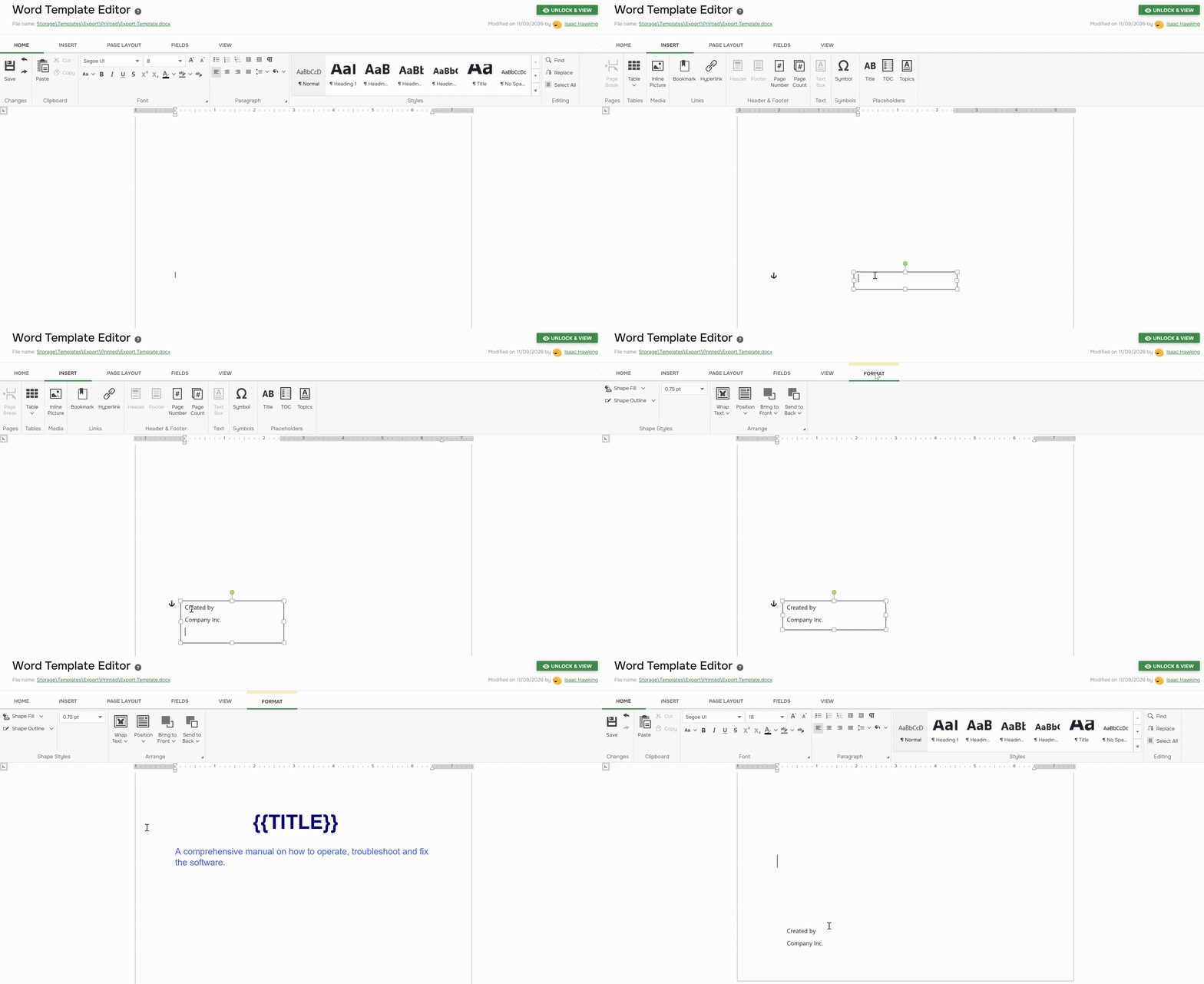
- Go to Insert → Text Box. Move it where you want it to be.
- Type the content in the Text Box — it can be a version number, a date, or a company name.
- To hide the frame, select the box and go to Format → Shape Outline → Automatic color, and Shape Fill → No Fill if the cover has a background.
Headers, footers, and backgrounds
Cover pages typically do not display running headers or page numbers. If your template shows them on the first page, enable the Different First Page option and clear the header and footer. For more details, see Customize Headers and Footers in Word Templates.
Full-page backgrounds are also set through the first-page header. For a step-by-step guide, see Set Custom Background Image in Word Template.
Once configured, every document exported with this preset will start with your newly designed cover page.