The language-related settings can be found on Settings → Localization → Portal languages screen.
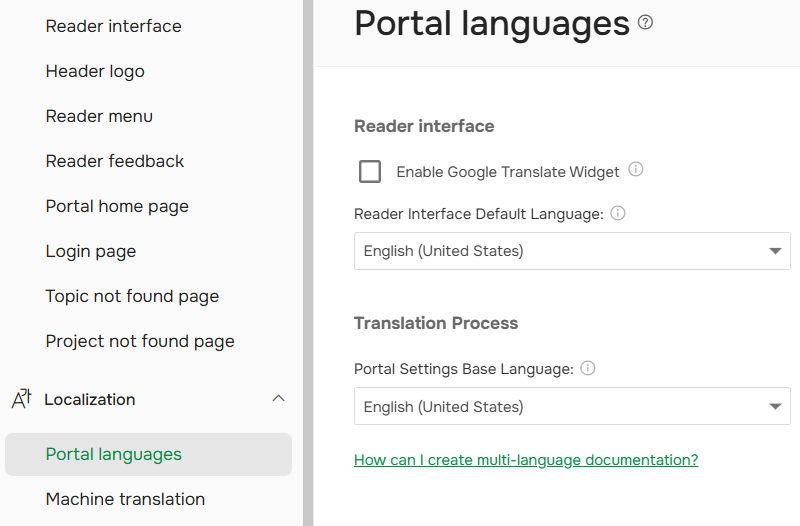
There are three different settings divided into two groups. Let's look at them in detail.
Reader Interface
These settings apply only to the Reader Interface, which means they will influence what your readers see.
Enable Google Translate Widget
Although you can create multi-language documentation, sometimes you can't present content in all languages that your customers speak. This is where Google Translate integration may prove useful. It allows your readers to see the content written in another language translated into the language of their preference with the help of Google Translate.
|
The Google Translate widget is a legacy third-party feature that Google deprecated and no longer actively supports or customizes. Starting September 2026, ClickHelp no longer provides technical support for this widget. This means we do not investigate, fix, or customize widget behavior, including issues with the language list, appearance, size, positioning, or availability. We recommend exploring built-in alternatives for a better multilingual experience. Learn more: Google Translate Widget Alternatives. You can still keep the widget enabled in your portal, but it is provided as-is. This does not affect ClickHelp Machine Translation features that use Google Translate. It also does not affect or control browser-based translation features, such as Chrome’s built-in page translation, which are managed by the browser. |
After you tick the check-box, readers will see the Google Translate bar in the Reader Interface of your online documentation portal. Being one of the top online translation tools, Google Translate has a variety of languages available:
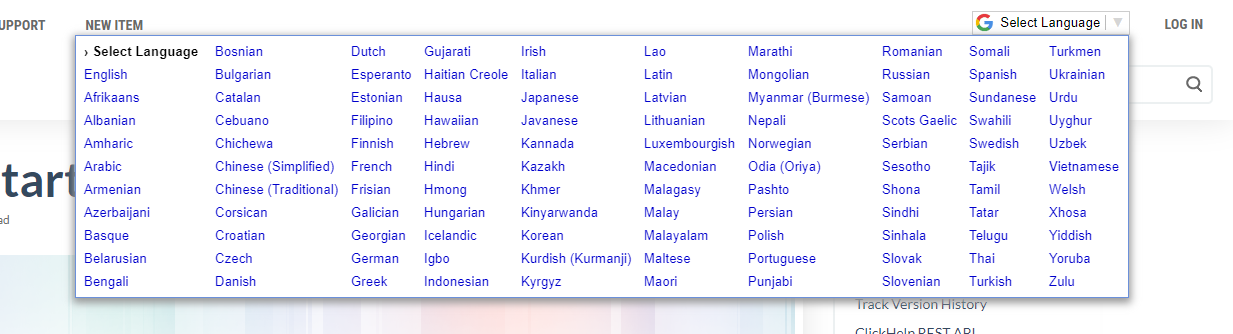
Readers can select any language from the list, and the Google translation engine will translate the whole page.
| If you want some parts of your content to not be translated by Google Translate widget, you can specify notranslate class for all such elements. You can read more here. |
Reader Interface Default Language
This setting lets you set the language which will be used as a fallback for all cases when the portal does not contain the content for the language requested by a user. You can choose from any languages that you have content in.
Since you can have content in different languages (not only topics, but also pages like Home Page), your portal will always try to show the content in the language that is the most relevant for a certain reader. However, if your ClickHelp portal has detected a language that you don't have content in, the user will be presented with the content in the default language.
Translation Process
Portal Settings Base Language
This setting lets you set up the default language which will determine the translation direction for all global translation entities (excluding content in your projects) — Home Page, 404 pages, Global Variables, etc. For example, setting this to English will mean that your main language is English and all settings, pages, etc. should be translated from English to other languages by default.